
Dashboard
The  Dashboard is the default page displayed after you log in to ESET PROTECT Hub. The dashboard shows pre-defined reports about your subscriptions and solutions. Each dashboard tile contains several reports and actions.
Customize the dashboard
The dashboard layout is dynamic and fully customizable. To adjust the dashboard layout, click the gear  icon in the top corner of the dashboard and select Edit layout. You can:
•Drag and drop tiles in the dashboard according to your preferences.
•Expand tiles by clicking the resize  icon on each tile and dragging the tile sideways.
•Discard tiles from the dashboard by clicking the trash  icon in the corner of each tile.
•Add widgets to the dashboard by clicking the add  icon in empty tiles. In the Add widget window, click the widgets you want to add to the dashboard.
To save your preferences, click the save  icon in the top corner of the dashboard. To return to the default layout, click the gear icon and select Reset layout, or click X.
To reload the dashboard data, click the gear icon and select Reload data. To refresh the dashboard, click the Refresh  button at the top.
Welcome
The Welcome tile includes quick setup actions based on your hierarchy role and account permissions:
•Add your purchased subscription or generate a trial subscription
•Activate ESET PROTECT Platform modules to deploy protection
•Invite users to manage your security
|
You can permanently close the Welcome tile at any time by clicking X. |

Alerts
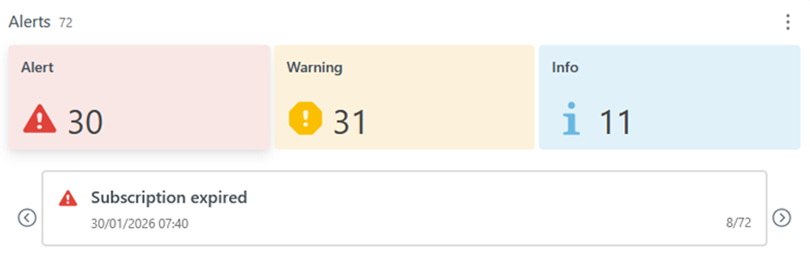
The  Alerts provide additional notifications related to ESET PROTECT Hub and their status. Alert statuses include Alerts, Warning and Info. The window above shows the date, time and alert description. To view a full list of alerts and their details, click the three dots
  icon and select View All to go to Alerts.
ESET PROTECT Platform
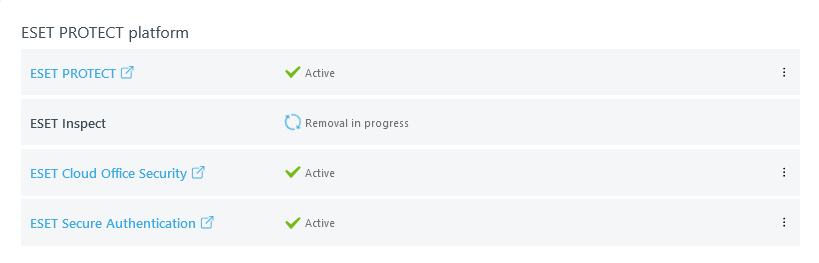
In ESET PROTECT Platform, you can see the ESET PROTECT Platform modules available to you and their status (active or inactive).
To see the module details, access its Online Help or remove the module, click the three dots icon on the module bar. To open the module directly, click the module name.
|
You can only add, activate or remove ESET PROTECT Platform modules when you are logged in as a superuser. |
Subscription usage
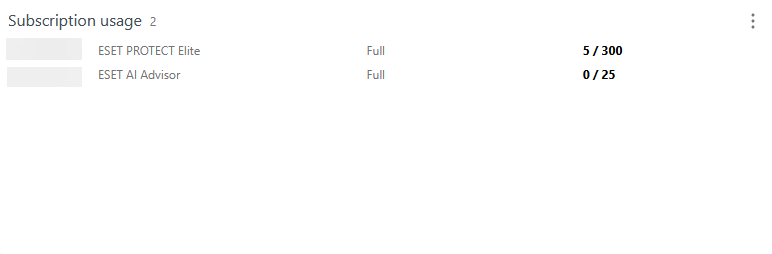
Subscription usage shows the number of subscriptions available and used over time. To see more details, click the three dots icon and select View All to go to Subscriptions. If you have not added a subscription to your ESET PROTECT Hub account, you can select:
•Add subscription—Type the activation key to your ESET PROTECT Hub to start using a purchased subscription.
•Buy subscription—Purchase a subscription online.
Platform modules

The Platform modules tile displays the available ESET services that you can order and their status:
•ESET MDR
•ESET MDR Ultimate
To view details, learn more, or remove the module, click the three dots icon on the module bar. To access the module directly, click the module name.
ESET Support news
This section displays a news RSS feed from the ESET Knowledgebase Portal.