Subscriptions
The  Subscriptions section provides a comprehensive overview of all subscriptions added to your ESET PROTECT Hub.

Main panel
The main panel displays an overview with detailed information spread across multiple columns.
|
No subscriptions to display If you have not added a subscription to your ESET PROTECT Hub account, you can select: •Add subscription—Type the activation key to your ESET PROTECT Hub to start using a purchased subscription. •Buy subscription—Purchase a subscription online. •Start free trial—Start a 30-day free trial of ESET PROTECT Advanced. |
Filter subscriptions
Use filters at the top of the screen to filter subscriptions. To add filtering criteria, click Add Filter and select a filter type from the the drop-down menu or type the search string and press Enter. Active filters are highlighted in blue. See Using ESET PROTECT Hub for more details on managing filter presets and adjusting the main table view.
You can filter by:
•Subscription code—Unique subscription identifier.
•Subscription—Offering name.
•Subscription type (MSP subscriptions only)—Full, Trial or Not for resale.
•Status—Click a status icon to view subscriptions with a specific status. You can select multiple status icons. Click the selected icon again to remove it from the filter.
Icon |
Status |
Description |
|---|---|---|
|
OK |
The subscription is OK. |
|
Close to expiration |
The subscription will expire in less than 14 days. |
|
Waiting for verification |
Waiting for the confirmation of a verification link delivered to the email address of the subscription owner. |
|
Verification expired |
The verification link delivered to the email address of the subscription owner has expired. Send a new verification email via Users. |
|
Expired |
The subscription expired. |
|
Close to overuse |
The subscription usage exceeds 90%. |
|
Overused |
The subscription usage exceeds 100%. |
|
Suspended |
The subscription is suspended, and solutions activated by it no longer receive updates. |
|
Canceled |
The subscription is canceled and not valid anymore. |


•Owner—Subscription owner's name.
•Valid from and Valid until—Filter by validity.
Navigate the main table
Click the expand  icon to display all the solutions under a specific subscription. Click the subscription code to see the subscription details.
Click the three dots  icon next to the subscription code to perform actions depending on the subscription category and status. Select from:
•Show details—Show subscription details.
•Increase subscription capacity—Only your reseller can increase the subscription capacity. If you are not sure who your reseller is, you can find their name in the Reseller column of the main table.
•Allocate quantity to sites—Allocate available subscription units to the site.
•Show active units—Show the active units.
•Create offline activation file—A window will display where you can create an offline activation file.
•Synchronize subscription—Retrieve the latest subscription data.
•Renew subscription—Only your reseller can renew a subscription that is expired or close to expiration. If you are not sure who your reseller is, you can find their name in the Reseller column of the main table.
•Resend verification email—Resend an email with a verification link to the email address of the subscription owner.
•Convert to full subscription—Convert a trial subscription to a full subscription.
•Remove subscription—Remove the subscription.
Add or remove a subscription
To add a new subscription, click Add subscription at the bottom of the main table.
To remove a subscription, click the three dots icon next to the desired subscription and click Remove subscription. Alternatively, select the check box next to the subscription and click the Actions button > Remove subscription.
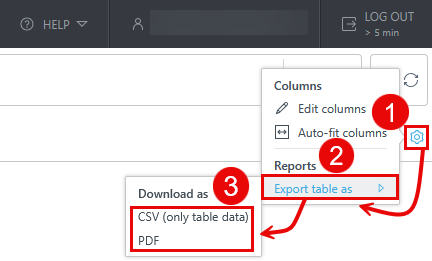
Export the Subscriptions table
You can export the table as CSV (only table data) or PDF:
1.Click the gear  icon in the main table header.
2.Select Export table as.
3.Click the desired format.