
Subscription details
Subscription details provide essential information about subscriptions, their status, associated solutions, and available actions.
Subscription categories
Subscriptions can be categorized by:
•Offering hierarchy
oStandalone—Independent subscriptions that provide access to a specific solution or service, and are not linked to other subscriptions.
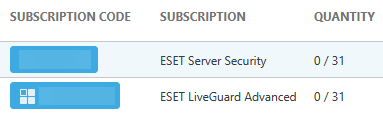
oOffering tier—Subscriptions are part of a structured model in which multiple subscriptions are grouped under a parent subscription. A tier  icon next to the subscription code indicates an offering tier.
View subscription details
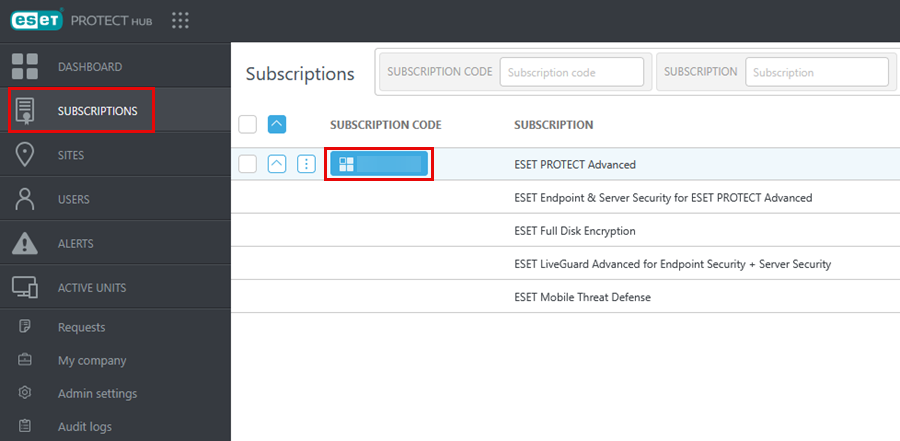
Navigate to the Subscriptions section. Click the appropriate subscription code in the Subscription code column. Alternatively, click the three dots  icon next to the subscription code > Show details.
Subscription details are grouped into tabs. The availability of tabs depends on the subscription category and your company role. The following tabs are available:
Overview
The Overview tab displays the basic subscription details:
•Subscription code—Unique subscription identifier.
•Status—Subscription status.
•Quantity—Shows the number of activated subscription units out of the total number of ordered units.
•Owner—Subscription owner's name.
•Activation key—The activation key is hidden by default. You can display the activation key by clicking Show activation key and authenticating with your ESET PROTECT Hub password.
•Activated—Shows the date of subscription activation.
•Validity—Shows the date when the subscription expires or expired, depending on the subscription status.
Click the Actions button at the bottom to perform actions. The availability of actions depends on your company role and the subscription category and status. This section lists only the actions that are not available from the Subscriptions main panel. Select from:
•Show solutions—Show the Solutions tab.
•ESET Secure Authentication SDK—Generate a unique API key and API secret to use in ESET Secure Authentication SDK.
Solutions
The Solutions tab shows list of solutions, their status, and their quantity. You can filter by the Solution name, Quantity, and Status (Active, Suspended, Waiting for verification, Inactive).
Click the three dots icon next to a solution to:
•Show active units—Display active units.
•Show offline activation files—Display offline activation files.
•Create offline activation file—A window will display where you can create an offline activation file.
Active units
The Active units tab displays a list of active subscription units for this subscription. ESET PROTECT Hub lists active subscription units after you activate solutions for assets using the subscription. You can filter by Unit name, Solution, Active since, Last active before, Managed remotely, Offline. See Active units for more details.
Sites
The Sites tab displays a list of sites associated with the selected subscription. You can allocate subscription units to sites by specifying quantities.
1.Click the expand  icon next to the solution, and the site with subscription unit quantity will be displayed.
2.Type the desired subscription unit quantity number in the Quantity column. You can allocate the same subscription unit quantity to each of your solutions by clicking the Split equally button or set the quantity to 0 for all sites by clicking the Unallocate all quantity button.
3.Click the Save button at the bottom to save changes.