Sites
The  Sites section contains information about different organizational units within the company. Users can be assigned to specific sites. If a user is assigned to a specific site, they can only manage subscriptions assigned to that site.
Click the three dots  icon in the top corner to open the side panel where you can see the Tags. Click the Hide side panel icon to hide the side panel.
In the main table, you can see the list of sites with the following filters:
•Site—Site name.
•Status—Displays OK, Warning or Error status.
•Quantity—The number of sites available and allocated.
•Location—The site location.
•Description—Type the details about a site.
•Tags—A drop-down menu with established tags.
To add filtering criteria, click Add Filter and select a filter type from the the drop-down menu or type the search string and press Enter. Active filters are highlighted in blue. See Using ESET PROTECT Hub for more details on managing filter presets and adjusting the main table view.
Manage sites
|
ESET Secure Authentication does not support quantity allocation to sites. You can use quantity allocation only with ESET Secure Authentication On-Prem. |

Click the three dots  icon on the site to see:
•Show details—See Site details. Click Edit to edit site details.
•Tags—Display a list of the available tags. Add or remove tags by typing the text into the window and pressing Enter. Click Apply to save changes.
•Edit details—See edit site details.
•Show subscriptions—See the list of subscriptions associated with sites. Click the three dots icon next to the subscriptions to perform the following actions:
▪Show active units—See Subscription details > Active units.
▪Show offline activation files—Display the offline activation files.
▪Show details—See subscription details.
•Allocate quantity to sites—Allocate available subscription units to the site. You have a list of available solutions and can distribute the desired subscription unit quantity per site. You can filter the subscriptions by Subscription code, Solution, Status, Subscription type and Owner.
•Show user access rights—Display a user's access, review the solutions they can access and determine if Two-Factor Authentication (2FA) is enabled.
•Remove—When you remove the site from your company, all subscription units allocated to this site will become available again at the company level.
|
Move a remotely managed unit to a site The Move to site action is not available for units that are managed remotely via ESET PROTECT. Remotely managed units display Yes in the Managed remotely column of the To assign a remotely managed unit to a site, re-activate the unit by running the Product Activation task in ESET PROTECT, and select the appropriate |


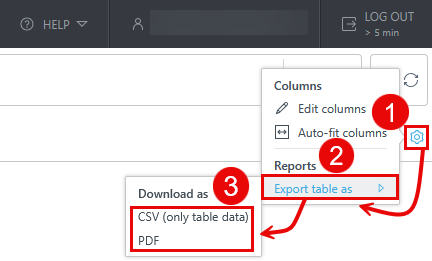
Export the Sites table
You can export the table as CSV (only table data) or PDF:
1.Click the gear  icon in the main table header.
2.Select Export table as.
3.Click the desired format.