Using ESET PROTECT Hub
ESET PROTECT Hub is the central gateway to the ESET PROTECT unified security platform. It provides centralized identity, subscription and user management for all ESET platforms and all platform users. ESET PROTECT Hub brings together functionality from multiple services and tools in one place, making it easier to manage security across the system.
Key principles of ESET PROTECT Hub:
•Easy navigation—Use a single sign-on to access all ESET solutions and ESET PROTECT Platform modules.
•Keep track of security subscriptions—Managing usage, status, and details of subscribed services.
•Control user access—Set permissions for different ESET solutions based on roles.
•Business insights—Resellers can view dashboards, graphs and reports to better understand their business.
ESET PROTECT Hub Web Console standard layout
•When you log in, the Dashboard opens automatically. You can also access it by navigating the Dashboard section or clicking the ESET PROTECT Hub logo.
•The main menu is always on the side. To expand the menu on the side of the screen, click the Expand  icon. To collapse the menu click the Collapse
  icon.
icon.
•Click Submit feedback to share ideas or report issues. You can also access this option via Help > Submit feedback.
•The logged-in user is displayed at the top next to the user  icon. Click the
  Log out to sign out.
•Within the log out button, you will see the remaining time before your session expires and you are logged out. You can adjust the idle session timeout in the Admin settings.
•To change user or security settings, click your username in the top corner of the ESET PROTECT Hub Web Console.
•For assistance with ESET PROTECT Hub, click the Help icon at the top. Click Help > Download installer in the top bar to deploy and set up your ESET business solutions on assets not managed by ESET PROTECT.
•At the top, next to the ESET PROTECT Hub logo, you can find the navigation menu  icon that helps you navigate between ESET PROTECT Hub and your other ESET PROTECT Platform modules based on your subscription and access rights. Next to the modules list are links to other ESET websites—Partner portal, Education portal, Knowledgebase and Technical Support.
•The buttons at the bottom of the page are unique for each section and function and are described in their respective chapters.
Notification center
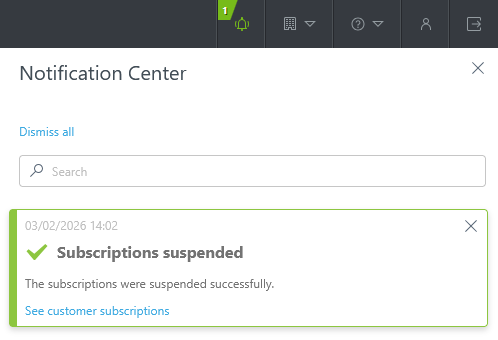
The notification icon at the top shows notification alerts. Use the search bar to find specific issues. Dismiss individual alerts with X or all alerts with Dismiss all.
The table view
Some sections show data in a table. You can filter and sort the displayed data. Click a row to display the options for units in the row to manage units from individual rows or in bulk.
ESET PROTECT Hub allows adjusting the table view by moving or resizing columns:
•To move a column, hover over the column name, click and drag  to the left or right.
•To resize a column, hover over its name, click and drag  .
.
Add filter and filter presets
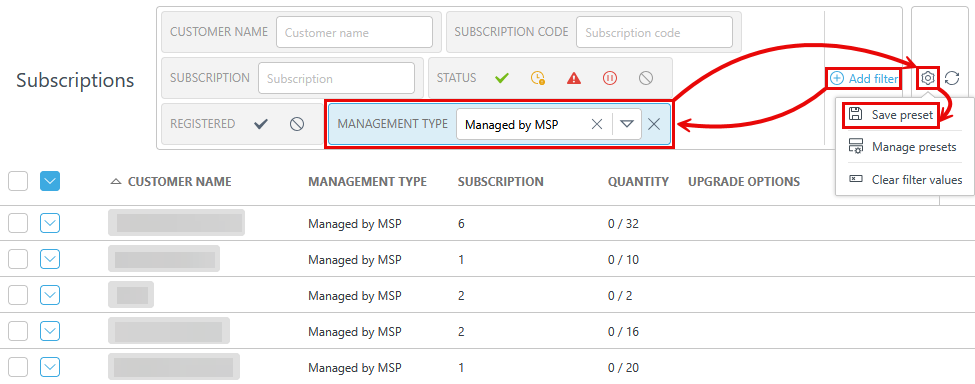
To add filtering criteria, click Add Filter and select a filter type from the the drop-down menu or type the search string and press Enter. Active filters are highlighted in blue.
These are your saved filters, and you can select a filter set to apply it. Select Include visible columns, sorting and paging to save these parameters to the preset.
|
Save your current filter configuration as a new preset. Presets cannot be edited later. |
|
Activate management mode, which allows you to save or delete your presets. To exit management mode, click Finish managing presets. |
|
Remove only the current values from the selected filters. Saved presets will remain unchanged. |
|
Remove selected filters. Saved presets will remain unchanged. |
|
Remove filter fields with no value. |


Click the Presets  icon and Save preset to save and name the preset. When the preset is saved, you cannot edit the filter configuration in the preset. Click the
  Refresh icon to reset the filter panel and show the default filters.