
Profile
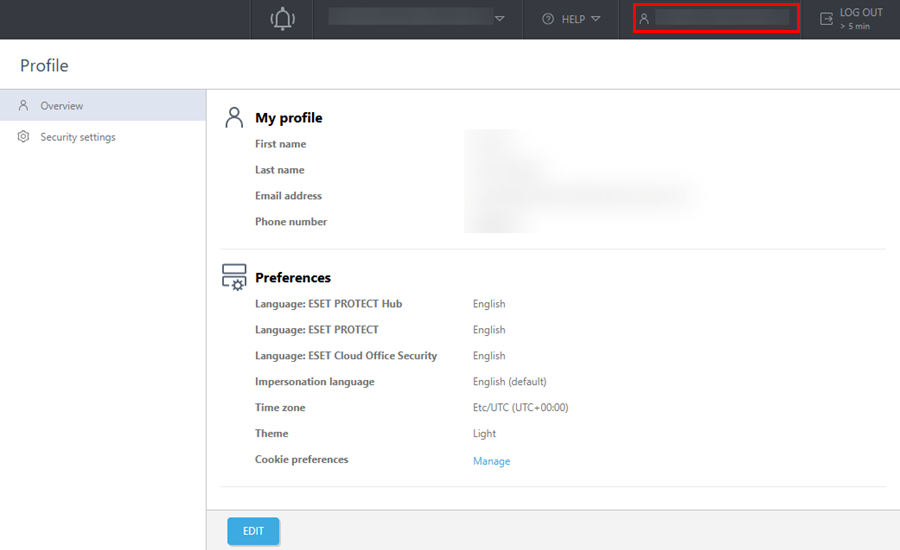
Click the  username field in the top corner to view your user profile where you can access your personal information, time zone preferences, security and language settings.
The Profile section contains two tabs:
•In Overview, you can view your details, such as first name, last name, email address, phone number and country, the language of ESET PROTECT Hub, time zone, theme and cookie preferences. To manage your cookie preferences, click Manage, select the types of cookies you want to allow and click Confirm my choices. For more information, see the Cookie Policy.
•In Security settings, you can view password expiration, idle session timeout and Two-Factor Authentication status. You can also change your password by clicking the Change Password button. Type your current password in the Current password field and your new password in both the New password and Confirm password fields.
|
•Ensure the password contains at least 10 characters with one lowercase letter, one uppercase letter, one number, and one special character. •You can change your password only once every 24 hours. |

Edit profile
To change your profile settings, click Edit. In the Edit profile section, you can change the following:
My profile
•First name and Last name—Type or edit your first and last name.
•Email address—See the email address connected to your ESET PROTECT Hub account. You can update the email address by clicking Change email.
•Phone number—Type your phone number (optional).
•Language: ESET PROTECT Hub—Select a language for ESET PROTECT Hub.
•Time zone—Select a Time zone from the drop-down menu or click Set to browser time zone.
•Theme—Set the theme for your ESET PROTECT Hub Web Console. You can choose from Light, Dark and OS Detection (default).
How to change my email address connected to ESET PROTECT Hub?
To change the email address connected to ESET PROTECT Hub:
1.Click the profile icon at the top.
2.Click the Edit button at the bottom of the page.
3.Click Change email next to the email address.
4.Type the new email address in the New email field.
5.Type the new email again in the Confirm email field.
6.Type your current password in Enter password field.
7.Click Authenticate. Your new email address will appear in your profile.
8.Click the Save button at the bottom to save changes.
Click Next.
In Security settings, you can configure:
•Idle session timeout—The time period after which you will be logged out due to inactivity. Select a time range from 15 to 1,440 minutes. Your company's administrator settings determine your idle session timeout. If you are part of multiple companies, the shortest timeout will apply.
•Two-Factor Authentication—Add a layer to a secure login by activating Two-Factor Authentication.
|
The default password expiration setting is Annually. When you enable Two-Factor Authentication, your password will not expire. |
To save the profile settings, click Save. To discard the changes, click Cancel.
Click Next to move to Summary. Click Finish to apply the changes.