
Sign in with Microsoft
Self-managed and co-managed customers can log in to ESET PROTECT Hub, ESET PROTECT, ESET Inspect, ESET Cloud Office Security, ESET Secure Authentication and ESET Threat Intelligence using their Microsoft account credentials (single sign-on with Microsoft Entra ID).
Configure single sign-on with the Microsoft account
1.Connect tenants from Microsoft Entra ID.
2.Add domain groups and manage connections.
When the single sign-on with Microsoft Entra ID is configured, users can log in with the Microsoft account.
|
Two-Factor Authentication for Microsoft Entra ID users Only native users of ESET PROTECT Hub can enable Two-Factor Authentication for their ESET PROTECT Hub account or per company. When you enable Two-Factor Authentication per company, ESET PROTECT Hub prompts only native users to set up Two-Factor Authentication on their next login. ESET PROTECT Hub does not manage or enforce Two-Factor Authentication for Microsoft Entra ID users who log in to ESET PROTECT Hub with their Microsoft account credentials. When you enable Two-Factor Authentication per company, ESET PROTECT Hub does not prompt Microsoft Entra ID users to set up Two-Factor Authentication on their next login. If you require Two-Factor Authentication for Microsoft Entra ID users, configure multifactor authentication in your Microsoft Entra ID environment. Refer to Known issues for the current list of issues and planned fixes. |

Connect Microsoft Entra ID tenants
|
•Only the ESET PROTECT Hub account superuser can connect Microsoft Entra ID tenants to enable users with non-superuser permissions to log in with their Microsoft account credentials. •The ESET PROTECT Hub account superuser can log in to ESET PROTECT Hub only as a native user, using their email and password. •You can connect each Microsoft Entra ID tenant to only one ESET PROTECT Hub account. After connecting the tenant, you cannot link the tenant to additional ESET PROTECT Hub accounts. |
1.In ESET PROTECT Hub, navigate to  Admin settings > Single sign-on section.
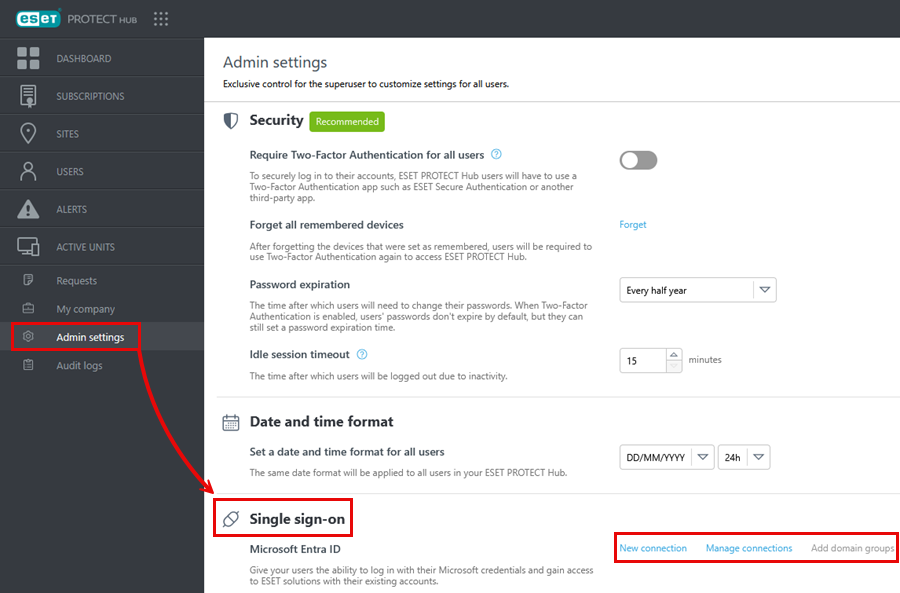
2.Click New connection, type the tenant name and click Connect.
3.Send the generated link to the Microsoft Entra ID Administrator (the domain owner).
4.The Microsoft Entra ID Administrator (the domain owner) performs the following steps:
a.Log in to your Microsoft account using the provided link.
b.A Permissions requested window appears, displaying the permissions required by ESET. Approve the permissions by clicking Accept to create an integration between the Microsoft Entra ID and ESET PROTECT Hub. Tenant status changes to Active in ESET PROTECT Hub > Admin settings > Single sign-on > Manage connections.
5.The Connection successful notification appears in the top corner—Add domain groups or View the list of connections. The tenant appears in Admin settings > Single sign-on > Manage connections with the Active registration status.
6.Continue by adding domain groups (as described below).
Add domain groups
You must add connected Microsoft Entra ID domain groups and assign permissions:
1.In ESET PROTECT Hub, navigate to either of these places:
• Admin settings > Single sign-on > Manage connections. Click the three dots  icon next to the connection name or the Actions button > click Add domain groups.
• Users >
  Microsoft Entra ID groups. Click Add groups.
2.In Groups, select the Microsoft Entra ID groups by clicking the check boxes next to the group names. Click Next.
3.In Permissions, set the permissions for the selected Microsoft Entra ID groups. Click Next.
|
Permissions enable users to authenticate, manage user group assignments and apply security policies. Permissions in ESET PROTECT Hub for Microsoft Entra ID users are assigned via groups. Users in a group in Microsoft Entra ID linked to ESET PROTECT Hub receive access to ESET PROTECT Hub with permissions assigned to that group. Users in multiple groups get the highest permission level based on their group membership. |
4.Review the Summary and click Create.
5.In Groups, you can see the Microsoft Entra ID groups with the assigned permissions for each ESET PROTECT Platform module.
Manage connections
In Admin settings > Single sign-on > Manage connections, click the three dots icon next to the connection name or the Actions button at the bottom:
•Refresh connection—Update the connection between Microsoft Entra ID and ESET PROTECT Hub.
•Add domain groups—You must add Microsoft Entra ID domain groups when configuring the single sign-on with Microsoft Entra ID. You can add more domain groups later.
•Remove—Remove the tenant. Alternatively, select the check box next to the tenant name, click the Actions button at the bottom and select Remove.
|
Removing the tenant permanently removes all the data associated with the tenant and the tenant's domain, and deletes the tenant's ESET PROTECT Platform modules from Microsoft Azure. Users from the Microsoft Entra ID user groups can no longer use their Microsoft account to access ESET PROTECT Platform modules. |

Sign in with Microsoft
After configuring the single sign-on with Microsoft Entra ID, users can log in with their Microsoft account:
1.Click the Sign in with Microsoft button on the login page of:

2.Type your Microsoft account email and click Next.
3.Type your Microsoft password and click Sign in.
4.If the Two-Factor Authentication is required, follow the additional verification steps.
|
Existing self-managed and co-managed users with configured Microsoft Entra ID access will experience login issues if they use the same email address for both their Microsoft account and their ESET PROTECT Hub account. To avoid these issues: •The superuser of ESET PROTECT Hub account should review the user management settings. •Self-managed and co-managed users should ensure that the email address used for their Microsoft account differs from the email address associated with their ESET PROTECT Hub account. |