
Get started with ESET PROTECT Hub
Create a new account
1.Open the login page.
2.Click Register for free.
3.Complete the required fields: Email and Company name. From the drop-down menu, select Company country. Optionally, complete the VAT (Value Added Tax) and CRN (Company Registration Number) fields.
|
Do not use an email address already associated with an ESET Business Account or ESET MSP Administrator. You must register with a new or unused email address. |

4.Click Create account.
5.You will receive a verification email. Click the Verify email address button. The activation link is valid for one hour.
6.Complete the required fields: First name, Last name, Create password and Confirm password.
|
Ensure the password contains at least 10 characters with one lowercase letter, one uppercase letter, one number, and one special character. |

7.Select Language from the drop-down menu.
8.The Time zone field displays the browser time zone by default. You can select a desired Time zone from the drop-down menu. To return to the default setting, click Set to browser time zone.
9.Select the check box next to I agree to the ESET Terms of Use and click the Activate your account button.
10. After successful account creation, return to the login page and type your Email and Password. Click Log in. After login, you can access a detailed ESET PROTECT Hub Online Help from the Help menu in the top bar.
|
For questions related to the registration in ESET PROTECT Hub, refer to the FAQ section Access & Login. |
Welcome to ESET PROTECT Hub
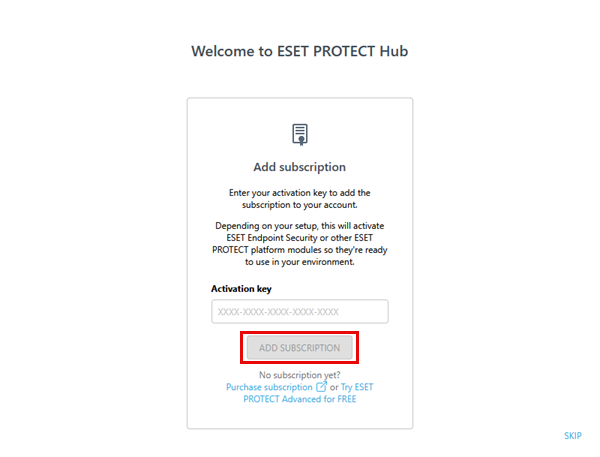
When you first log in to ESET PROTECT Hub, a Welcome to ESET PROTECT Hub window appears with the option to add a subscription.
Add a subscription
|
If you do not want to add a subscription in the Welcome to ESET PROTECT Hub window, click Skip. You can also add a subscription in the Subscriptions section or via the Subscription usage tile on the Dashboard. You can revisit the Welcome to ESET PROTECT Hub window by clicking Help > Take a tour. |
1.Type your activation key in the Activation key field to add a subscription to your account. You can find the activation key in the confirmation email you received after buying your subscription online. If you bought your subscription in a store, you can find the activation key on the subscription card.
2.Click Add subscription. If you have not purchased a subscription yet, you can use the provided links to purchase a susbcription or try ESET PROTECT Advanced for free. If you use a free trial subscription, you can convert it to a full subscription.
|
If you registered the subscription with a different email address than your ESET PROTECT Hub user account, you will receive a verification link at that email address. Verify your email by clicking the verification link and type your ESET PROTECT Hub login credentials. The verification link is valid for 48 hours. |
Get started with ESET protection
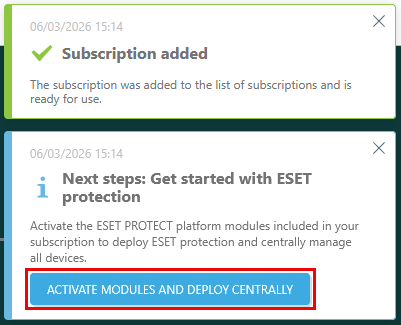
1.After you add a subscription or generate a trial subscription for ESET PROTECT Advanced, a notification Next steps: Get started with ESET protection will appear in the screen corner. Click Activate modules and deploy centrally to activate the ESET PROTECT Platform modules included in your subscription.
2.The module activation wizard will display. In Select the modules you want to activate, select the check box next to each module you want to activate. Click Learn more on the module bar to access the module's Online Help. To activate all modules within the added subscription, select the check box next to Select all. Click Continue.
3.In Select a data center to activate modules, ESET PROTECT Hub selects the recommended remote data center for you by default. To shorten the setup process of future ESET PROTECT Platform module activations, select the check box next to Remember selected data center for future ESET PROTECT platform module activations.
|
•Choosing a non-recommended data center can affect the quality of service. •You cannot change the data center's location after the module activation. |

4.In the Select language section, you can select a language for the activated platform modules. By default, the language you have selected as your ESET PROTECT Hub account language is pre-selected for the platform modules. If your ESET PROTECT Hub language is not available for the platform modules, English is pre-selected by default. To change the pre-selected language, select a language from the language drop-down menu for each platform module.
5.Review your selections and click Activate to activate ESET PROTECT Platform modules.
6.In Take the ESET PROTECT Hub tour, click Take the tour to learn about the features and layout of ESET PROTECT Hub.