Users
The  Users section contains an overview of all users that have access to your ESET PROTECT Hub. You can manage users and perform actions based on your user permissions.
Users side panel
The Users side panel provides an overview of your user management.
|
Only the superuser and users with write access can access and perform actions in the Users side panel. |

Click the Side panel layout  icon to:
•Hide side panel
•Hide panel
When the side panel is hidden, you can click the Side panel layout icon to Show side panel.
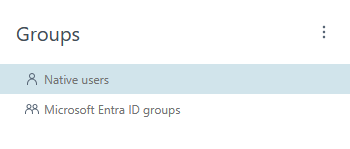
In the Users side panel, you can view your ESET PROTECT Hub account users divided into the following groups:
• Native users—Users who log in to ESET PROTECT Hub with their email and password. Click Add user in the main panel to add a new native user.
• Microsoft Entra ID groups (superuser only)—Users with a configured Microsoft Entra ID who log in to ESET PROTECT Hub via single sign-on with their Microsoft account credentials. Click Add groups in the main panel to add a new domain group, or click List of connections > New connection to connect a tenant using their Microsoft Entra ID domain.
Main panel
The main panel displays an overview with detailed information spread across multiple columns.
Filter users
Use filters at the top of the screen to filter users. To add filtering criteria, click Add Filter and select a filter type from the the drop-down menu or type the search string and press Enter. Active filters are highlighted in blue. See Using ESET PROTECT Hub for more details on managing filter presets and adjusting the main table view.
You can filter by:
•Status—Click a status icon to view users with a specific status. You can select multiple status icons. Click the selected icon again to remove it from the filter.
Icon |
Status |
Description |
|---|---|---|
|
Active |
ESET PROTECT Hub account is activated. |
|
Pending |
Waiting for ESET PROTECT Hub account activation. |
|
Expired |
Invitation to ESET PROTECT Hub expired. |


•Name—Type a username and press Enter.
•Email Address—Type an email address and press Enter.
•My company—Display users by type of access to My company.
•2FA enabled—Display users with Two-Factor Authentication enabled.
•Co-manager—Display users who are co-managers.
•ESET PROTECT—Display users with Access, No access, or Custom access to ESET PROTECT.
•ESET Cloud Office Security—Display users with Access or No access to ESET Cloud Office Security.
•ESET Secure Authentication—Display users with Access or No access to ESET Secure Authentication.
User actions
Click the three dots  icon next to the username to perform actions. The availability of actions you can perform depends on your permissions. Select from:
•Show details—Display user details.
•Edit—Open an Edit profile wizard to edit user details, permissions and security settings.
•Resend invitation—Resend the invitation to ESET PROTECT Hub.
•Remove—Permanently remove the user and their data.
Add or remove a user
To add a new user, click Add user at the bottom of the main panel.
To remove a user, click the three dots icon next to the desired user and click Remove. Confirm the action by clicking Remove in the Remove user window.
Export the Users table
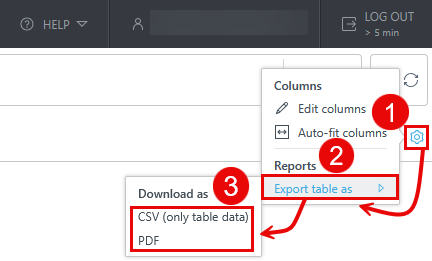
You can export the table as CSV (only table data) or PDF:
1.Click the gear  icon in the main table header.
2.Select Export table as.
3.Click the desired format.