
Add a new user
To create a new user in ESET PROTECT Hub:
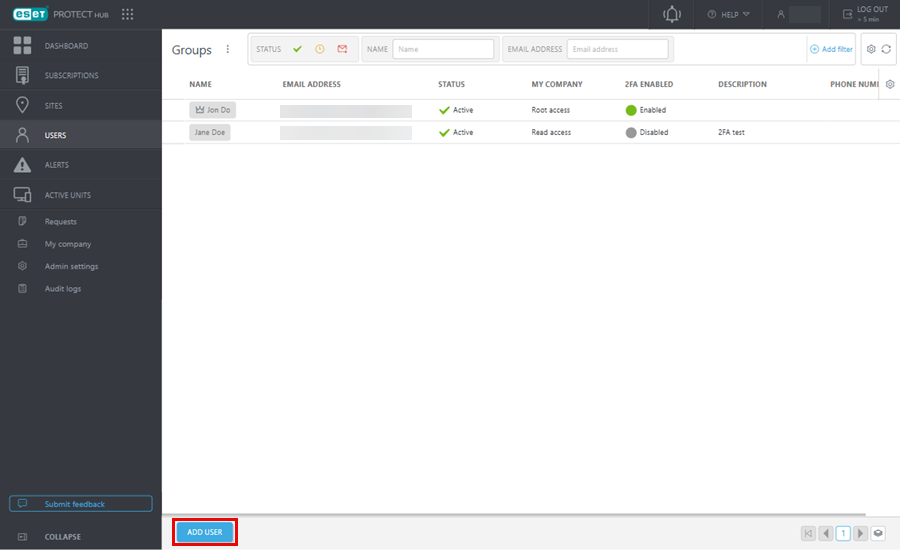
1.Navigate to Users > Add User.
|
If the Add User button is unavailable, you do not have Write permission for your company. |

2.Type the user's email address. They can change the email address later.
3.(Optional) Type an Email message and Description. The user sees this information in an invitation email. Click Next.
4.In the Permissions, select the applicable user permissions. Click Next.
5.In Summary, review the User information and Permissions sections. Click Create.
6.The user appears in Users with a Pending status. The user receives an activation email to the email address specified above. The user must click Activate your account. The activation link is valid for 48 hours.
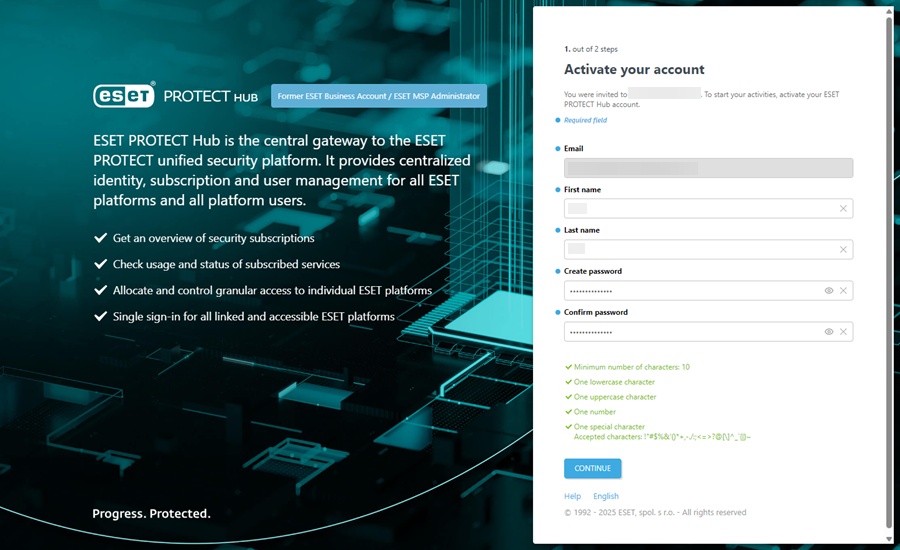
7.The user must add their First name, Last Name and create a password and click Continue.
|
Ensure the password contains at least 10 characters with one lowercase letter, one uppercase letter, one number, and one special character. |
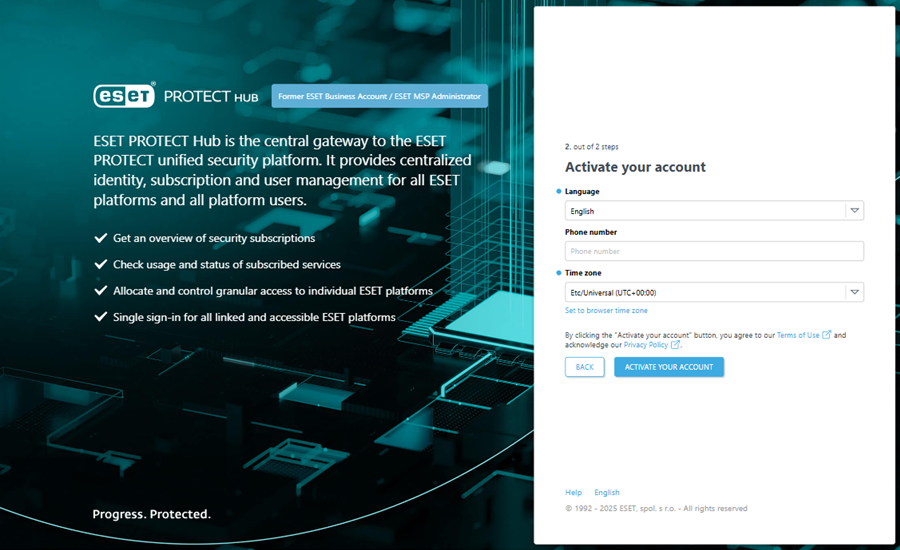
8.The user must select the preferred user interface Language. The Phone number field is optional. The Time zone field displays the browser time zone by default. You can select a desired Time zone from the drop-down menu. To return to the default setting, click Set to browser time zone.
9. By clicking Activate your account, the user activates their account and agrees to the ESET Terms of Use and Privacy Policy. The user status in Users changes to Active.
10. When the user clicks Go to the login page, they can log in to ESET PROTECT Hub.