
Set up Two-Factor Authentication
The setup instructions differ depending on how Two-Factor Authentication was enabled:
 You enabled Two-Factor Authentication for your ESET PROTECT Hub profile
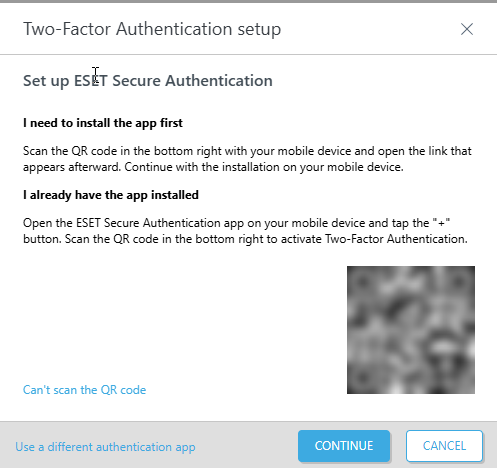


Two-Factor Authentication was enforced for your ESET PROTECT Hub profile
This topic also guides how to:
•Install and activate ESET Secure Authentication mobile app
•Generate a new set of backup codes
•Reset Two-Factor Authentication
•Forget all remembered devices
Installation and activation of ESET Secure Authentication mobile app
1.Use your mobile device to scan the QR code displayed in the Two-Factor Authentication setup window in ESET PROTECT Hub.
2.On your mobile device, tap Add account.
3.You will be redirected to your mobile phone's app center. Install the app.
4.Open the app, review the Terms of Use and tap I accept.
5.We recommend setting a PIN to protect the mobile app from unauthorized access. To set your PIN, tap Yes when prompted, type your PIN into the New PIN field, Confirm PIN fields and tap OK.
6.Click Continue to go to ESET PROTECT Hub.
7.If a new token has not been added to the ESET Secure Authentication mobile app, tap the menu icon and select Get token.
8.Generate a One-time Password in the mobile authentication app. Tap the button displaying your company name.
9.On the Enter code page, type the One-time Password in the blank field and click Authenticate.
10. Click Finish.
Generate a new set of backup codes
|
Backup codes •You can use one of your backup codes when you cannot access your authentication app. Save your backup codes and keep them safe. •You can use each backup code only once. If the number of your unused backup codes is low, you can generate a new set of backup codes. •If you lose your authentication device or use all your backup codes, contact ESET Support for help. |
1.In ESET PROTECT Hub, click the  username field in the top corner to access your profile.
2.In the Security settings tab, click Generate new codes.
3.The New backup codes window will appear. Type your ESET PROTECT Hub portal password. Click Authenticate.
4.Generate a One-time Password in the mobile authentication app. If using ESET Secure Authentication mobile app, tap the button displaying the email address you used to register with ESET PROTECT Hub. Alternatively, type a backup code if you click Use backup code in the dialog box.
5.In ESET PROTECT Hub, type the One-time Password in the One-time Password field. Click Confirm.
6.A window with a new set of backup codes will appear. Download or print the backup codes displayed in the New backup codes window.
7.When you have saved and stored your backup codes, click Close.
Reset Two-Factor Authentication
Superusers and users with write access can reset Two-Factor Authentication for individual users. The reset disables and re-enables Two-Factor Authentication, prompting the user to complete a new setup of an authentication app next time they log in. Two-Factor Authentication cannot be reset at the company level.
1.Navigate to the Users section.
2.Click the desired username. Alternatively, click the three dots  icon next to the username > Show details.
3.In the Security settings tab, click Reset next to Reset Two-Factor Authentication.
4.In the Reset Two-Factor Authentication window, type your ESET PROTECT Hub password and click Reset.
5.If you use Two-Factor Authentication for your account, you will be prompted to confirm the reset. To confirm the change, type the One-time Password generated by your authentication app. Click Confirm.
|
Reset Two-Factor Authentication for a superuser or users with write access •If you are a superuser and have a user with write access to your account, ask them to reset Two-Factor Authentication for your account by following the instructions above. •Superusers can reset Two-Factor Authentication for users with write access by following the instructions above. •Superusers and users with write access can also reset Two-Factor Authentication for their accounts by using backup codes instead of the One-time Password to log in to ESET PROTECT Hub, then disable and re-enable Two-Factor Authentication to complete the reset. |
Remember my device
Users can authorize their device not to request Two-Factor Authentication for every login.
1.Log in to ESET PROTECT Hub.
2.Generate a One-time Password in the mobile authentication app. If using ESET Secure Authentication mobile app, tap the button displaying the email address you used to register with ESET PROTECT Hub.
3.Type the One-time Password in the blank field.
4.Select Remember my login on this device and click Log in.
Forget all remembered devices
Superusers and users with write access can delete the list of all remembered devices for all user accounts. When the list is deleted, ESET PROTECT Hub prompts users to use Two-Factor Authentication again on their next login.
1.In ESET PROTECT Hub, click Admin settings.
2.In the Security section, click Forget next to Forget all remembered devices.
3.In the Forget all remembered devices window, click Forget.