Alerts
The  Alerts section provides additional notifications related to ESET PROTECT Hub and shows notification status. The Alerts section of the ESET PROTECT Hub main menu displays a counter showing the total number of unresolved or unacknowledged alerts.
Only superusers and users with write access can view the Alerts section.
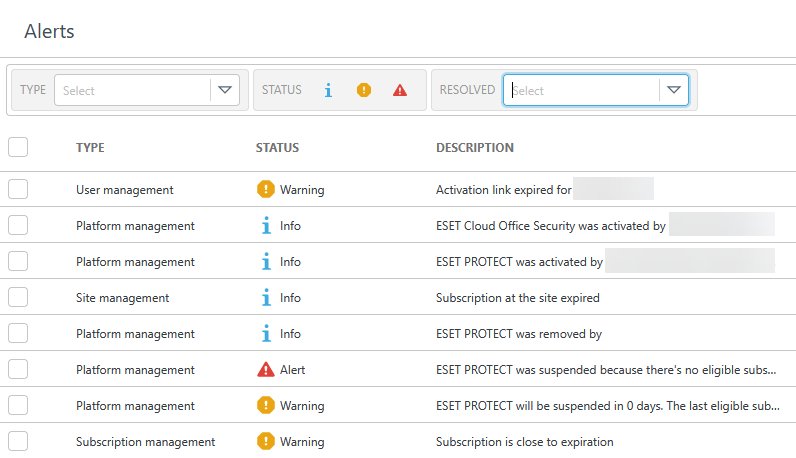
Use filters at the top of the screen to filter by:
•Type
•Status
▪ Info—Information about accomplished actions.
▪ Warning—Non-critical but essential information that requires your attention.
▪ Alert—Critical information.
•Subscription code
•Subscription
•Site
•Resolved by
•Resolved—Filter further by Not resolved, Resolved and Acknowledged alerts.
•Occurred from and Occurred to—Filter by date range.
To add filtering criteria, click Add Filter and select a filter type from the the drop-down menu or type the search string and press Enter. Active filters are highlighted in blue. See Using ESET PROTECT Hub for more details on managing filter presets and adjusting the main table view.
To take corrective action, select an alert and click the Actions button. Alternatively, click the three dots  icon and select one of the following options:
•Mark as resolved—Mark the alert as resolved.
•Mark as unresolved—Mark the alert as not resolved. If the alert is marked as resolved and no corrective action is taken within one day, it will automatically revert to Not resolved.
•Mark as acknowledged—Mark the alert as acknowledged. You can view the acknowledged alerts when you apply the Resolved filter.
•Send invitation—Resend an invitation email to the user.
•Renew subscription—Renew a subscription that has expired or is close to expiration.
•Purchase subscription—Purchase a subscription when a trial subscription has expired.
•Convert to full subscription—Convert to a full subscription when a trial subscription has expired.
•Unsuspend subscription—Unsuspend a suspended subscription.
•Increase subscription capacity—Increase subscription capacity when a subscription is close to overuse or is already overused.
•Release subscription unit—Deactivate the solution for the asset immediately.
•Remove subscription—Remove an expired trial subscription.
•Remove—Remove the alert.
To resolve multiple alerts in bulk, select the applicable alerts. Click Actions and select the desired corrective action from the menu.
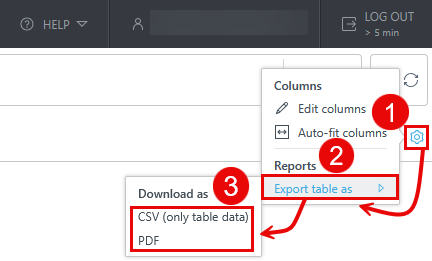
Export the Alerts table
You can export the table as CSV (only table data) or PDF:
1.Click the gear  icon in the main table header.
2.Select Export table as.
3.Click the desired format.