
Activate ESET PROTECT Platform modules
ESET PROTECT Hub offers security solutions designed to address various cybersecurity aspects. The Dashboard includes the ESET PROTECT Platform tile where users can activate ESET PROTECT Platform modules.

ESET PROTECT Platform modules
ESET PROTECT allows users to manage ESET solutions on workstations and servers in a networked environment with up to 50,000 devices from one central location.
|
Protect assets not managed by ESET PROTECT Click Help > Download installer in the top bar to deploy and set up your ESET business solutions on assets not managed by ESET PROTECT. |

|
Transferring an ESET PROTECT module under a different account may impact your configuration. Subscription transfers may result in data loss. Before proceeding, review the implications and follow the best practices in the Cloud-to-Cloud Migration guide. |

ESET Inspect identifies anomalous behavior and breaches with Extended Detection and Response (XDR), providing advanced threat hunting, risk assessment, incident response, investigation and remediation capabilities.
ESET Cloud Office Security is a standalone solution that handles security in your Microsoft 365 or Google Workspace cloud environments, mailboxes or cloud storage.
ESET Secure Authentication is a cloud-based solution offering the Two-Factor Authentication (2FA) for various applications. It delivers the second factor through multiple methods, including mobile phone applications, hard tokens and FIDO keys, enhancing and securing the standard user authentication process.
ESET Threat Intelligence is a service that delivers detailed, up-to-date information on global cyber threats. ESET Threat Intelligence services warn you about malicious software or activity that might threaten your organization or its customers. The ESET Threat Intelligence Portal is available only in English.
|
ESET Threat Intelligence demo link If you do not have an active ESET Threat Intelligence subscription, an ESET Threat Intelligence demo link is available in the ESET PROTECT Hub navigation menu After you add an ESET Threat Intelligence subscription, the demo link automatically switches to a live link to the ESET Threat Intelligence Portal where you can create an approval request for an approved account. Refer to Get modules for details on adding an ESET Threat Intelligence subscription. You can also add an ESET Threat Intelligence subscription in the Subscription section. See Add a subscription. |
 and the
 Get modules
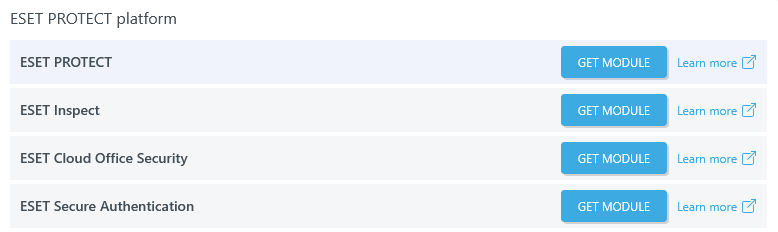
You can activate a module after purchasing the protection tier that includes it. Navigate to the ESET PROTECT Platform tile in the Dashboard.
•If you have purchased a protection tier, click the Get module button next to the desired module. Click Enter activation key. Type the activation key and click Add subscription.
•If you have not purchased a protection tier, click the Get module button next to the desired module. For ESET Threat Intelligence, click Contact sales at the bottom of the sidebar. For other modules, the sidebar will display the protection tiers that include your module. Click Compare to view the differences among the protection tiers that include your module. To purchase a protection tier, click Buy subscription.
•If you have purchased a subscription for ESET Threat Intelligence, click the Get module button next to ESET Threat Intelligence. Click Enter activation key. Type the activation key and click Add subscription.
Activate a module
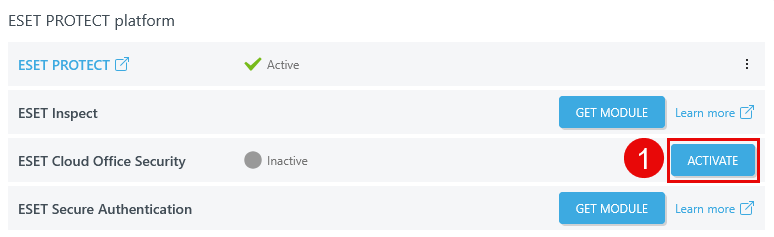
1.Click the Activate button. The Activate module wizard will display. The wizard side panel lists tabs you must fill out to create a new entity. Click Next to move to the next tab, or click Back to return to the previous tab. Click Cancel to exit the wizard.
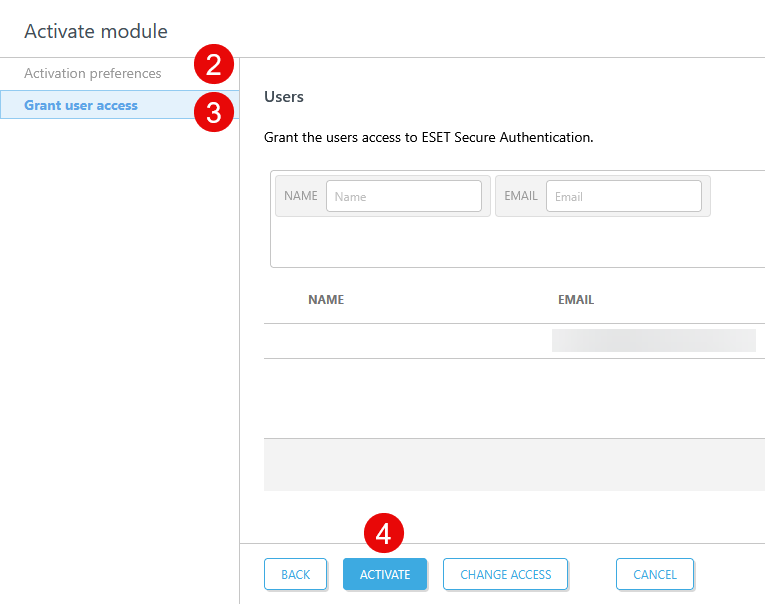
2.In the Activation preferences tab, ESET PROTECT Hub automatically selects the recommended data center location and the language of your ESET PROTECT Hub account for the platform module you activate. If the language of your ESET PROTECT Hub account is not available for the selected platform module, ESET PROTECT Hub selects English by default. To change the preselected language, select a language from the Language drop-down menu.
|
•Choosing a non-recommended data center can affect the quality of service. •You cannot change the data center's location after the module activation. |
3.In the Grant user access tab, you can grant users access to the module. You can select a custom access for each user. Click the Change access button at the bottom and select Grant all Access to grant access to all users or select Grant all No access to revoke access from all users.
4.Click the Activate button. It can take a few minutes to activate the module.
When the module is activated, click the three dots  icon next to the module name to:
•Show details—Display the module's activation status and description.
•Learn more—See the module's Online Help.
•Remove—Remove a module.
|
You can access all your activated ESET PROTECT Platform modules via the ESET PROTECT Hub navigation menu |
|
Activated Platform modules will be suspended and become inaccessible for 30 days when the subscription that includes the modules has expired or has been suspended. You can restore your suspended modules during the 30-day period by adding a new cloud-eligible subscription to your ESET PROTECT Hub account. After 30 days, the modules and all associated data will be deleted. Solutions activated by the subscription will no longer receive updates. |
Remove a module
1.Click the three dots icon > Remove.
2.Type your ESET PROTECT Hub password and click the Authenticate button. When you remove a module, your module and all associated data will be deleted. After you remove a module, you can activate it again by clicking the Activate button.