
Co-management
Co-management facilitates collaboration between customers and resellers. Customers can grant resellers access to their ESET PROTECT Hub accounts and solutions. The collaboration enables resellers to support customers by setting up and managing their ESET environment, subscriptions, and ESET PROTECT Platform modules. Both the customer and the reseller may terminate this arrangement at any time.
|
Currently, the co-management feature is available only to the resellers who have completed the migration to ESET PROTECT Hub. See Transition to ESET PROTECT Hub. |

Co-management provides resellers with an overview, access and control over customers' ESET subscriptions and activated ESET PROTECT Platform modules. In co-management, resellers can access customers' ESET PROTECT Hub account and ESET PROTECT Platform modules without needing further approvals.
|
In co-management, both the reseller and the self-managed customer must have a registered ESET PROTECT Hub account. The customer retains control of their ESET PROTECT Hub account and platform modules. |

|
Only the superuser can request, start or cancel co-management. |
Start co-management
A self-managed customer can be co-managed by:
•A reseller with whom the customer has a prior licensing relationship. The reseller requests the co-management, and the customer accepts it. To accept co-management:
1.Navigate to the Requests section. You can find the request in the Requests section with a Pending approval status.
2.Click the co-management request. Click the Actions button at the bottom. Select Accept to approve co-management. Alternatively, click the three dots  icon next to the desired co-management request and select Accept.
3.An Accept request window appears. Click Accept request.
4.When you accept the co-management request, the status of the request changes to Approved in the Requests section. Click the three dots icon next to the approved request to view the details.
•A reseller with whom the customer has no prior licensing relationship. To initiate co-management:
1.Navigate to the My company section.
2.In the Generate an access code section, click Generate code.
3.An Access code window appears. Copy the Access code.
4.Share the generated code with the desired ESET partner. Providing the generated code to the ESET partner enables them to send you a co-management request. You will get an email notification, when your ESET partner sends you the request.
|
Share the generated access code only with an ESET partner you trust. |

5.Navigate to the Requests section. You can find the request in the Requests section with a Pending approval status.
6.Click the Actions button at the bottom. Select Accept to approve co-management. Alternatively, click the three dots icon next to the desired co-management request and select Accept.
7.An Accept request window appears. Click Accept request.
8.When you accept the co-management request, the status of the request changes to Approved in the Requests section. Click the three dots icon next to the approved request to view the details.
|
You can cancel the co-management relationship at any time and revoke the reseller's access. |
User synchronization
When the customer accepts the co-management request, ESET PROTECT Hub automatically synchronizes users between the reseller's account and the co-managed customer account.
When the reseller adds a new user with write access, the user instantly gains access to every co-managed account in the reseller's hierarchy. When the reseller removes a user from their account, ESET PROTECT Hub also removes the user from the reseller's co-managed accounts.
The Users section of the customer's ESET PROTECT Hub will include the reseller and all users with write access registered under the reseller's account as new users. The customer can remove the reseller's users from the ESET PROTECT Hub account one at a time. Navigate to Users > click the three dots icon next to the desired user > click Remove. Confirm the action by clicking Remove in the Remove user window.
|
In co-management, the customer cannot remove the reseller from the Users section of their ESET PROTECT Hub account. |
Verify if you are co-managed
Follow one of the options below to verify if you are co-managed:
•Navigate to the Users section. There is a co-management  icon next to a co-managed user.
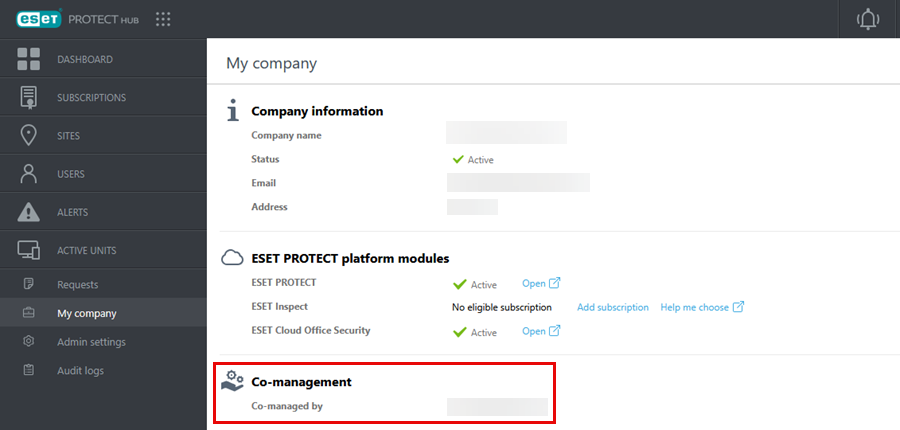
•Visit My company to see co-management information.
Cancel co-management
1.Navigate to the My company section.
2.In the Co-management section, click Withdraw.
3.A Withdraw from co-management window appears. Click Withdraw.
|
When you withdraw from co-management, your co-manager will only be able to access your ESET PROTECT Hub account after your approval. |