
Subscription Management
By purchasing a subscription for any ESET business application, you automatically receive access to ESET PROTECT On-Prem.
You can easily manage your subscriptions via ESET PROTECT On-Prem from the main menu under More > Subscription Management:
•You can add a subscription using ESET PROTECT Hub, ESET Business Account or ESET MSP Administrator.
•You can import the complete structure of your ESET Business Account or ESET PROTECT Hub, including the distribution of units among the sites (see sites in ESET Business Account or sites in ESET PROTECT Hub).
•You can enable your ESET offering using ESET PROTECT On-Prem.

|
ESET PROTECT Hub replaces the ESET Business Account and ESET MSP Administrator subscription portals. ESET will migrate all accounts from both platforms in phases: |

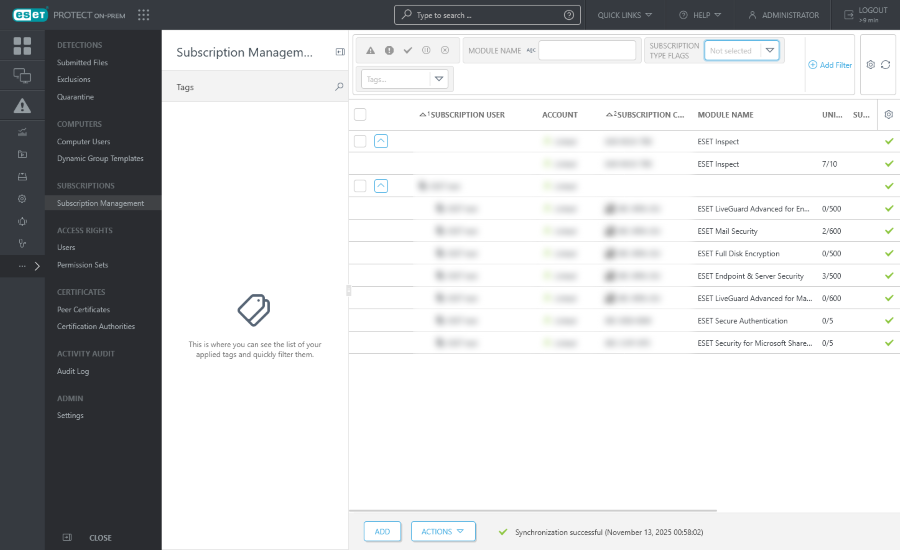
Subscriptions from the same ESET Business Account/ESET PROTECT Hub user or the same company are grouped into subscription pools.
Subscriptions from ESET MSP Administrator are divided into one pool for each company. You cannot move a subscription out of the pool.
Click the expand  icon to expand the subscription pool and see subscription details.
The default view includes columns with the following subscription information:
•The Subscription user name and type:  Company,
  Site,
Site,  MSP Customer.
•Account (Linked/Missing)—Information whether the subscription is synchronized from an ESET account.
|
To centralize your subscription management, you must add the subscriptions to your ESET account (ESET PROTECT Hub, ESET Business Account, or ESET MSP Administrator). The ESET PROTECT Web Console will notify you if it contains an activation key, and you will see Missing in the Account column in Subscription Management. To insert the activation key into your ESET account, click the line and select: •Log in to your account—If you have an existing ESET account (ESET PROTECT Hub, ESET Business Account, or ESET MSP Administrator) •Create ESET PROTECT Hub account—If you do not have an ESET account |
•Subscription code—An identifier specific for each subscription/tier.
•The Module name for which its subscription is intended.
•The number of Units that can be enabled with this subscription and number of offline units. For ESET Mail Security applications, subscription usage is calculated based on Subunits used for activation.
•The number of Subunits of ESET server applications (mailboxes, gateway protection, connections).
•Usage Status (if the subscription is expired, overused, or at risk of expiration or overuse, a warning message will be displayed here).
•The Validity represents the subscription validity date.
•Subscription Type—Business (paid subscription), Trial (free trial), MSP (Managed Services Provider subscription), and NFR (Not For Resale subscription).
You can display the following additional columns:
•The Offering tier for which the ESET applications are intended. Read more about ESET protection tiers.
•The subscription Owner name and Contact.
•Tags—You can use tags for filtering the displayed items.
You can filter subscriptions by their Status:
|
Your subscription is activated successfully. |
|
The subscription is not registered, has expired, or is overused. |
|
Your subscription is still depleted or is about to expire (its validity ends in 30 days). |
|
Your subscription is deactivated or suspended. |
|
Your subscription has expired. |


|
The expired and overused subscriptions (in the Error or Obsolete state) are not visible in the list of available subscriptions in the All-in-one installer wizard, Module Activation client task and Software Install client task. |
Click the Actions button to manage the selected subscription pool(s):
|
Edit tags (assign, unassign, create, delete). |
|
Click Add Subscriptions and then select the method you want to use to add your new subscription: •Log in to your account: ESET PROTECT Hub, ESET Business Account or ESET MSP Administrator—Connect an ESET PROTECT Hub, ESET Business Account or ESET MSP Administrator and add all its subscriptions to the Subscription Management section. •Insert offline activation file—Add an activation file (.lf) and click Add Subscriptions. The activation file will be verified and the subscription added to the list. You can see how the subscription was added based on the icon in the Owner Name column: |
|
Remove the selected subscription. You will be asked to confirm this action. Removal of the subscription does not trigger deactivation of the module. Your ESET module will remain activated even after the subscription has been deleted in ESET PROTECT On-Prem Subscription Management. |
|
Move the object to another Static Group where it is available to users with sufficient rights for the target group. Changing the Access Group is useful when solving access issues with other users. Access Group sets the object's Static Group and access to the object based on the user's access rights. |
|
Refresh subscription information in ESET PROTECT On-Prem immediately. Subscriptions synchronize automatically once a day with ESET Business Account or ESET MSP Administrator. If the subscription synchronization fails, ensure the edf.eset.com hostname and IP addresses are allowed in your network. |
|
Open the ESET PROTECT Hub portal. This action is available only if you have an activated ESET PROTECT Hub account. |
|
Open the ESET Business Account portal. This action is available only if you added subscription from ESET Business Account. |
|
Open the ESET MSP Administrator portal. This action is available only if you added subscription from ESET MSP Administrator. |


Expand a subscription pool and click a subscription to perform the following actions. The action set depends on the type of selected subscription:
|
Run Module Activation task using the selected subscription. |
|
Edit tags (assign, unassign, create, delete). |
|
If the subscription is synchronized from ESET Business Account, ESET MSP Administrator or ESET PROTECT Hub, you can manage the subscription. If the subscription is overused, you can increase subscription capacity or deactivate some of your devices. |
|
Renew the expiring, expired, suspended or deactivated subscription in ESET Business Account, ESET MSP Administrator or ESET PROTECT Hub. |
|
Upgrade the trial in ESET Business Account, ESET MSP Administrator or ESET PROTECT Hub. |
|
View the Audit Log for the selected item. |
|
Copy the subscription code to clipboard. |


Permissions for subscription management
Each user can be assigned a permission for Subscriptions. Permissions are valid only for subscriptions contained in the static group where that permission set is assigned. Each type of permission allows a user to perform different actions.
|
Only Administrators whose home group is set to All, with Write permission for subscriptions in the home group can add or remove subscription. Each subscription is identified by its subscription code and can contain one or more units. Subscriptions can only be distributed by the Administrator to other users with sufficient permissions. |
Activation of ESET modules
You can activate ESET modules from ESET PROTECT On-Prem using two tasks:
•The software installation task
Deactivation of ESET modules
You can deactivate the ESET modules (remove the subscription from the module) in several ways using the ESET PROTECT Web Console:
•In Computers, select the computer(s) and select  Platform modules >
  Deactivate Modules to remove subscription from all selected devices via ESET subscription server. Module is deactivated even if it was not activated from ESET PROTECT On-Prem or subscription is not managed by ESET PROTECT On-Prem.
|
If you select only one computer with more ESET modules (for example ESET endpoint application and ESET Inspect Connector), you can select to deactivate individual modules. |
•Remove computer from management
•Create the Delete Not Connecting Computers Task with the Deactivate Subscription option.
Filters and layout customization
You can customize the current Web Console screen view:
•Manage the side panel and main table.
•Add filters and filter presets. You can use tags for filtering the displayed items.
Sharing subscriptions among branch administrators
|
There are three users and Administrator, each user has their own home group: •John, San Diego •Larry, Sydney •Makio, Tokyo The administrator imports 3 subscriptions. These are contained in the All static group and other users cannot use them. To assign a subscription to another user, the administrator can select the check box next to the subscription pool they want to assign to another user, click the Actions button and then click When the user John logs in, he can only see and use the subscription that was moved to his group. The administrator should repeat the process for Larry and Makio, afterward, users can see only their subscription, while Administrator can see them all. |