
Remove computer from management
To remove a device from management, click Computers, select a device > click  Manage >
  Remove.
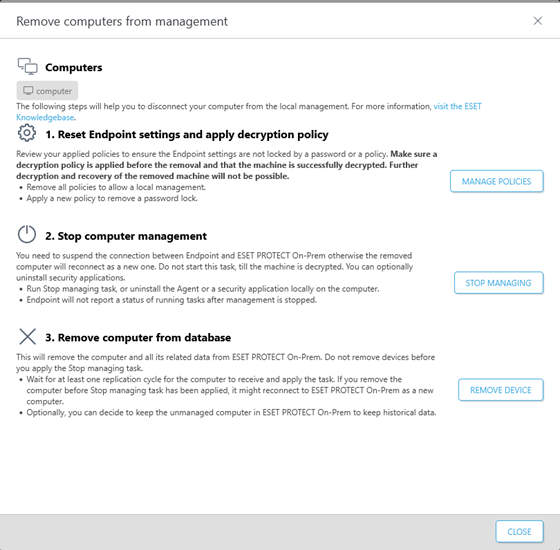
|
When proceeding to the next step, ensure that you have successfully competed the previous step. This is essential for correct device removal. |

1.Reset Endpoint settings—Click Manage Policies and remove all applied policies to allow local device management. See Policy Removal Rules in the Policies section. If a password is set to access the Endpoint application setup, create a new policy to remove the password (select to set a password, but do not type a password). For computers encrypted with ESET Full Disk Encryption, follow the decryption steps.
2.Stop computer management—Run a Stop Managing Task or uninstall the ESET Management Agent or ESET security application locally on a computer. This suspends the connection between the computer and ESET PROTECT On-Prem.
3.Remove computer from database—After you ensure that the computer is no longer connecting to ESET PROTECT On-Prem, you can remove it from the list of managed devices.
Select the check box I want to deactivate installed ESET applications to remove the subscription from all ESET applications installed on the selected computer. See also deactivation of ESET business applications.