
Module Activation
Use the Module Activation task to activate an ESET module on a client device.
Select one of the following options to create a new Client Task:
•Click Tasks > Add >  Client Task.
•Click Tasks > select the desired task type and click Add > Client Task.
•Click the target device in Computers and select  Tasks > New Task.
Basic
In the Basic section, type basic information about the task, such as a Name and Description (optional). Click Select tags to assign tags.
In the Task drop-down menu, select the task type you want to create and configure. If you have selected a specific task type before creating a new task, Task is pre-selected based on your previous choice. Task (see the list of all Tasks) defines the settings and the behavior for the task.
Settings
Module activation settings—Select the appropriate subscription from the list of available subscriptions. The subscription will be applied to modules already enabled on the client. The available subscriptions list does not show expired and overused subscriptions (those in the Error or Obsolete state). Use one of the methods described in Subscription Management to add a subscription. Subscription addition/removal is restricted to the Administrator whose home group is All and who has the Write permission on subscriptions.
Summary
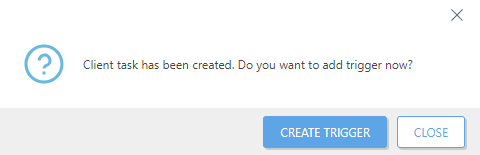
Review the summary of configured settings and click Finish. The Client Task is now created, and a small window will open:
•Click Create Trigger (recommended) to specify Client Task Targets (computers or groups) and the Trigger.
•If you click Close, you can create a Trigger later—Click the Client Task and select  Run on from the drop-down menu.
You can see the progress indicator bar, status icon and details for each created task in Tasks.