Synchronize your MSP subscriptions in ESET MSP Administrator/ESET PROTECT Hub with ESET DEM plugin for ConnectWise Automate (requires that the connection wizard configuration steps have been completed) or add, edit and remove compatible subscriptions manually.
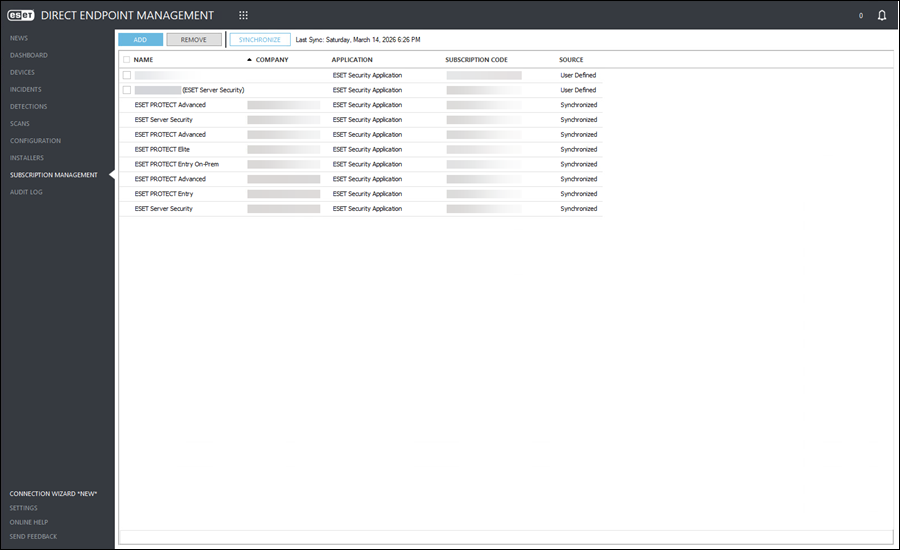
Subscriptions synchronization (automatically)
When you complete the connection wizard configuration steps, your ESET MSP Administrator/ESET PROTECT Hub MSP subscriptions are synchronized to the ESET DEM plugin for ConnectWise Automate automatically. (Optional) Click Synchronize to force the synchronization manually. The synchronized subscriptions are listed at the bottom of the list with the Source column labeled as Synchronized.
Synchronized subscriptions are read-only and cannot be removed or edited in ESET DEM plugin for ConnectWise Automate. To add, edit or remove synchronized subscriptions, refer to the applicable ESET MSP Administrator/ESET PROTECT Hub Online Help guide.
Add subscription (manually)
Follow these steps to add subscriptions to the plugin manually:
1.Log in to the ESET MSP Administrator/ESET PROTECT Hub and locate the appropriate endpoint subscription code or activation key:
•ESET MSP Administrator
•ESET PROTECT Hub
2.Copy the subscription code. (Optional) Copy the activation key.
|

|
For more information on ESET security applications supported by ESET DEM plugin for ConnectWise Automate, view system requirements.
|
3.Click Subscription Management > Add.
4.In the Name field, type a user-friendly identifier (for example, ESET Endpoint Security subscription for Employee XYZ).
5.Keep the Application field set to ESET Security Application.
6.Select the Activation Method:
a)Keep the Activation Method set to Security Admin.
b)In the Subscription Code field, paste the ESET MSP Administrator/ESET PROTECT Hub subscription code copied in step 2.
c)In the Security Admin Email field, type the appropriate email address. ESET MSP Administrator/ESET PROTECT Hub users must use MSP login credentials.
d)Next to the Security Admin Password, click Set.
e)In the Password field, type a password and then confirm the password. Click OK.
|

|
Forbidden characters
Do not use the following characters in your password: ( ) { } < > ? $ / * & ! @ #
|
|
a)Click the Activation Method drop-down menu and set the Activation Key.
b)In the Activation Key field, paste the ESET MSP Administrator/ESET PROTECT Hub activation key copied in step 2. |
7.Click Save.
Complete the same process for all applicable subscriptions to add them to the Subscription Management screen. The manually added subscriptions are listed at the top of the list with the Source column labeled as User Defined.
|
|
|
ESET Endpoint Encryption (EEE) subscription
ESET Endpoint Encryption subscriptions generated in ESET MSP Administrator are not compatible with ESET DEM plugin for ConnectWise Automate.
|
1.Click the Subscription Management > Add.
2.In the Name field, type a user-friendly identifier (for example, ESET Endpoint Encryption subscription for Employee XYZ).
3.Click the Application drop-down menu and select ESET Endpoint Encryption.
4.In the Product ID and Product Key fields, type the applicable ESET Endpoint Encryption (EEE) subscription information.
5.Click Save.
Complete the same process for all applicable encryption subscriptions to add them to the Subscription Management screen. The manually added subscriptions are listed at the top of the list with the Source column labeled as User Defined.
|
Edit subscription (added manually)
Follow these steps to edit one or more existing subscriptions stored in the plugin:
1.Click the Subscription Management > Add.
2.Select the check box next to the desired subscription.
3.Click the Edit button.
4.Edit the values in the available text fields.
|
|
Different subscription types
There are different text fields available to edit for specific subscription types.
|
5.Click Save. |
|
|
Select the correct subscription type
You can only edit multiple ESET security application subscriptions added with a subscription code.
You cannot edit multiple ESET Endpoint Encryption subscriptions, ESET security application subscriptions with the activation key or combine them with ESET security application subscriptions with subscription code.
|
1.Click the Subscription Management.
2.Select the check box next to two or more ESET security application subscriptions with a subscription code.
3.Click the Edit button.
4.Edit the values in the available text fields.
5.Click Save. |
Remove subscription (added manually)
Follow these steps to remove one or more manually added subscriptions from the plugin:
1.Click the Subscription Management, select the check box next to one or multiple desired user-defined subscription(s).
2.Click the Remove button.
Sort table data
All tables can be filtered and sorted by any column. To easily sort by ascending/descending order, select the applicable column header. For additional filters and sorting options, right-click the column header.

