To deploy the ESET endpoint security/encryption application to your managed devices, create a deployment package. When created, set up automatic deployment to the managed devices or manage a blacklist of endpoints to be excluded from automatic deployments. Remove the package when needed.
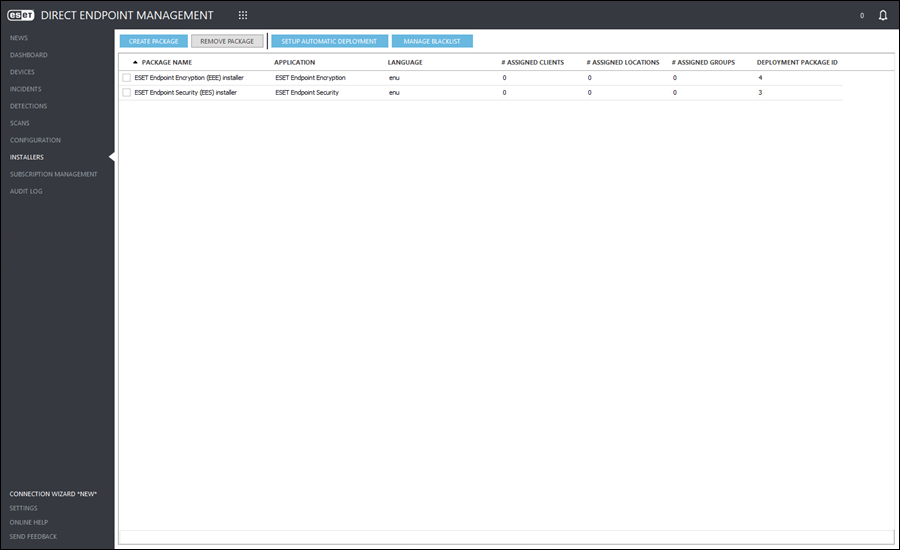
Create a deployment package
|

|
Subscription required
ESET endpoint security applications are only available for the deployment package, when you have previously added a subscription.
|
1.Click the Installers > Create package.
2.In the Package name field, type a user-friendly identifier (for example, ESET Endpoint Security (EES) installer).
3.Click the Application drop-down menu and select ESET Endpoint Antivirus/ESET Endpoint Security.
4.Click the Language drop-down menu and select the desired language for the package, or keep the default English.
5.Click the Subscription drop-down menu, and then select the applicable endpoint security application subscription from the list of available subscriptions.
6.Click the blue expand  icon next to the Advanced settings. icon next to the Advanced settings.
7.Click the ERMM Disabled Handling drop-down menu and select the applicable value.
•Warn Only (Default)—Produces an alert in the plugin that notifies you that eRMM is disabled.
|
|
eRMM being disabled on any number of managed devices will severely limit your administrative abilities in the ESET DEM plugin for ConnectWise Automate.
|
•Uninstall, Reinstall—Automatically uninstall/reinstall software, attempts to enable eRMM in the process and requires a restart after completion.
|
|
If the deployment package application is set to Uninstall ESET, or ERMM Disabled Handling is set to Uninstall, Reinstall, you must provide the Access setup password if it was set up during deployment on the managed devices targeted by such a deployment package. Click the Set button next to Access setup password. In the next window, type a secure password into the Password and Confirm Password fields, then click OK.
|
8.(Optional) To exclude this deployment package based on the managed device operating system type, select the OS exclusion check box next to the desired operating system name.
9.(Optional) To install the ESET management agent, click the radio button next to PROTECT (On Prem) or PROTECT (Cloud). Click Browse next to the applicable operating system, then browse for the created ESET Management Agent file in the next window. For more information on creating an agent installer, see the ESET PROTECT On-Prem or ESET PROTECT Online Help.
10. Click Save.
The new ESET endpoint security application deployment package will appear in the Installers view list of deployment packages.
|
|

|
ESET Endpoint Encryption (EEE) subscription
ESET Endpoint Encryption subscriptions generated in ESET MSP Administrator/ESET PROTECT Hub are not compatible with ESET DEM plugin for ConnectWise Automate.
|
|
|
Subscription required
ESET endpoint encryption applications are only available for the deployment package, when you have previously added a subscription.
|
1.Click the Installers > Create package.
2.In the Package name field, type a user-friendly identifier (for example, ESET Endpoint Encryption (EEE) installer).
3.Click the Application drop-down menu and select ESET Endpoint Encryption. Available only when you have previously added subscription of the ESET endpoint encryption application.
4.Click the Language drop-down menu and select the desired language for the package, or keep the default English.
5.Click the Subscription drop-down menu, and then select the applicable endpoint encryption application subscription from the list of available subscriptions.
6.Select the appropriate Incorrect password limit from the drop-down menu or keep the default value, Unlimited.
7.(Optional) Select the Allow user to postpone safe start process check box. If enabled this will allow the user to postpone the restarts necessary for encryption for up to 90 minutes.
8.(Optional) Modify the default Encryption start client message in the text box. This message will be displayed to any logged-in user after the ESET Endpoint Encryption application is installed, but before restarting.
9.(Optional) Select the Do not encrypt after installation and safe start check box.
10. Click Save.
The new ESET endpoint encryption application deployment package will appear in the Installers view list of deployment packages.
|
1.Click the Installers > Create package.
2.In the Package name field, type a user-friendly identifier (for example, ESET uninstaller or ESET Endpoint Encryption uninstaller).
3.Click the Application drop-down menu and select Uninstall ESET or Uninstall ESET Endpoint Encryption. Available only when you have previously added subscription of the ESET endpoint security or encryption application.
|
|
If the deployment package application is set to Uninstall ESET or Uninstall ESET Endpoint Encryption, you must provide the Access setup password if you have set it up during deployment on the managed devices.
Click the blue expand icon next to Advanced settings, then click the Set button next to Access setup password. In the the next window, type a secure password into the Password and Confirm Password fields and click OK.
|
4.Click Save. |
Remove the package
To remove a package, click the desired package name in the Installers view and click the Remove package button. In the next window, click Yes to confirm the removal.
Set up automatic deployment
1.To set up automatic deployment, click the Setup Automatic Deployment button.
2.Click the blue expand icon next to the Groups, Clients & Locations tree, click the expand  icon again (if applicable) and click the available drop-down menu arrow-down
  icon to select the desired deployment package. (Optional) Click the x icon at the end of the row to clear the selected assignment.
3.Click Save.
Automatic deployment is successfully set up. If applicable, deployment will automatically begin the next time the ESET DEM plugin for ConnectWise Automate managed device executes the ConnectWise Automate resend system info command.
Manage a blacklist
Follow these steps to manage the autodeploy blacklist:
1.Click the blue expand icon next to the Computers, Groups, Clients & Locations tree, click the expand icon again (if applicable) and select the check box next to the desired computers, groups or clients and locations.
2.Click Save.
Sort table data
All tables can be filtered and sorted by any column. To easily sort by ascending/descending order, select the applicable column header. For additional filters and sorting options, right-click the column header.

