
Configuration
Create a policy (configuration container) for each supported ESET security application and assign/unassign it to the specific client, location or group of managed devices. To manage your plugin policies, you can also edit, import, export, copy, or remove the policy.
Click the Refresh  icon to update the list with the most up-to-date data.
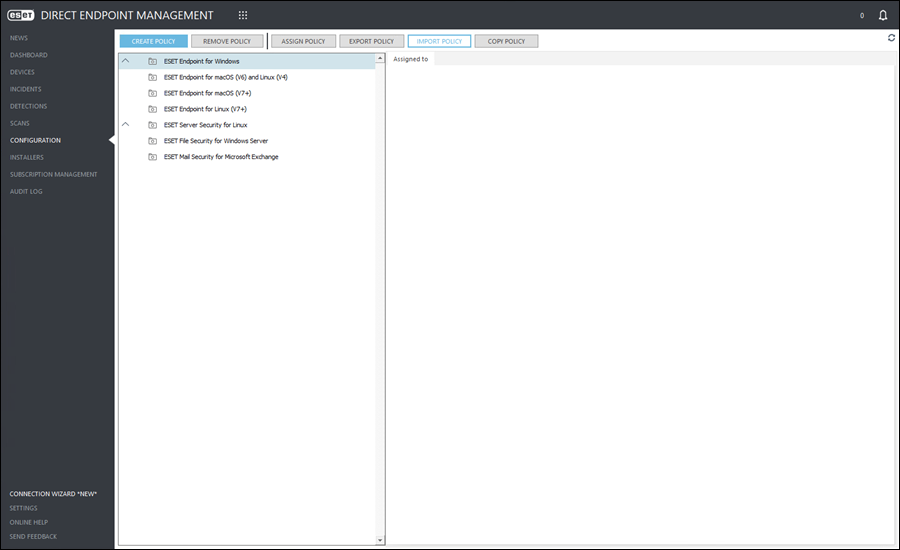
Create a policy
1.Click Configuration > Create Policy.
2.In the Policy name field, type a policy name.
3.In the Application drop-down menu, select the applicable ESET security application.
4.Set your policy configurations. (Optional) Type into the search box next to the selected ESET security application to search for the setting you want to use.
5.Click Save.
The new policy will appear in the Configuration view, under the previously selected ESET security application name. Double-click the desired ESET security application name to display its available plugin policies.
Click the desired policy to display the clients, locations and groups assigned to this policy in the Assigned to section of the Configuration view.
Edit policy
1.Click the desired policy name in the Configuration view and then click the Edit policy button.
2.Make desired adjustments to the policy.
3.Click Save.
Remove policy
To remove a policy, click the desired policy name in the Configuration view and click the Remove policy button. In the next window, click Yes to confirm the removal.
Assign policy
1.Click Configuration, select the desired policy and click Assign Policy.
2.Click the blue expand  icon next to the Groups, Clients & Locations tree, click the expand
  icon again (if applicable) and select the check box next to the desired groups or clients and locations.
3.Click Save.
In the Configuration view, the Assigned to section of the Configuration view will update for the policy.
Unassign policy
1.Click Configuration, select the desired policy and click Assign Policy.
2.Click the blue expand icon next to the Groups, Clients & Locations tree, click the expand icon again (if applicable) and deselect the check box next to the desired groups or clients and locations.
3.Click Save.
In the Configuration view, the Assigned to section of the Configuration view will update for the policy.
Export policy
1.Open the deployed ESET security application on the managed device.
2.Click Setup > Import/Export settings.
3.Select Export settings, browse for the file path and then click Export.

If you have an active connection with ESET Connect and the Allow export of policies to ESET PROTECT feature enabled, you can export policies by following these steps:
1.Click Configuration.
2.Select a policy you want to export.
3.Click Export Policy.
This action will create the policy in ESET PROTECT using the same name as in the ESET DEM plugin for ConnectWise Automate. If you export the same policy again, it will create a duplicate in ESET PROTECT.
Import policy
1.Click Configuration > Import Policy.
2.In the next window, browse for the exported configuration file, click the DEM Plugin Policy drop-down menu and select ESET Configuration to view the .xml file.
3.In the Policy name field, type a name for the imported policy.
4.Review the imported configuration for accuracy, then click Save.
The imported policy will appear in the Configuration view, under the exported ESET security application name. Double-click the desired ESET security application name to display its available plugin policies.
If you have an active connection with ESET Connect and the Allow import of policies from ESET PROTECT feature enabled, you can import policies by following these steps:
1.Click Configuration > Import Policy.
2.In the next window, select one or more policies to be imported from ESET PROTECT.
3.Click Import.
The imported policy will appear in the Configuration view under the exported ESET security application name, marked with an asterisk. Double-click the desired ESET security application name to display its available plugin policies.
If you try to import the policy that has already been imported, the system will ask how you want to proceed and provide the following options:
•Replace the existing policy—Replace the already imported policy with the current one and retain its unique ID from ESET PROTECT.
•Create a new policy—Create a new policy not linked to the unique ID from ESET PROTECT.
•Skip—Do not import the policy.
|
The changes made to the imported policy are not synchronized back to ESET PROTECT at the moment. |

Copy policy
Create a base policy, and then click Copy policy to make minor adjustments to each subsequent policy.
1.Click the desired policy name in the Configuration view and then click the Copy policy button. A copy of the selected policy will appear under the same ESET security application name.
2.Click the copied policy name and click Edit policy to change the Policy name and make desired adjustments to the policy.
3.Click Save.