
Connection Wizard
Establish API connection between ESET DEM plugin for ConnectWise Automate, ESET MSP Administrator/ESET PROTECT Hub and ESET PROTECT for automatic subscriptions synchronization and availability of some advanced features provided to the plugin by the ESET PROTECT.
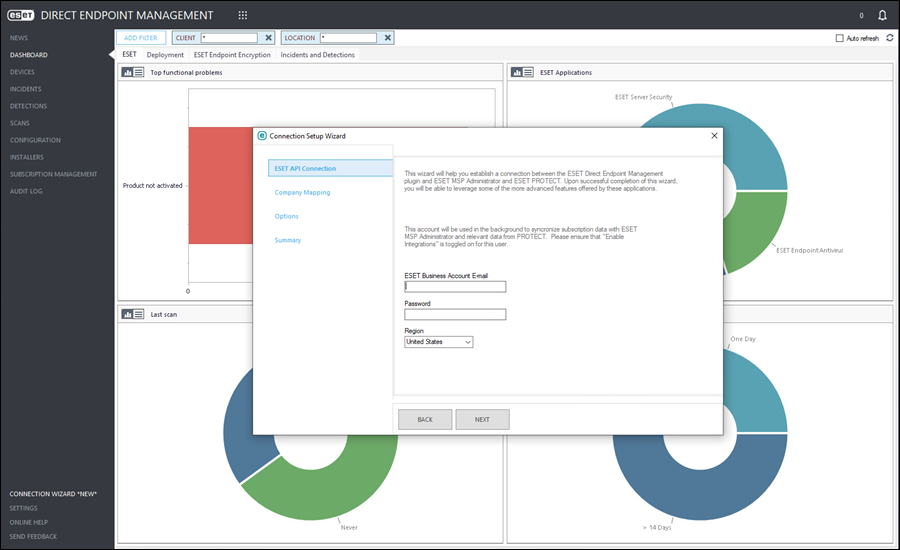
Connection Setup Wizard
1.Click the Connection Wizard in the main menu. A Connection Setup Wizard window will open.
|
Enable integrations You must enable the integrations option for the ESET MSP Administrator/ESET PROTECT Hub user. This option enables the user to use available public API endpoints via ESET Connect. |

2.In the ESET API Connection step, type the ESET MSP Administrator/ESET PROTECT Hub user login to the ESET Business Account E-mail text field. Type the user password to the Password text field. Click the Region drop-down menu and select the desired region. Click Next.
3.In the Sync Progress step, wait for the connection to be established between ESET DEM plugin for ConnectWise Automate and ESET MSP Administrator/ESET PROTECT Hub and ESET Connect. Click Next. If synchronization fails, the Connection Setup Wizard will provide a detailed information about the issue. Additionally, if the connection with ESET Connect fails but the connection with ESET MSP Administrator/ESET PROTECT Hub is successful, the MSP can complete the Connection Setup Wizard by clicking Finish at this step if they are only interested in synchronizing subscription information with the plugin.
4.In the Company Mapping step, click the drop-down menu next to ConnectWise Automate client, and select the desired ESET MSP Administrator/ESET PROTECT Hub company to be mapped to this client in the plugin. Repeat for each client/company. Click Next.
5.In the Options step, Deployment and Policy sections, keep the default options selected:
•Allow the DEM Plugin to automatically create live installers for mapped companies.
•Automatically create and assign policies to enable ESET RMM features for ConnectWise Automate.
•Allow import of policies from ESET PROTECT.
•Allow export of policies to ESET PROTECT.
Or click the check box next to the desired option to select/deselect the option. We recommend keeping the default options selected. Click Next.
|
Configuring the Connection Wizard to access ESET PROTECT via ESET Connect and enabling the Allow import of policies from ESET PROTECT and Allow export of policies to ESET PROTECT features will override the existing Import/Export Policy functionality in the plugin. |
6.In the Summary step, review the previously configured options:
•Live installers will be allowed to be automatically generated for mapped clients.
•Windows policies to enable RMM capability will be created and assigned to static group 'All'.
•{number} Clients -> Company maps will be recorded in the database.
7.Click Finish.
The Connection Setup Wizard windows will close.