
Settings
Adjust available ESET DEM plugin for ConnectWise Automate settings related to the logs cleanup, user interface, monitors and agent settings.
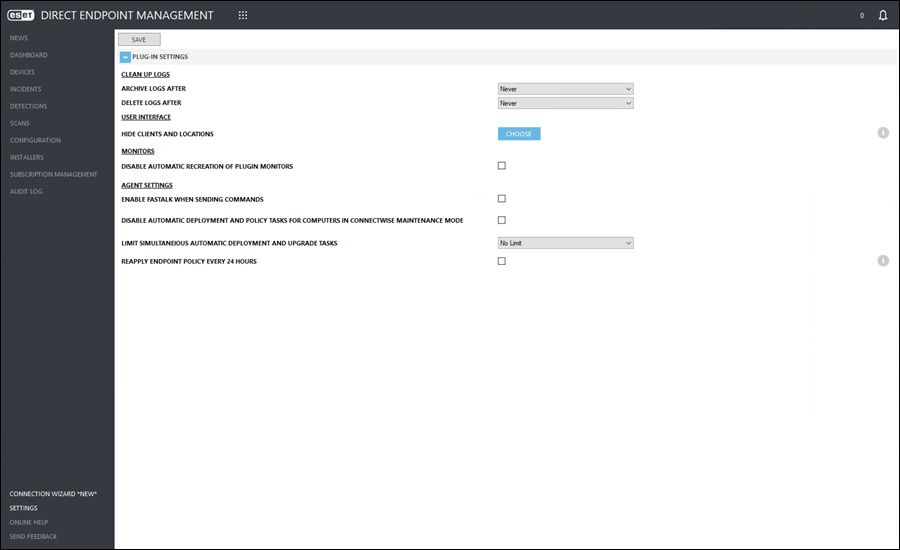
Clean up logs
•Click the Archive logs after drop-down menu, then select the number of days for logs to be archived. Click Save.
•Click the Delete logs after drop-down menu, then select the number of days for logs to be deleted. Click Save.
User interface
|
Hide Clients and Locations Choosing clients and locations in this settings section will hide devices that belong to these selections from the Devices and Dashboard view. |

1.To Hide Clients and Locations click the Choose button.
2.In the next window, select the check box next to the desired client or location name. (Optional) Click the expand  icon to view and select the client locations. Click Save.
3.Click Save settings.
Monitors
Select the Disable Automatic Recreation of Plugin Monitors check box to disable the automatic recreation of plugin monitors. Click Save.
Agent settings
•Select the Enable FastTalk when Sending Commands check box to enable this function. Click Save.
•Select the Disable Automatic Deployment and Policy Tasks for Computers in ConnectWise Maintenance Mode check box to exclude devices set by ConnectWise Automate to the maintenance mode from plugin automatic deployment and policy tasks. Click Save.
•Click the Limit Simultaneous Automatic Deployment and Upgrade Tasks drop-down menu and select the number of tasks to be executed simultaneously. Click Save.
|
Daily endpoint policy update By default, the plugin will apply policy changes to the device whenever an applied policy has been modified since the last plugin audit. Enabling this option will also force policies to be applied to the device every 24 hours, even if the policy settings have not been changed. |
•Select the Reapply Endpoint Policy Every 24 Hours check box to enable this function. Click Save.