
ESET LiveGuard
|
You need the following access rights to edit the ESET LiveGuard part: •Use access—All Static Group •Use access—Subscriptions •Use access—Policies •Write access—Product Activation Client Task MSP users need Write access to the All static group or to at least one company in their group tree. If you do not have the required access rights, the ESET LiveGuard part is disabled. If you do not have ESET LiveGuard Advanced subscription, the ESET LiveGuard part is unavailable. |

|
When your ESET LiveGuard Advanced subscription expires, your settings for automatic deployment are stored but will not be displayed. When you renew your subscription, your settings are enabled and displayed again. |

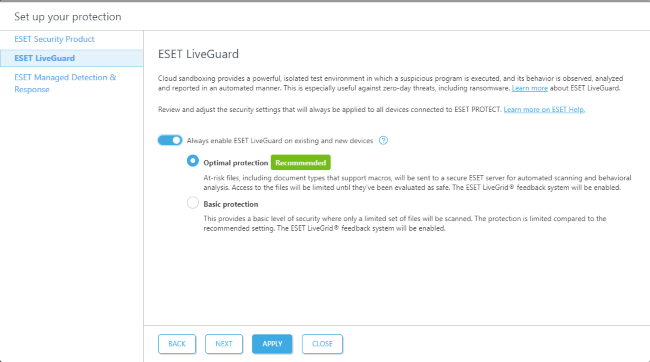
The wizard prompts you to review and adjust settings for devices connected to ESET PROTECT.
|
MSP users can adjust settings globally or per company using the Applied to filter at the top. The settings are marked as: • • • |


|
The settings are marked as Not applied if they are not applied yet. |
1.Enable Auto-enable ESET LiveGuard on existing and new devices to enable automatic deployment of ESET LiveGuard Advanced on existing and newly connected devices with a compatible ESET security application installed.
2.Exclusions from automatic enablement—optionally, click Select to exclude computers and static groups from automatic enablement.
|
We recommend selecting Optimal protection to assign new policies with maximum protection. You can also change your selection in the ESET LiveGuard Advanced section in Platform Modules. |
3.Click Apply to apply security settings or Next to continue with the next module.
You can view the settings in Configuration > Advanced setup > Protection - via basic setup. You cannot edit or delete these policies, but you can change their assignment (by default, they are assigned to the All Static Group).
Disable settings
You can disable the settings with the toggle  .
.