
Enable ESET EDR / ESET MDR / ESET MDR Ultimate
|
Prerequisites To enable MDR (Managed Detection and Response), you need one these tiers: •ESET PROTECT MDR •ESET PROTECT MDR Ultimate If your current subscription does not include Managed Detection & Response (MDR), upgrade to a higher-tier subscription. |

|
Depending on the available subscription, one of the following options is presented: •ESET EDR (ESET Inspect subscription) •ESET MDR •ESET MDR Ultimate If you selected Self-managed detection & response option in the Configuration section, ESET MDR tile will be disabled and ESET EDR can be enabled.
|

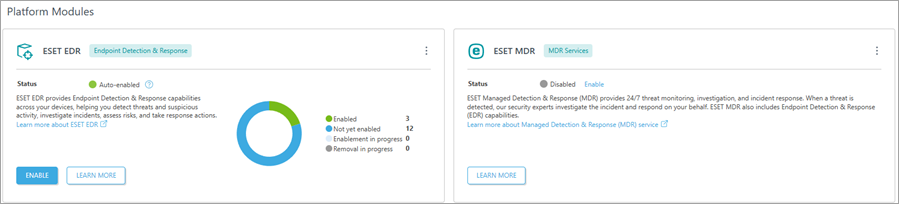
Select the Platform Modules section; in ESET EDR / ESET MDR / ESET MDR Ultimate, select the Enable option and a new window will appear:
1.Optionally, select a toggle next to Auto-enable on new eligible computers or click Select to select the targets (computers, static groups).

2.Click Enable.
3.Software Install task starts automatically. Soon, it will be visible in the graph as Enablement in progress.

Disable ESET EDR / ESET MDR / ESET MDR Ultimate
Click the three  dots button in the top-right part of the tile and select
 Disable ESET EDR / Disable ESET MDR / Disable ESET MDR Ultimate to disable EDR / MDR from your network. ESET PROTECT will deactivate EDR / MDR from all enabled computers.
|
The disablement runs with the Software Uninstall task. |
Disable auto-enablement
Click the three dots button in the top-right part of the tile and select  Disable auto-enablement to disable automatic enablement on new devices.