
Wazuh Cloud
How to enable the integration
|
The ESET PROTECT Platform and Wazuh Cloud integration guide describes the setup process for the Wazuh agent installed on a server running Linux (for example, Debian). |

Prerequisites
•You have created the dedicated API user account.
•You are using Wazuh Cloud with at least one Wazuh agent connected to the Wazuh Cloud manager.
•You have admin access rights to the server on which the Wazuh agent connected to the Wazuh Cloud manager is running.
•You have installed Docker on the server with the Wazuh agent connected to the Wazuh Cloud manager.
•You have installed Docker Compose on the server with the Wazuh agent connected to the Wazuh Cloud manager.

Integration configuration steps
|
The ESET PROTECT Platform and Wazuh integration app is available for download on GitHub. See the latest integration app version under Releases on the GitHub page. |
1.Log in to the server console on which the Wazuh agent connected to the Wazuh Cloud manager is running and download the ESET PROTECT Platform and Wazuh integration app; sudo privileges are required, as they enable you to run commands as the root user. Specify the latest app version, for example, 1.3.2, in the following command:
git clone --branch 1.3.2 https://github.com/eset/ESET-Integration-Wazuh.git /var/ossec/integrations/ESET-Integration-Wazuh |
2.Create the /var/log/eset_integration.log file that will store the ESET detections pulled by the ESET PROTECT Platform and Wazuh integration app:
touch /var/log/eset_integration.log |
3.Set up the Wazuh agent to read logs saved in /var/log/eset_integration.log. Edit the /var/ossec/etc/ossec.conf file by adding the /var/log/eset_integration.log path within the <ossec_config> tag under other local files configuration, as in the following example, and save the changes:
<ossec_config>
<!--Configuration of other local files -->
<localfile> <log_format>json</log_format> <location>/var/log/eset_integration.log</location> </localfile>
</ossec_config> |
To edit the /var/ossec/etc/ossec.conf file, use an editor of your preference. In the following example, the nano text editor is used:
nano /var/ossec/etc/ossec.conf |
4.Restart the server on which the Wazuh agent connected to the Wazuh Cloud manager is running to apply the changes made in step 3:
systemctl restart wazuh-agent |
5.Create the .env file in the integration app folder, /var/ossec/integrations/ESET-Integration-Wazuh, or set the required variables in the environment:
•EP_INSTANCE—The ESET application that Wazuh uses to pull detections; the options are yes/no. Set yes if you have an ESET PROTECT subscription.
•EI_INSTANCE—The ESET application that Wazuh uses to pull detections; the options are yes/no. Set yes if you have an ESET Inspect subscription.
•ECOS_INSTANCE—The ESET application that Wazuh uses to pull detection; the options are yes/no. Set yes if you have an ESET Cloud Office Security subscription.
•INTERVAL—The time interval (in minutes) for the app to run and pull detections; the minimum value is three. On the first and subsequent runs, until at least one detection record is pulled and saved, the ESET PROTECT Platform and Wazuh integration app retrieves the data whose occurrence time is later than the current time minus the specified time interval. For example, if the interval is set to 10, the app fetches the data from the past 10 minutes. When at least one detection record is pulled and saved, on the subsequent run, the app will pull detections whose occurrence time is later than the occurrence time of the most recently saved detection record.
•INSTANCE_REGION—The location of your ESET PROTECT/ESET Inspect/ESET Cloud Office Security server; the options are: ca, de, eu, jpn, us.
•USERNAME_INTEGRATION—The API user's email
•PASSWORD_INTEGRATION—The API user's password
To create the .env file in the /var/ossec/integrations/ESET-Integration-Wazuh folder, use the following command:
touch /var/ossec/integrations/ESET-Integration-Wazuh/.env |
To edit the .env file, use an editor of your preference. In the following example, the nano text editor is used:
nano /var/ossec/integrations/ESET-Integration-Wazuh/.env |
Refer to the example of the .env file contents:
EP_INSTANCE=yes EI_INSTANCE=no ECOS_INSTANCE=yes INTERVAL=10 INSTANCE_REGION=eu USERNAME_INTEGRATION=email PASSWORD_INTEGRATION=password |
6.Log in to the Wazuh Cloud console and navigate to your Active environment. Click the Open Wazuh button to open your own Wazuh Cloud environment and login to it, or open your Wazuh Cloud environment by the direct URL and log in.
7.Click menu > Server Management > Rules > Add new rules file.
8.Copy the contents of the eset_local_rules.xml file from GitHub using the Copy raw file option and paste it to the new rules file in your Wazuh Cloud environment. Name the rule file and save.
9.Reload the server when the system prompts you with the reload request.
10.On the server with the Wazuh agent connected to the Wazuh Cloud manager, build and run the ESET PROTECT Platform and Wazuh integration app using the Docker Compose command:
docker compose --file /var/ossec/integrations/ESET-Integration-Wazuh/docker-compose.yml up -d --build --force-recreate |
|
To prevent storage overload, we recommend that you move the log data to an archive and clean up the eset_integration.log file or use a different data retention and management method. |
|
The integration runs on the same server as the Wazuh agent. If the server running the Wazuh agent, or the agent itself, becomes unavailable (for example, due to a crash or service interruption), the integration is also affected. |

Integration verification
After configuring the integration, you can see the running app logs.
1.On the server with the Wazuh agent connected to the Wazuh Cloud manager, use the following command to show all the running containers. Find the ESET PROTECT Platform and Wazuh integration app container and copy its name:
docker ps |
2.Use the following command to show the running ESET PROTECT Platform and Wazuh integration app logs; paste the container name copied in the previous step:
docker logs -f <docker container name> |
Additionally, you can see the most recently pulled ESET detections in the eset_integration.log file by running the following command:
tail -n 100 /var/log/eset_integration.log |
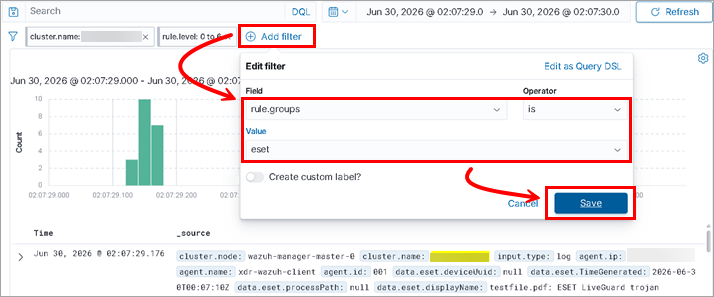
Alternatively, you can see the most recently pulled ESET detections in the Wazuh Cloud dashboard, which enables you to filter out the ESET logs.
1.In the Wazuh Cloud dashboard, click Add filter.
2.Edit the filter by setting the values:
•Field—rule.groups
•Operator—is
•Value—eset
3.Click Save.
Troubleshooting
If you experience an issue with the integration, reach out to the local Partner in the respective country/region where you purchased your ESET subscription, or the respective ESET office, by opening a support request via the support form.
Ensure to include the required details from the list; they will help the support agent investigate the issue:
•Your ESET Connect API username
•Logs from the ESET PROTECT Platform and Wazuh integration app container