
Incident Ticket Logs
The Incident Ticket Logs view provides the central overview for all incident tickets created and updated by Incident Monitoring and their statuses.
Based on this information, you can use the displayed PSA Ticket ID to match the ticket number in your PSA tool and investigate each incident, or you can open a ticket in the PSA tool directly from Incident Ticket Logs.
When the incident is updated in your PSA tool, the information is replicated in the Incident Ticket Logs view, and the related Incident Status changes accordingly.
The view lists all incident ticket logs, sorted by the most recent update.
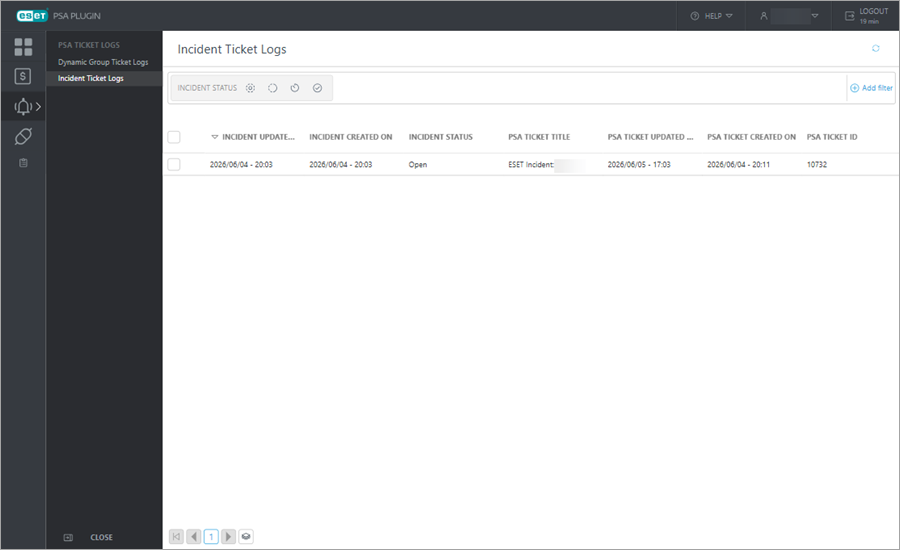
View details:
•Incident Updated On—Date and time of the latest incident ticket update
•Incident Created On—Date and time of the incident ticket creation
•Incident Status—Resolution status of the incident ticket
•PSA Ticket Title—Title of the incident ticket used in the PSA tool
•PSA Ticket Updated On—Date and time of the latest incident ticket update in the PSA tool
•PSA Ticket Created On—Date and time of the incident ticket creation in the PSA tool
•PSA Ticket ID—Identification number of the ticket in the PSA tool
Click the Incident Status filter to display only tickets with the selected status or statuses. The Incident Status filter includes:
• Open
Open
• In Progress
• Waiting for Input
• Closed
Click  Add filters to add more filters, or click each column header to sort the view according to your needs.
Click  Refresh to update the data in the Incident Ticket Logs view.
Open an incident ticket in the PSA tool
To open an incident ticket in the PSA tool:
1.(Optional) To be routed correctly, log into the PSA tool in a separate web browser tab.
2.Click the menu  icon next to the desired entry in Incident Ticket Logs and select View Ticket in PSA.
3.In the confirmation window, click Continue. (Optional) Select the Do not show this warning again. check box to skip this dialog in the future.