
Incident Monitoring
Use the Incident Monitoring view to enable, set up or disable the automatic ticket creation and updates for incidents from ESET PROTECT.
|
ESET PROTECT Connection required The automatic ticket creation for incidents is available only after you establish a working ESET PROTECT Connection. The automatic ticket creation feature works only for cloud-based ESET PROTECT Connections. |

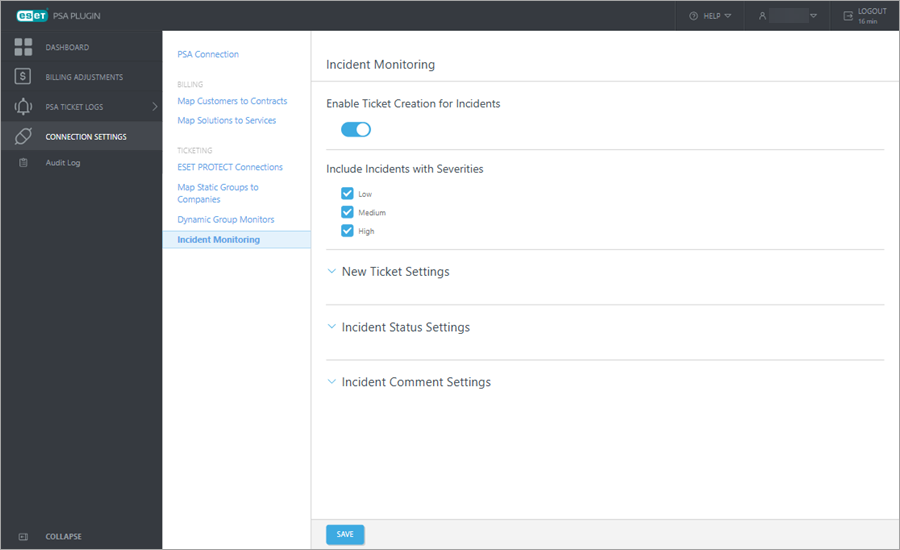
View details:
•Enable Ticket Creation for Incidents—Toggle to enable or disable automatic ticket creation for incidents.
•Include Incidents with Severities—Incident severities to create tickets for. Options include: Low, Medium and High.
•New Ticket Settings—Configuration settings for new ticket creation. Required fields include: Title, Priority, Queue and Issue Type. Description is optional.
•Incident Status Settings—Configuration settings for updating ticket statuses. Required fields include: Open Ticket Status and Closed Ticket Status. In Progress Ticket Status and Waiting Ticket Status are optional.
•Incident Comment Settings—Configuration settings for incident comments to be posted as ticket notes. Fields can vary depending on the type of the PSA used.
|
The plugin updates the PSA ticket based on the Incident Status Settings. If any new incident comments are found during the update, the plugin will add them as notes to the ticket based on the Incident Comment Settings. |

Click  Refresh to update the data in the Incidents Monitoring view.
Enable automatic ticket creation for incidents
1.Select Connection Settings > Incident Monitoring.
2.Check if the Enable Ticket Creation for Incidents toggle is enabled. If the Enable Ticket Creation for Incidents toggle is disabled, click the toggle to enable it.
3.In the Include Incident with Severities section, select the incident severities to create tickets for.
4.Expand the New Ticket Settings and fill in or adjust the required fields.
|
Incident Description Variables You can use predefined variables to populate the Title and Description fields. When the system creates the incident ticket, it replaces the variables with the corresponding data from the specific incident: •%INCIDENT_NAME% •%SEVERITY% •%INCIDENT_URL% •%DESCRIPTION% |
5.Expand the Incident Status Settings and fill in or adjust the required fields.
6.Expand the Incident Comment Settings and configure the incident comments according to your preferences.
7.Click Save.
Incident Monitoring is now enabled and fully configured. When a ticket for an incident is created, you can view it in PSA Ticket Logs > Incident Ticket Logs.
Edit ticket creation for incidents settings
1.Select Connection Settings > Incident Monitoring.
2.Expand the section or sections you want to modify.
3.Adjust the relevant fields according to your preferences.
4.Click Save.
Disable automatic ticket creation for incidents
1.Select Connection Settings > Incident Monitoring.
2.Click the toggle to disable ticket creation for incidents.
3.Click Save.
The system will not create tickets for incidents from ESET PROTECT.