
Incident details
Select any incident, click the Actions button or click the three dots  button > View Details.
Overview—overview of the incident, provides the following information:
•Incident details are displayed in the main section:
oSeverity:Low, Medium or High
oStatus:Open—the incident is open or reopened by a security administrator or other user. In-progress—The incident is in progress and currently being investigated. Closed—The incident is closed.
oCreation time
oAuthor
oTags—select and apply tags to an incident from the existing list or create new custom tags.
•Company impact—the number of affected Computers, Identities, Executables and Processes. Click the number to go to the related specific page.
•Comments—you can Add comment for the incident. Click View all comments to display all created comments. You can Edit comment, Pin comment or Delete comment.
•Description—incident explanation.
•MITRE ATT&CK® techniques—available MITRE ATT&CK techniques for the selected incident.
•Recommended actions—recommended steps to investigate and remediate the incidents. ESET LiveAI extends this feature and provides AI-driven recommended steps to initiate the incident response process. You can click a recommended step to execute a remediation action. Actions that cannot be directly remediated can be Marked as done or Mark as not done, as required.
|
AI-driven recommended steps are available only for customers with: •ESET PROTECT MDR Ultimate •ESET PROTECT Enterprise (ESET LiveAI as add-on) •ESET PROTECT Elite (ESET LiveAI as add-on) |

Graph—view the incident graph structure made of indicators in the compound or hierarchical layout. The graph provides a control panel with buttons for quick orientation—zoom in/zoom out bar, Fit to screen, Reset view and info tooltip with Shortcuts.
The graph consists of nodes. In the graph, you can click any white node to view detailed information in the side panel. You cannot view details of the gray nodes. Specific nodes contain a menu with actions: View Details, View Details in New Tab, Scan with cleaning, Isolate from network, Advanced Search.
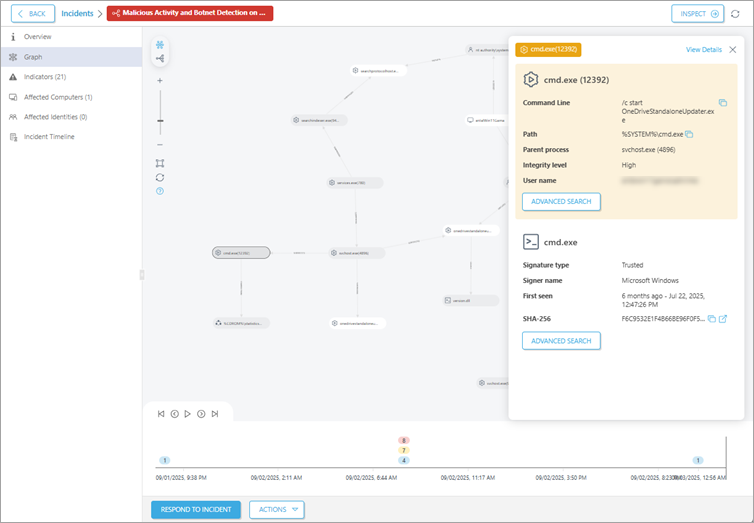
An arrow between nodes represents the relationship between different types of nodes, for example:
oUser → LOGGED IN → Computer
oUser → EXECUTES → Process
oParent process → SUB-PROCESS → Child process
You can find the incident graph timeline with the timeline control panel to rewind the state of the graph to the beginning, move forward or play the selected time period of the graph.
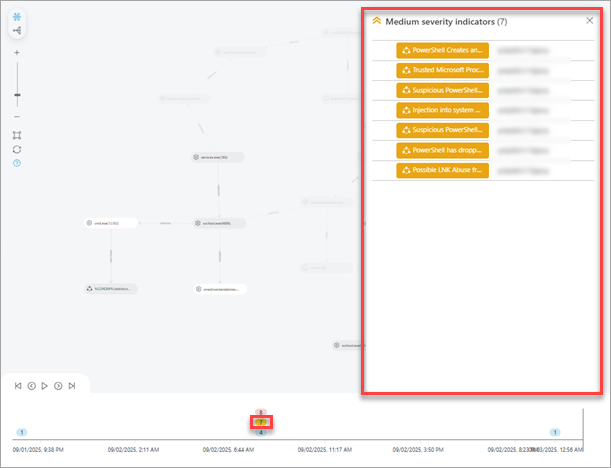
You can select groups of indicators based on their severity. When you click the group of indicators, a subgraph is highlighted. Subgraph consists only of the selected severity indicators group. When you hover over the indicators in the table, the corresponding objects in the graph are highlighted.
Indicators—list of indicators. Click an indicator to view details. Optionally, you can view details in a new tab, click > View Details in New Tab.
You can view a process tree with process and indicator nodes:

|
Indicator details for indicators and processes are available for incidents created after the ESET PROTECT 6.4 release update (August 1, 2025). |
The process tree allows users to navigate through indicator. You can click a process node (a rounded node) or a indicator node (a rectangle node) in the process tree to display details based on data availability:

Affected Computers—a list of affected computers.
Affected Identities—a list of affected users. You can click the three dots button to Enable/Disable User, Reset user password, Revoke Sessions > Log Out Users from Associated Devices in AD. You can create XDR tasks as a response action to incidents.
Processes—a list of processes triggered by the executable. You can click the three dots button to:
•View Details—redirect to process tree with details.
•View Details in New Tab—redirect to process tree with details in a new tab.
•Kill Process—kill the process, if it is still active in the operation memory.
•Advanced Search—redirect to the Advanced search section with related.hash filtered.
•Download Executable—download the executable file for further investigation.
•Submit to ESET LiveGuard—manually submit the file to ESET LiveGuard.
Executables—a list of executables. You can click the three dots button to:
•View Details—redirect to executable details.
•View Details in New Tab—redirect to executable details in a new tab.
•Block executable
•Block and clean executable
•Advanced Search—redirect to the Advanced search section.
•Download Executable—download the executable file for further investigation.
Incident Timeline—timeline with a brief history of incidents, from the triggering event until closing the incident. If available, you can:
•see statuses.
•click an object to view details.
•click a response action (except for Block and Block & Clean) to view Summary, Executions, Triggers and Execution Details tabs with details, if available.
In every section, you can click the refresh button  to refresh the page.
Click the Respond to incident button to select the affected objects and define their response actions. Select a response action (Isolate, Log out user, Reboot, Scan & Clean) and click Confirm.
oComputers > Continue > select the response action (Isolate, Log out user, Reboot, Scan & Clean) > Confirm.
oIdentities > Continue > select the response action
oProcesses > Continue > select the response action (Kill Process) > Confirm.
oExecutables > Continue > select the response action (Block, Block & Clean) > Confirm.