
Start MSP customer setup
After you import your MSP account and the MSP tree is synchronized, you can start setting up companies. The MSP customer setup creates:
•A custom ESET Management or bundled Agent and ESET security application installer. The MSP customer setup does not support creating ESET Full Disk Encryption installers or ESET Inspect Connector installers.
•An MSP user which can manage company computers using the Web Console.
You can also skip the MSP customer setup, but we recommend that you complete the MSP setup.
|
You can set up only a company with at least one valid seat. |

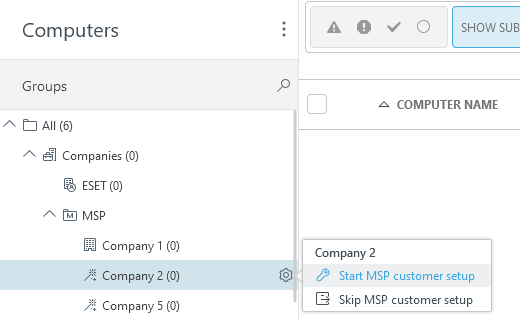
1.In the Computers window, click the gear icon next to the company you want to set up and select Start MSP customer setup.
2.To save the configuration as default setup, select the check box under Remember settings. Click Continue.
3.To create a custom installer during the setup (recommended), select the check box under Create installer.
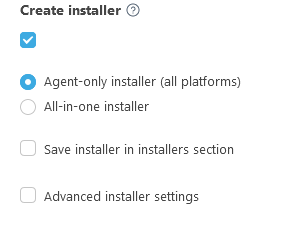
4.You can create two types of installers:
•Agent-only installer (all platforms)—You can install this Agent script installer on Windows, macOS and Linux computers.
•All-in-one installer—The installer consists of ESET Management Agent and selected ESET business security application (Windows). If you do not see the All-in-one installer option, ensure a subscription is assigned to the company.
oApplication/Version—Select an ESET security application that will be installed together with ESET Management Agent. By default, the latest version is pre-selected (recommended). You can select an earlier version.
oSelect the language from the Language drop-down menu.
oSelect the check box I agree to the current Terms of Use and additional legal documents (End User License Agreement) applicable to the installed ESET protection and acknowledge the Privacy Policy. See the legal documents for ESET applications, services and platforms.
To save the installer in Installers for future use, select the check box next to Save installer in installers section.
 Advanced installer settings (recommended)
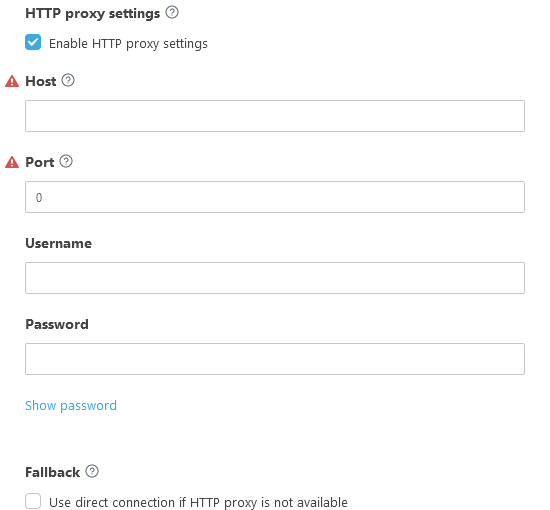
5.Click Continue to move to the User section.
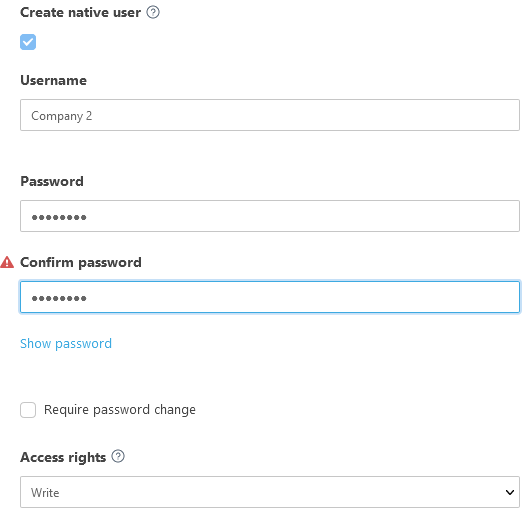
6.If you want to create a new user for the company (recommended), select the check box next to the Create native user. The user can log in to the Web Console and manage the company devices. Type a valid username (not containing following characters , ; " ) and password for the new user.
a.Require password change—the user must change their password after their first login.
b.Access rights—select if user has Read and Use or Write access to the company objects (computers, policies, tasks).
|
The AD synchronization is not available for users created using the MSP company setup. |

Problems creating a user? Ensure you have the necessary permissions.
Click Finish to prepare the installer. Click the link and download the installer you need. You can also re-download the installer from the Installers menu if you have selected to save the installer.
Read how to deploy the ESET Management Agent locally or remotely.