
Incidents
View, filter and export a list of incidents on managed devices. See incident details provided by ESET PROTECT for the managed device (requires that the connection wizard connection steps have been completed), refresh system information, or perform an on-demand scan on the selected managed device.
Click the Refresh  icon to update the list with the most up-to-date data. (Optional) Select the check box next to Auto refresh for automatic update of the data.
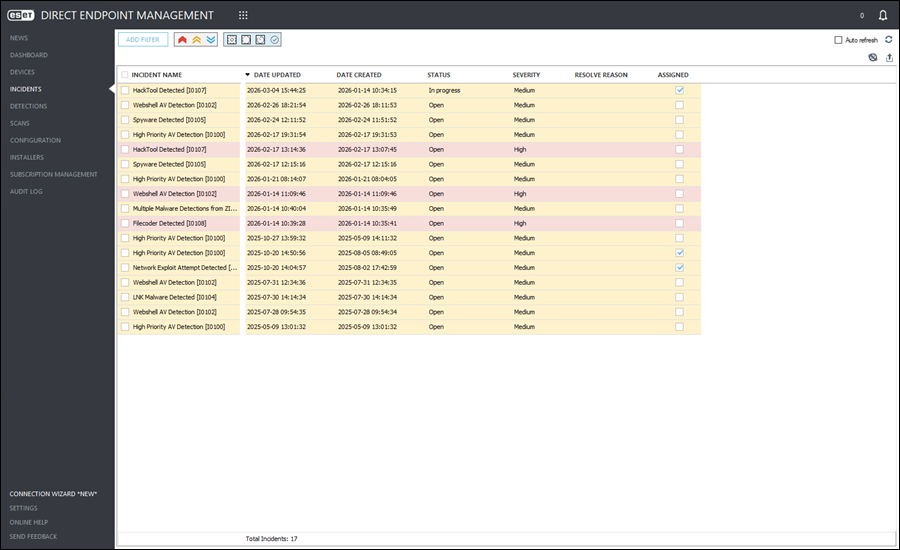
Incident details
Right-click the row with the desired incident. The following options are available:
Incident name |
|
|
Device details collected by the plugin for the managed device. |
|
Open ConnectWise Automate Computer Management Screen. |
|
Send ConnectWise Automate Refresh System Info command to the managed device. |
|
Configure scan profile and scan targets, and send an on-demand scan task request to the managed device. |


Show device details
•Overview—Displays all available database information from the plugin for the selected managed device. Displays the ESET PROTECT link to the incident.
•Detections—Displays list of detections from the last seven days for the selected managed device.
•Scans—Displays list of scans from the last seven days performed on the selected managed device.
•Events—Displays list of plugin-related events from the last seven days performed on the selected managed device.
•Policies—Displays list of assigned policies for the the selected managed device.
On-Demand scan
1.Right-click the row with the desired detection. Select the On-Demand Scan option.
2.In the next window, click the Scan profile drop-down menu to select the desired scan profile.
3.(Optional) If you select Custom profile in step 2, you can type (case-sensitive) custom settings into the Custom Profile text field.
4.Select Scan targets, click check box next to the desired line item.
5.Click OK.
Filter table data
To filter data, click Add Filter and select the applicable value from the drop-down menu.
Various filters allow editing, for example, the Assigned, Date Created, etc. Adjust the filters using the appropriate drop-down menu or type the value.
Click the x next to the filter to remove it.
Available filters:
•Assigned
•Date Created
•Date Updated
Filter by incident severity
Click an Incident severity icon— High,
High,  Medium or
  Low. You can combine these icons by enabling or disabling them.
Filter by incident status
Click an Incident status icon— Open, In progress,
  Waiting for input or
  Closed. You can combine these icons by enabling or disabling them.
Sort table data
All tables can be filtered and sorted by any column. To easily sort by ascending/descending order, select the applicable column header. For additional filters and sorting options, right-click the column header.
Group table data
In the desired table column, right-click and select Group By This Column. All items will be grouped by the selected column header.
Click the Clear Column Grouping  icon to remove any table column grouping.
Export table data
To export the filtered table data, click the Export Table  icon, and in the next window, type the File Name. Click Save to create the export file in the .csv format.