
Terminal
When you investigate issues remotely, use the Terminal to connect to a client computer. Terminal supports remote access to:
•Windows endpoints—using PowerShell.
•Linux endpoints—using a terminal configured on the system.
•macOS endpoints—using zsh or a terminal configured on the system.
|
Requirements: •ESET PROTECT Enterprise subscription or higher. •ESET Management Agent version 13.3 and later. •Granted permission to: oGroups & Computers—Read, Use, Write. oClient Tasks: Live Terminal—Read, Use, Write; Upload File—Read, Use, Write. •Two-factor authentication (2FA)—access to the terminal is protected by 2FA, which adds an additional security layer. •A computer must be available online in the network. •To access user files on macOS, enable Full Disk Access for the ESET Management Agent. |

1.Go to Computers > select the computer you want to connect to > Connect Remotely > Terminal. The Live Terminal client task is automatically created. Connection may take a few seconds.
2.You are connected, and you can start investigating the connected computer.
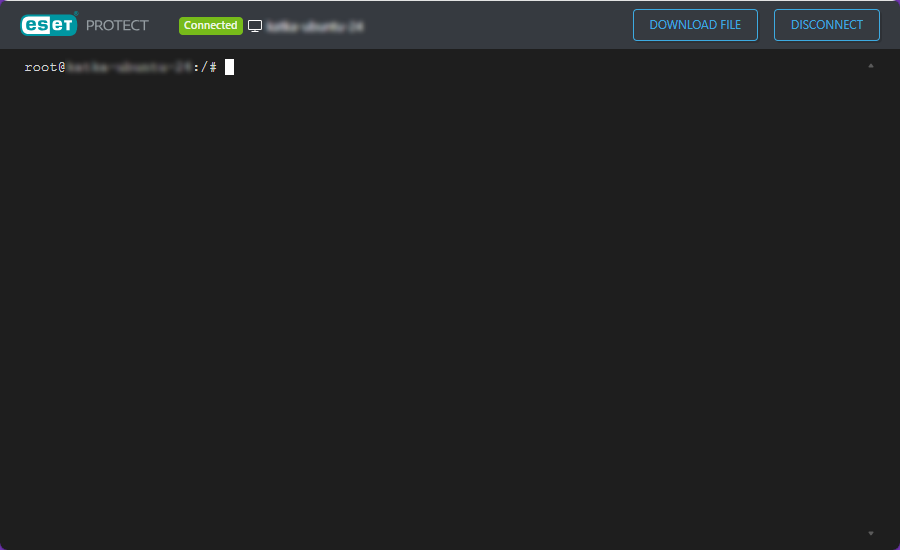
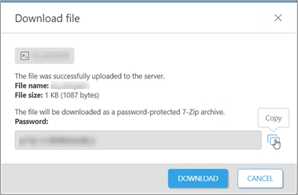
3.Optionally, click Download file to download files directly from the computer. Type the full path to the file you want to download and click Download. After the file is successfully uploaded to the server, you can download it as a password-protected 7-Zip archive. The password is provided; copy it and click Download.
4.Click Disconnect when you finish investigating.
|
During active investigation or troubleshooting activities, concurrent multiuser access is supported, allowing several simultaneous connections to a single endpoint. User sessions are automatically terminated after five minutes of inactivity. |
