
Static Group tree for ESET Business Account/ESET PROTECT Hub/ESET MSP Administrator
If you import subscriptions from ESET Business Account/ESET PROTECT Hub, your company structure (including sites) appears in the Static Group tree.
If you import subscriptions from ESET MSP Administrator, the ESET MSP Administrator structure appears in the Static Group tree. Read more about ESET PROTECT On-Prem for Managed Service Providers.
Static Group tree structure
You can see the Static Group tree structure for ESET Business Account/ESET PROTECT Hub/ESET MSP Administrator in Computers in the Static Group tree under All >  Companies.
|
We recommend that you use an online account (ESET Business Account/ESET PROTECT Hub/ESET MSP Administrator) and synchronize it with ESET PROTECT On-Prem to use ESET PROTECT On-Prem to the full potential. If you activated ESET PROTECT On-Prem with an activation key or an offline activation file, and did not synchronize subscriptions from ESET Business Account/ESET PROTECT Hub/ESET MSP Administrator, you will not see ESET Business Account/ESET PROTECT Hub/ESET MSP Administrator in the Static Group tree structure. |

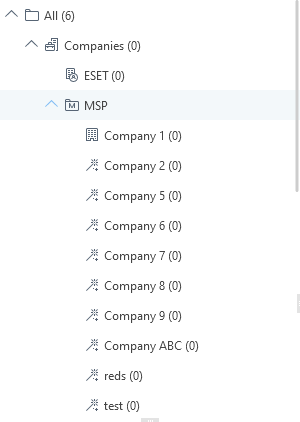
Under Companies, you can see one or more ESET Business Account/ESET PROTECT Hub/ESET MSP Administrator trees, depending on the accounts synchronized in Subscription Management.
If you have an ESET MSP Administrator account, see the details on the structure of entities in the MSP.
Site synchronization
If you have ESET Business Account/ESET PROTECT Hub sites, ESET PROTECT On-Prem automatically synchronizes them to the Static Group tree and assigns subscriptions from each site to the respective site Static Group (marked with the  icon) under the
  ESET Business Account/ESET PROTECT Hub company.
|
•We recommend that you use the automatically created Static Groups site to manage your sites (instead creating Static Groups manually). •You need to create site administrators and assign their permissions manually. Select the respective site Static Group as the Home Group for each site administrator and assign the administrator a permission set with the same Home Group. |

|
For example, you have two sites (site1 and site2): 1.Create a user for each site (site1_admin and site2_admin). 2.Optional: Assign the respective Home Group (site) to each user (site1 to site1_admin and site2 to site2_admin). 3.Create a permission set for each user (site1_permissions for site1_admin and site2_permissions for site2_admin). 4.Assign the respective Static Group to each permission set (site1 to site1_permissions and site2 to site2_permissions). 5.Assign each permission set's required functionalities and access level (Read, Use, Write). 6.Assign each permission set to the respective user (site1_permissions to site1_admin and site2_permissions to site2_admin). 7.Now, each site administrator can only see their site and its objects (for example, subscriptions). |

If you have a site synchronized in the Static Group tree structure and you rename the site in ESET Business Account/ESET PROTECT Hub, it will also be renamed in ESET PROTECT On-Prem.
If you have a site synchronized in the Static Group tree structure and you delete the site in ESET Business Account/ESET PROTECT Hub, its icon in ESET PROTECT On-Prem will change to  .
.
Shared objects
The ESET Business Account/ESET PROTECT Hub/ESET MSP Administrator Static Group tree structure contains additional dedicated Static Groups called Shared Objects.
You can use Shared Objects to share Web Console objects (policies, dynamic group templates, etc.) to more users with limited access (access to Static Groups on the same level as Shared Objects or under them in the tree structure):
1.Select Shared Objects as the Access Group for the Web Console object. Access Group sets the object's Static Group and access to the object based on the user's access rights.
2.Assign the Use permission to Shared Objects.
|
•Be sure limited users are not assigned Write permission in Shared Objects to prevent them from editing. The Use permission is sufficient. •You cannot store computers in Shared Objects. Shared Objects are not visible under Groups in Computers. |