
Download configuration from ESET HOME
The configuration file for your router is generated and downloaded directly in your ESET HOME account. Follow the steps below to generate and download the configuration file:

1.Log in to your ESET HOME account.
2.In the menu, click Members.
3.Choose the Account owner from the list of members.
4.Click Add protection, choose one of your available subscriptions, and then click Continue.
5.Click Protect this device and select VPN for Router. Alternatively, click Protect another device and open the instructions email you received.
|
VPN for Router access To use the VPN for Router, you must select a member labeled as the Account owner and have an ESET HOME Security Ultimate or ESET Small Business Security subscription tier. |

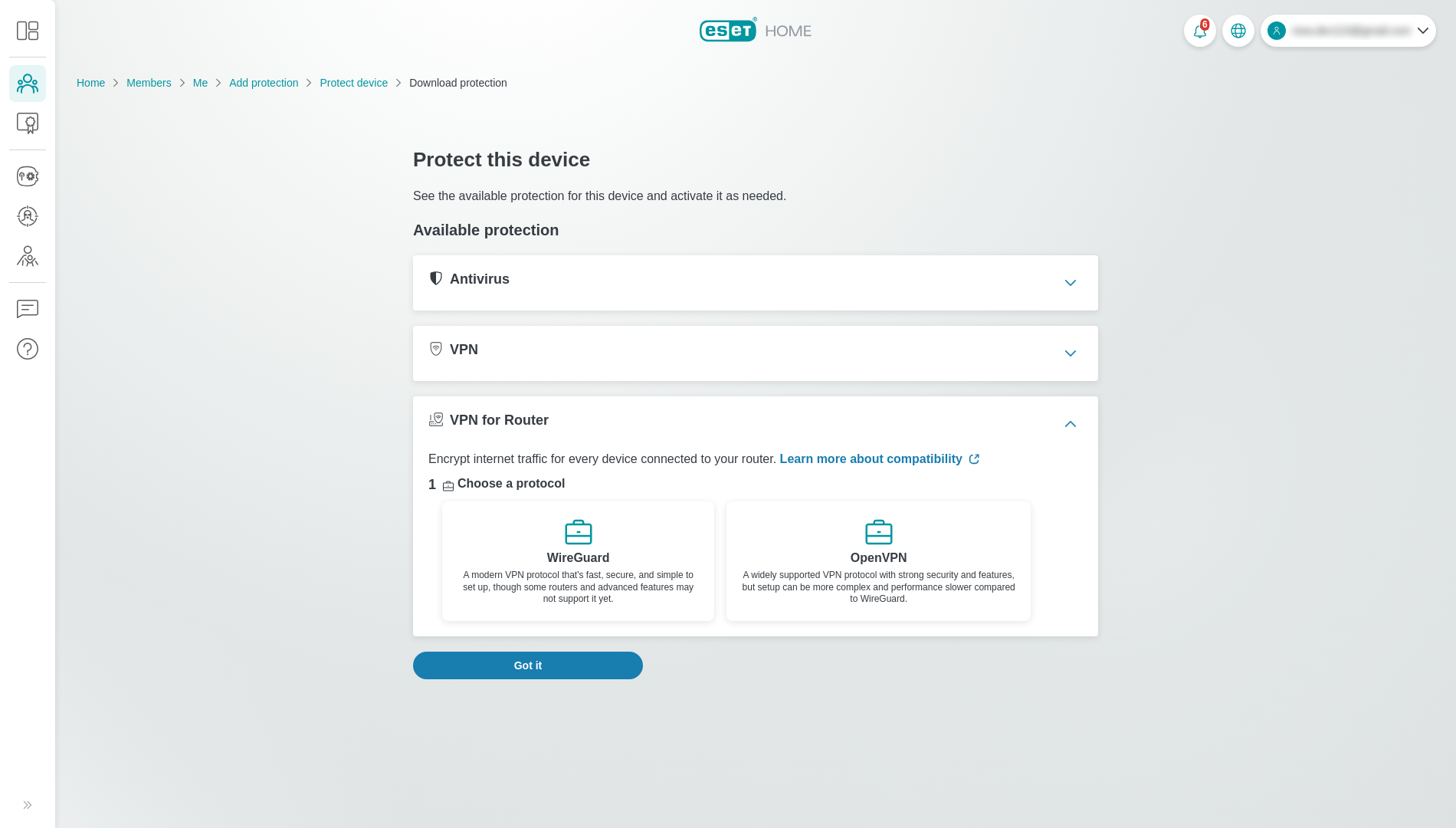
6.Choose one of the following protocols:
a.WireGuard—Select the location and port from the drop-down menu.
b.OpenVPN—Select the location, protocol (choose UDP for faster speed or TCP for better reliability), and port from the drop-down menu.
7.Click Download and save the configuration file to your device.
|
Save the username and password. You need the credentials when applying the OpenVPN configuration to your router. |
8.To apply the configuration, follow the instructions for your Asus or TP-Link router. The importing procedure of the VPN configuration for a router from another manufacturer is very similar.
9.The VPN for Router is now activated. You will see VPN for Router listed under VPN in the side menu.
|
WireGuard is a modern VPN protocol, so some routers may not support it yet. |

|
|
The Transmission Control Protocol (TCP) and User Datagram Protocol (UDP) need only one port for bidirectional traffic. Port numbers from 0 to 1023 are well-known ports or system ports. These ports are used by the system for common network services. The default port for unencrypted HTTP traffic is 80. The default port for encrypted HTTPS traffic is 443. |
|
|
You can activate only one VPN for Router configuration per subscription. If you want to activate it for a different router, first deactivate it for the current one. |