This page is designed to help you easily set up your router with the VPN configuration you need. To keep things simple and clear, the instructions are divided into expandable sections.
The first section guides you through the basic setup steps to complete before adding any VPN configuration. The second section shows you how to set up a WireGuard client on your router, from importing the configuration to activating it. The third section provides a step-by-step guide for applying an OpenVPN configuration.
1.Verify that the Wi-Fi router is connected correctly (the Ethernet cable is connected to the WAN port) and the power button is turned on.
2.Connect a device to the router either with an Ethernet cable or by finding the default Wi-Fi name (SSID). The router's default network settings, including the SSID and password, are usually displayed on the product label located on the back of the router.
|

|
For example, WiFi SSID: ASUS_20.
|
3.On your device, open any browser and visit http://www.asusrouter.com or type 192.168.0.1 into the address bar to log in to your router.
4.Type the router's username and password.
5.Follow the steps to complete the setup and connect to the internet. |
1.Verify that your Asus router supports WireGuard protocol.
2.On your device, open any browser and visit http://www.asusrouter.com or type 192.168.0.1 into the address bar to log in to your router.
3.Type the router's username and password.
4.In the Advanced settings, click the VPN.
5.At the top, go to the VPN Client tab.
6.Click Add profile and select WireGuard.
7.Type the following information:
a.Description—Specify a description for the VPN profile.
b.Protocol—Select UDP or TCP.
8.Import .conf file—Choose the file you downloaded (usually found in the Downloads folder) and click Upload.
9.To activate the VPN profile, click Activate. You can add devices that will use the VPN connection.
|
1.On your device, open any browser and visit http://www.asusrouter.com or type 192.168.0.1 into the address bar to log in to your router.
2.Type the router's username and password.
3.In the Advanced settings, click the VPN.
4.At the top, go to the VPN Client tab.
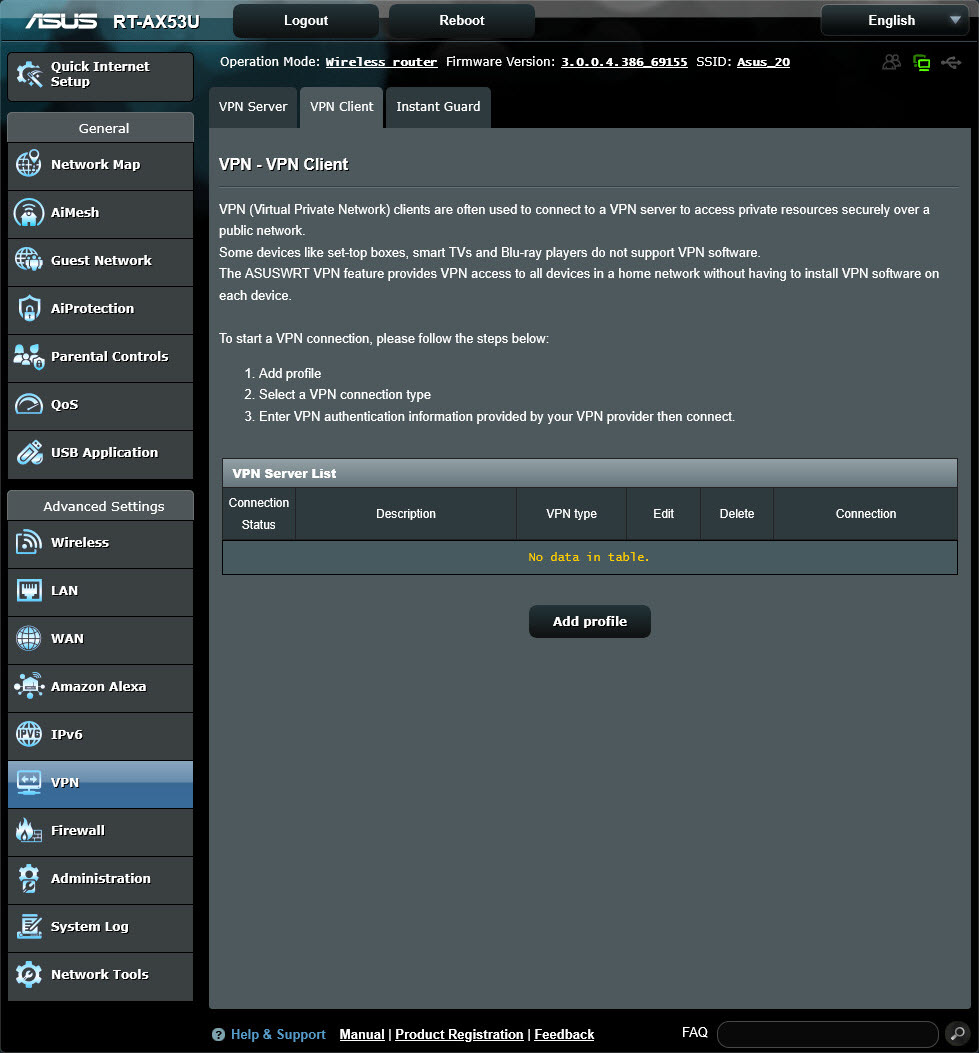
5.Click Add profile and select OpenVPN.
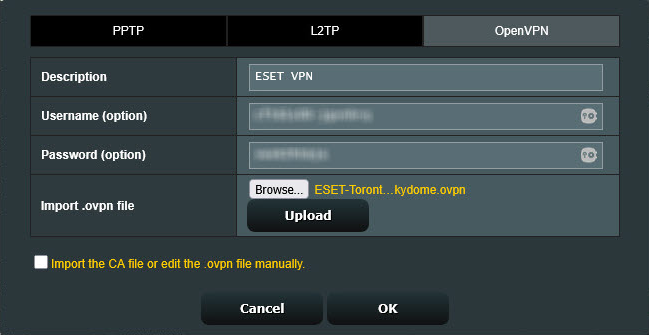
6.Type the following information:
a.Description—Specify a description for the VPN profile.
b.Username and Password—Use the credentials provided in step 6 of the Download configuration.
7.Import the .ovpn file—Select the file you downloaded (usually found in the Downloads folder) and click Upload.
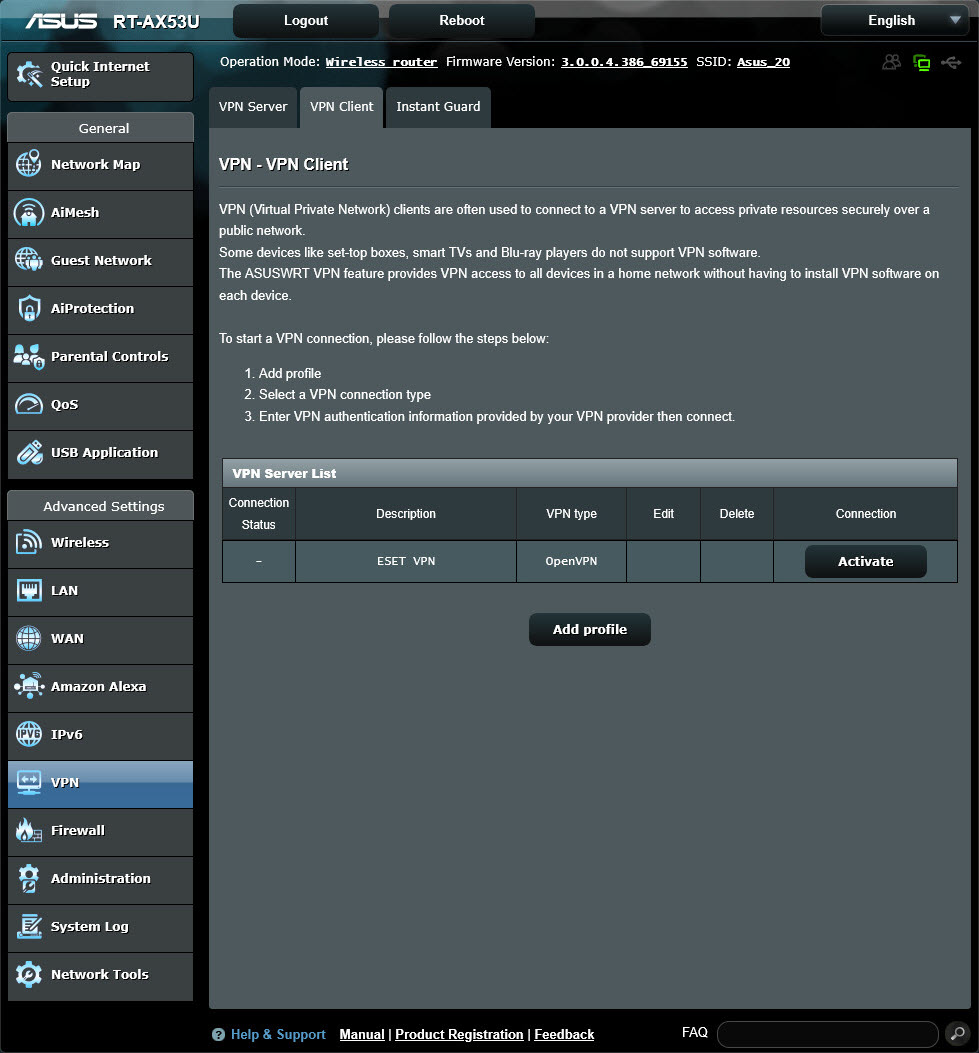
8.To activate the VPN profile, click Activate. You can add devices that will use the VPN connection.
|


