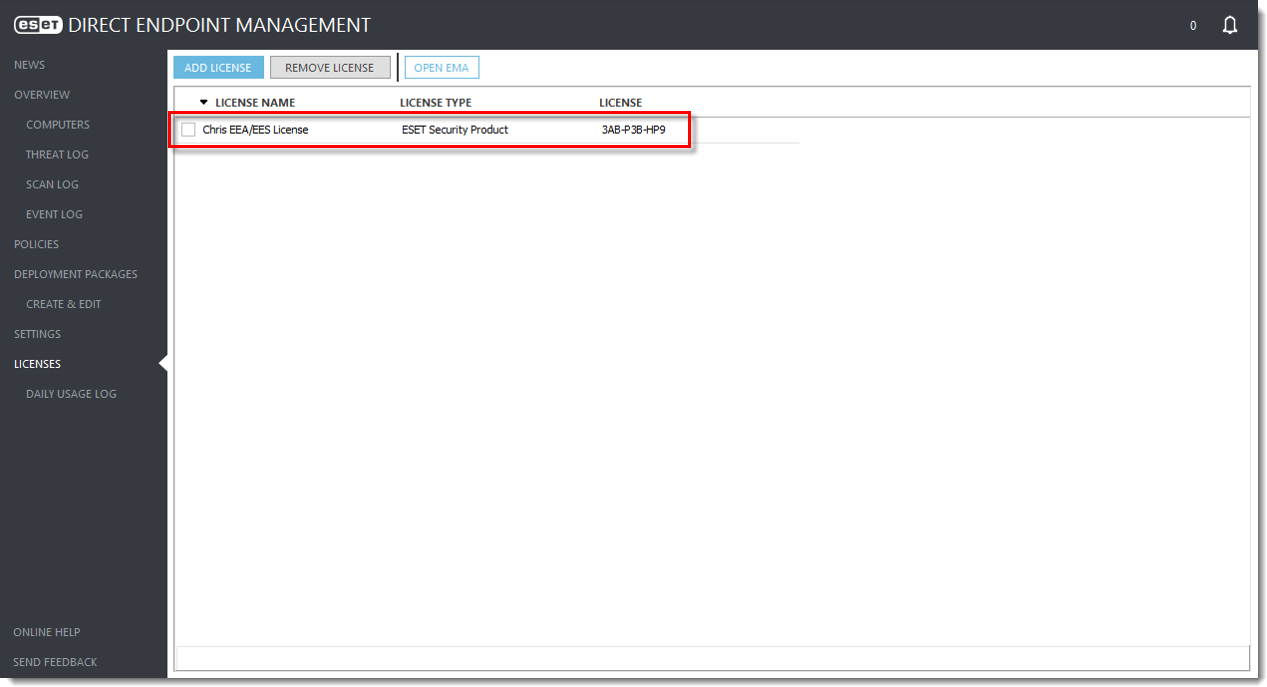
Add an ESET endpoint subscription
Refer to the process below to add a subscription in the ESET DEM plugin for ConnectWise Automate.
1.Log in to the applicable ESET subscription management system and locate the appropriate endpoint Activation Key:
•ESET MSP Administrator 2 (EMA2)
2.Copy the Activation Key.
|
For more information on applications supported by ESET DEM plugin for ConnectWise Automate, review Installation prerequisites. |

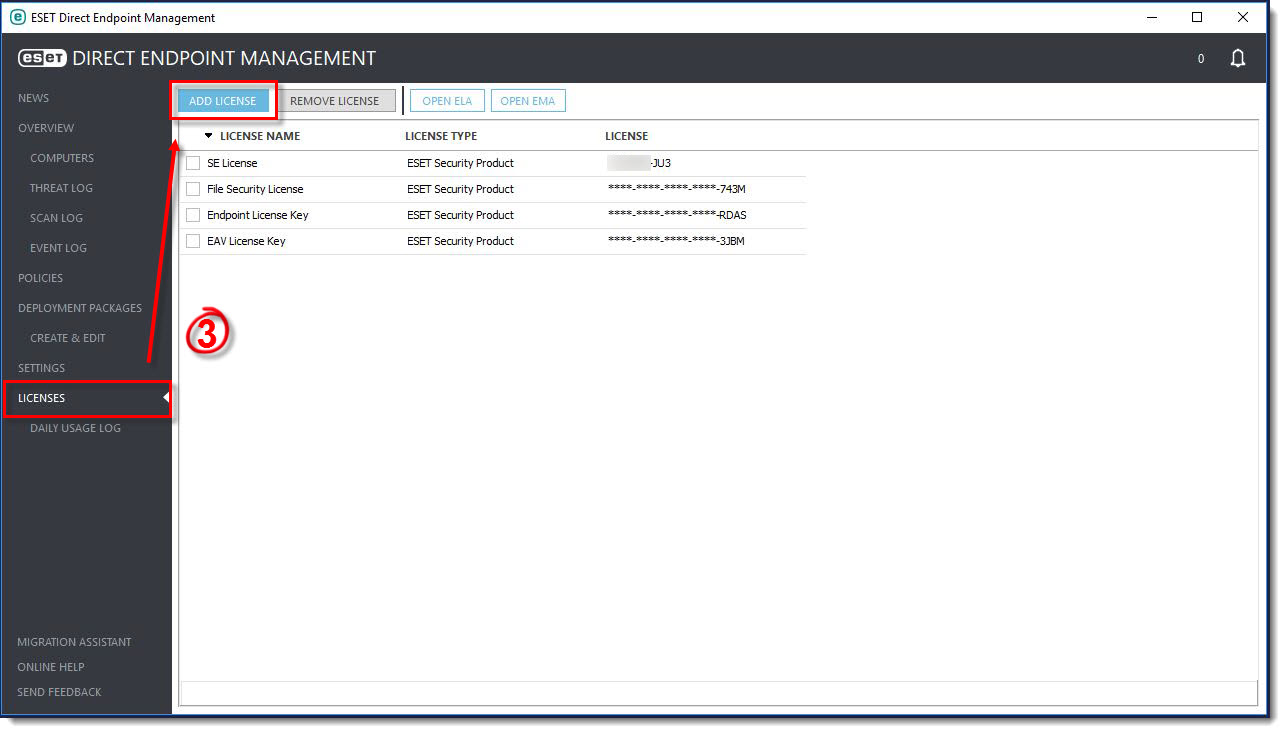
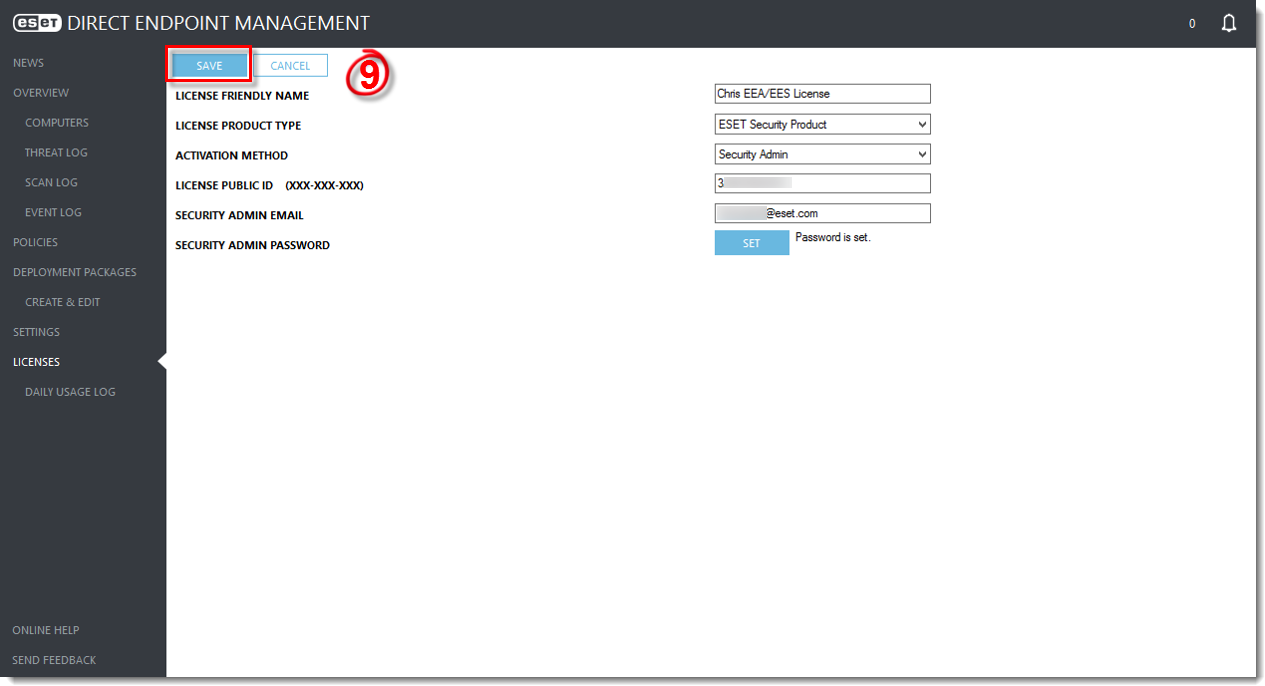
3.In the ESET DEM plugin for ConnectWise Automate, click Licenses > Add License.
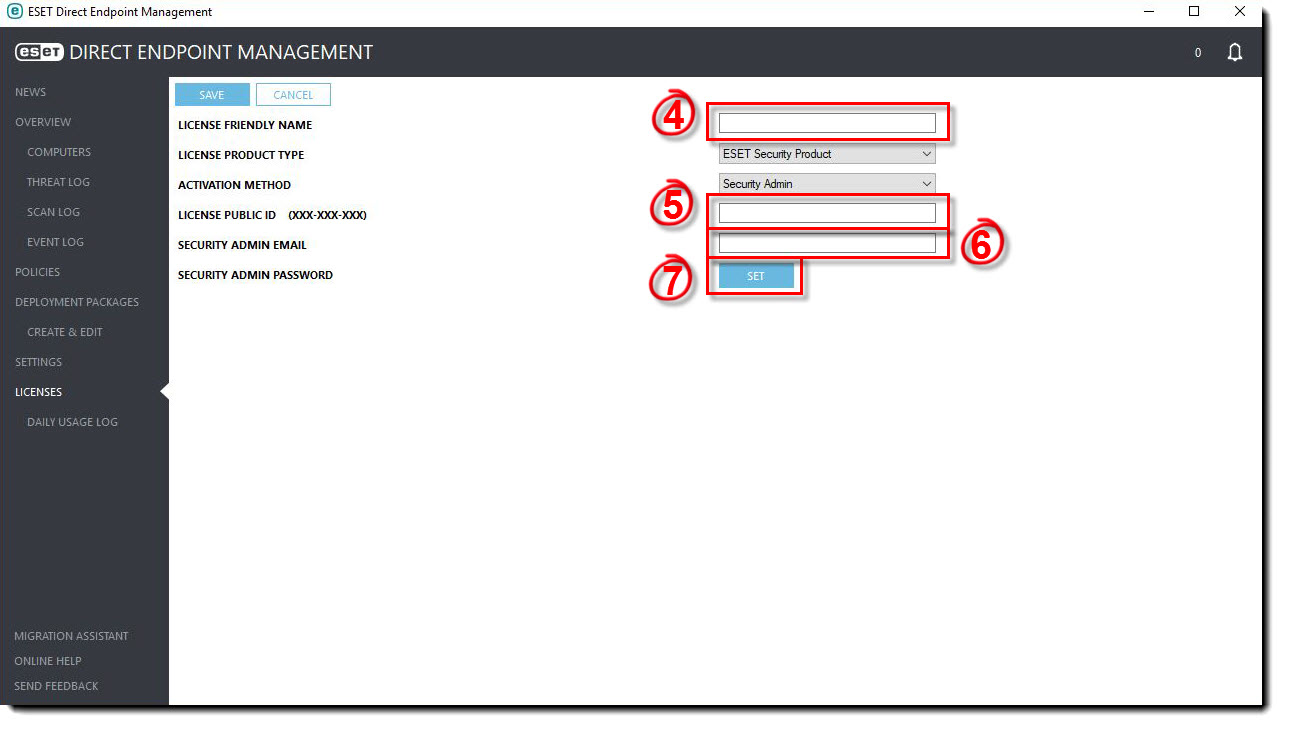
4.In the License Friendly Name field, type a name that is easy to remember. We recommend including the application name (e.g., Endpoint Security subscription for Employee XYZ).
5.In the License Public ID field, type the EBA/EMA2 subscription noted in step 2.
6.In the Security Admin Email field, type the appropriate email address. EMA2 users must use MSP login credentials.
7.Next to Security Admin Password, click Set.
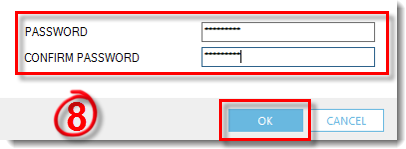
8.In the Password field, type a password and then confirm the password. Click OK.
|
Forbidden characters Do not use the following characters in your password: ( ) { } < > ? $ / * & ! @ # |

9.Click Save.
Complete the same process for all applicable subscriptions. All compatible subscriptions will be added to the Licenses screen.