
Device status
Follow the steps below to view ESET security application deployment and protection status on your managed devices.
1.In the main menu, click Endpoints > Devices.
2.Click the Integrations tab and select ESET from the drop-down menu. The following plugin-related columns will appear in the table: Deployment Status, ESET Applications Installed, Protection Status, View Details and Last Connected.
|
Device status view update limitations There is no refresh button to force an update of the ESET Applications Installed and the Deployment Status in the table. ConnectWise Asio updates this information in periodic intervals. (Optional) Schedule the Refresh endpoint data task on an interval to periodically update the Protection Status in the table view. |

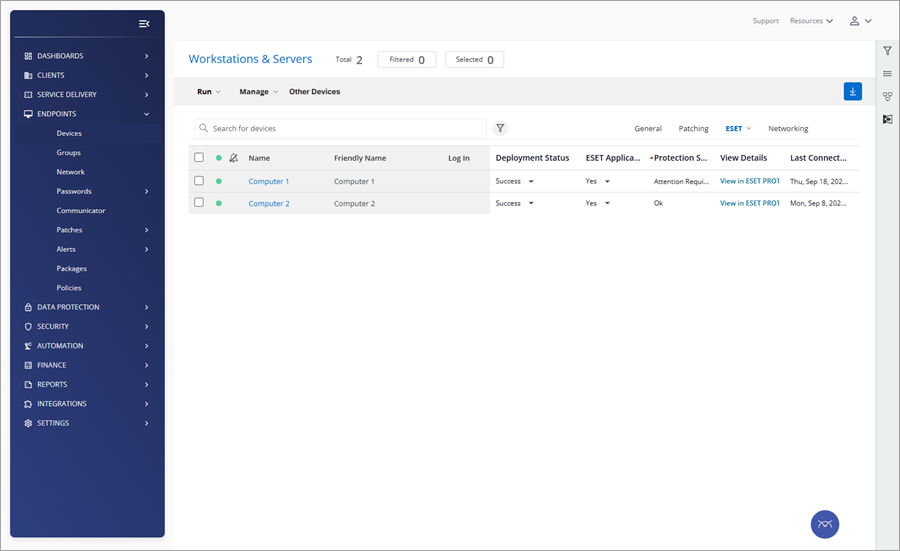
3.(Optional) Click the drop-down menu in the ESET Applications Installed column for the desired managed device to see the installation status of:
•Antivirus (ESET security application, see the Known issues for ESET Connect API limitations prohibiting the display of the specific ESET security application in ConnectWise Asio)
•ESET Management Agent
•ESET Inspect Connector
•ESET Full Disk Encryption
4.(Optional) Click the drop-down menu in the Deployment Status column for the desired managed device to see the deployment status:
•Success
•Failed—Click the Failed status, and in the next window, click Retry to repeat the the deployment attempt.
5.(Optional) Click the desired managed device link to the ESET PROTECT in the View Details column to see the device details in the ESET PROTECT, where you can take additional actions.