ESET PROTECT – Table of Contents

Integrations


Important

To view and enable integrations, ensure you have one of the following tiers:

ESET PROTECT Advanced

ESET PROTECT Complete

ESET PROTECT Elite

ESET PROTECT Enterprise

ESET PROTECT MDR

ESET PROTECT MDR Ultimate

You need Granted Functionality in Permission setsIntegrations & Marketplace.


Important

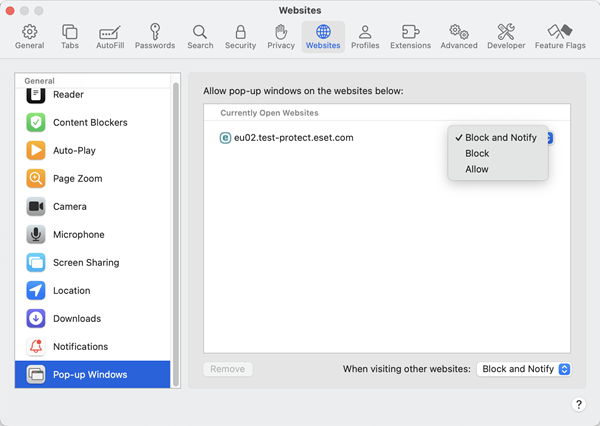
We recommend blocking pop-up ads and windows in the Safari browser.

Block pop-up windows.

In the Integrations section, you can manage integrations within your ecosystem and enable additional protection modules effortlessly from a single location.


Important

Integrations you see depend on your subscription plan.
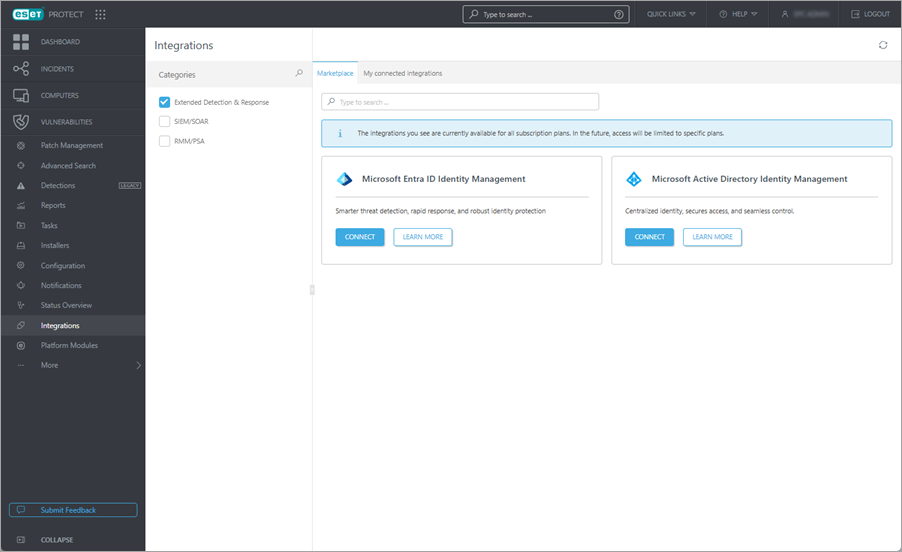
Integrations

Marketplace—tiles with integrations to connect:

Microsoft Azure Protection—click Learn more to view more information about the integration. See required permissions for Azure service. Click Connect to go through the Connect Integration process:

1.General Setup—type Name, Domain name and Description. Click Connect to redirect to your Microsoft account to provide consent.

2.Enable Access—select a method how to grant access to your Azure subscriptions: Temporary impersonation or Follow manual guide. Click Proceed to redirect to Microsoft to provide consent.

3.Connect Subscriptions—select Azure subscriptions you want to provide access to. Click Continue.

4.Deploy Resources—select Azure subscription for which ESET can create a dedicated resource group with the necessary components for management and operation. Click Continue.

5.Summary—review Integration Summary with your settings (Name, Domain name, Selected Subscriptions, ESET Resource Group Subscription) and click Finish.

Amazon Web Services (AWS) Protection—click Learn more to view more information about the integration. Click Connect to go through the Connect Integration process:

1.General Setup—type Name, select a method: AWS Organizations (with Root Organization Unit ID) or AWS single account (with Account ID), type Client description and click Continue.

2.Host Management—select if the Default Host Management Configuration is enabled in your AWS account.

3.CloudFormation—create a stack in AWS (click the Launch in AWS button to check the stack status or complete the setup) and then select Confirm Status.

4.Integration Summary—review Integration Summary with your settings (Name, Method, Account ID, ESET CWP S3 Bucket, Client description) and click Finish.

Google Cloud Platform (GCP) Protection—click Learn more to view more information about the integration. Click Connect to go through the Connect Integration process:

1.General Setup—type Name, Description, and select a check box to allow Consent to ESET to create and manage a new Google Cloud project for this integration. Click Connect to redirect to Google account to provide consent.

2.Define Scope—select the scope of how you want to connect ESET PROTECT to your Google Cloud Platform (GCP):

oWhole Organization—select the organization and select Projects in Organization from the loaded list of projects within the specified organization.

oSpecific Projects—select a GCP organization and then select specific projects within the organization, or select Standalone projects and select only one specific project. Click Continue.

3.Summary—review Summary with your settings (Name, Description, Organization Name, List of Projects, Integration Maintenance Project).

Microsoft Entra ID Identity Management—click Learn more to view more information about the integration. Click Connect to go through the Connect Integration process:

1.General settings—type Name, Domain name and Description. Click Connect to redirect to your Microsoft account to provide consent.

2.Enable Access—select a method how to grant access to your Entra ID subscriptions: Temporary impersonation or Follow manual guide. Click Proceed to redirect to Microsoft to provide consent.

3.Deploy Resources—select a subscription for which ESET can create a dedicated resource group with the necessary components for management and operation. Click Continue.

4.Summary—review Integration Summary with your settings (Name, Domain name, Description, Deployed resource) and click Finish.

Microsoft Active Directory Identity Management—click Learn more to view more information about the integration. Click Connect to go through the Connect Integration process:

1.General settings—type Name and Description. Click Continue.

2.Select Device—select a device that is a domain controller and click Continue.

3.Summary—review Integration Summary with your settings (Name, Description, Selected device) and click Finish.My connected integrations—view your connected integrations.
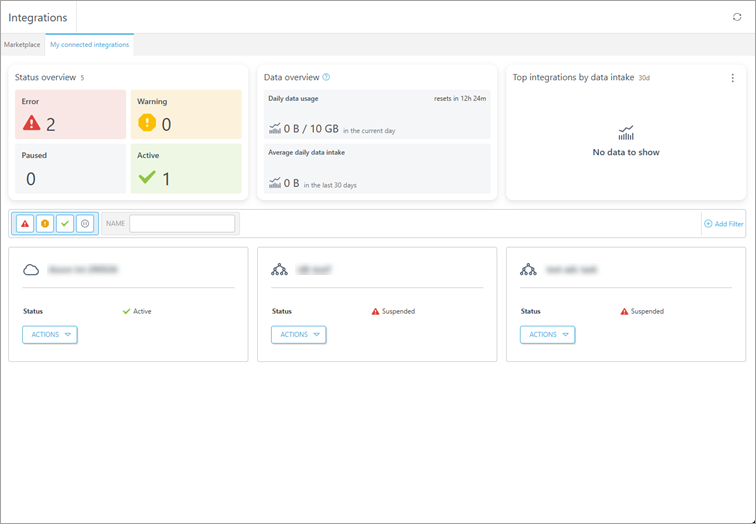
You can search via Categories (Extended Detection & Response, SIEM/SOAR, RMM/PSA) or type the integration name into the search bar. At every integration tile, you can click the Actions button to:

View Details—click to view details about the integration—Name, Integration type, Status and data specified to the selected integration.

Edit—click to edit the integration as in the Connect Integration process.

Delete—click to disconnect the integration and permanently delete the related data.


Important

When an integration is finished (Status: Active), you can the see virtual machines synchronized in the Integration in Computers > Companies tree > selected organization (static group).

Deployment

Supported Windows OS

You can deploy the ESET protection to virtual machines running the supported Windows/Linux operating systems listed below.

All the supported operating systems are also compatible with ESET Inspect (EDR).

Operating system

Version

Azure

AWS

GCP

Windows


Windows Server

2012 R2*, 2016, 2019, 2022, 2025

Linux


Ubuntu Server

20.04, 22.04, 24.04

Debian

11, 12

✔**

Oracle Linux

8, 9

✔**

Red Hat Enterprise Linux

8, 9

✔**

Rocky Linux

8, 9

✔**

SLES

15

Alma Linux

8, 9

X

Amazon Linux

2, 2023

X

X

* Ensure to enable the TLS version 1.2.

** You must manually deploy SSM agent before deploying the ESET protection.

Auto deployment

After 15 minutes, the ESET Management Agent and then a security product will be installed on the virtual machine.

Manual deployment

Select the computers on which you want to enable ESET security product. A subscription will be assigned automatically.

1.Go to Computers > select Company (static group) > list virtual machines.

2.Select the virtual machine > click the three dots icon_more_vertical button > select Platform modules > click Enable ESET security application for cloud.

3.Select Targets.

4.Select to agree to Legal documents and click Enable.


Note

You can define how ESET Cloud Workload Protection behaves on virtual machines integrated from your connected cloud environments in the Configuration section.