
Activate/Deactivate application
Follow these instructions to Activate or Deactivate the application.
Activate application
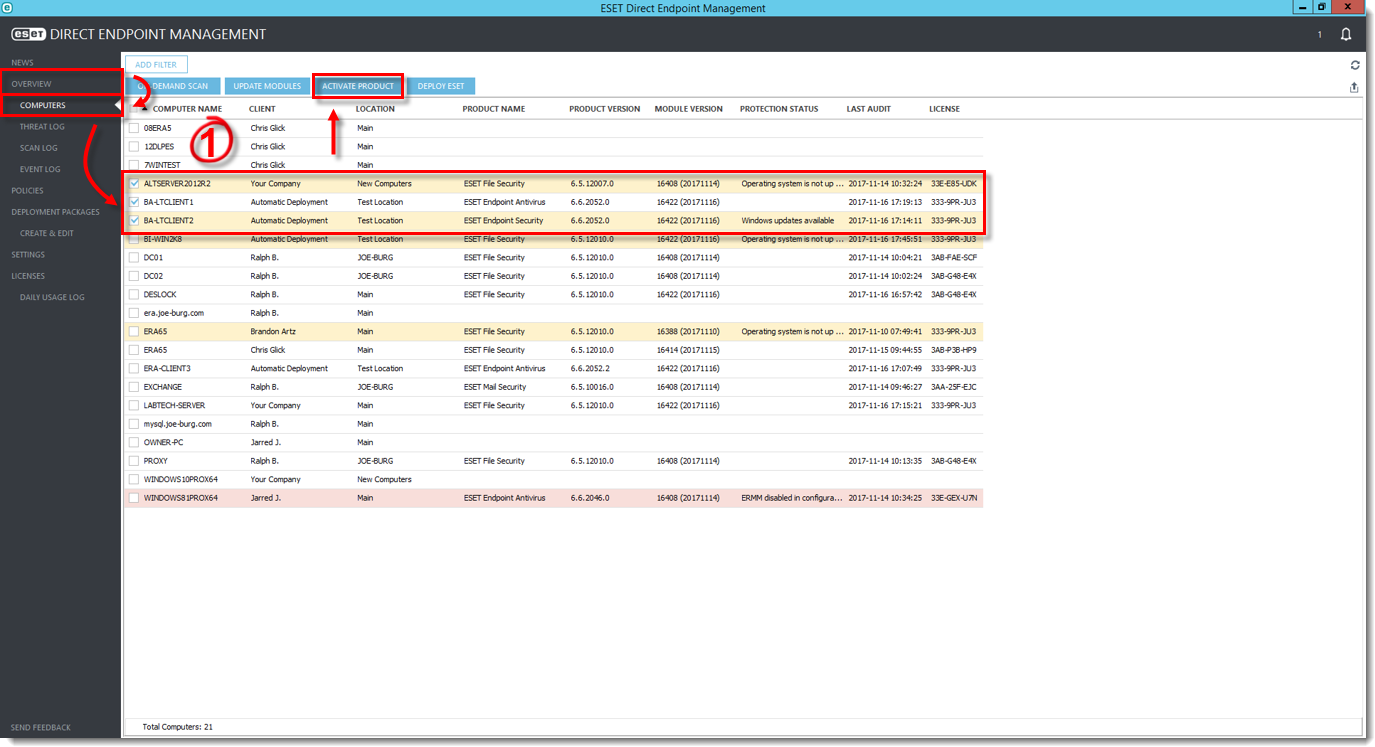
1.Click Overview > Computers, select the appropriate computer(s) and then click Activate Product.
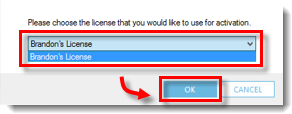
2.Select the appropriate subscription from the drop-down menu and then click OK.
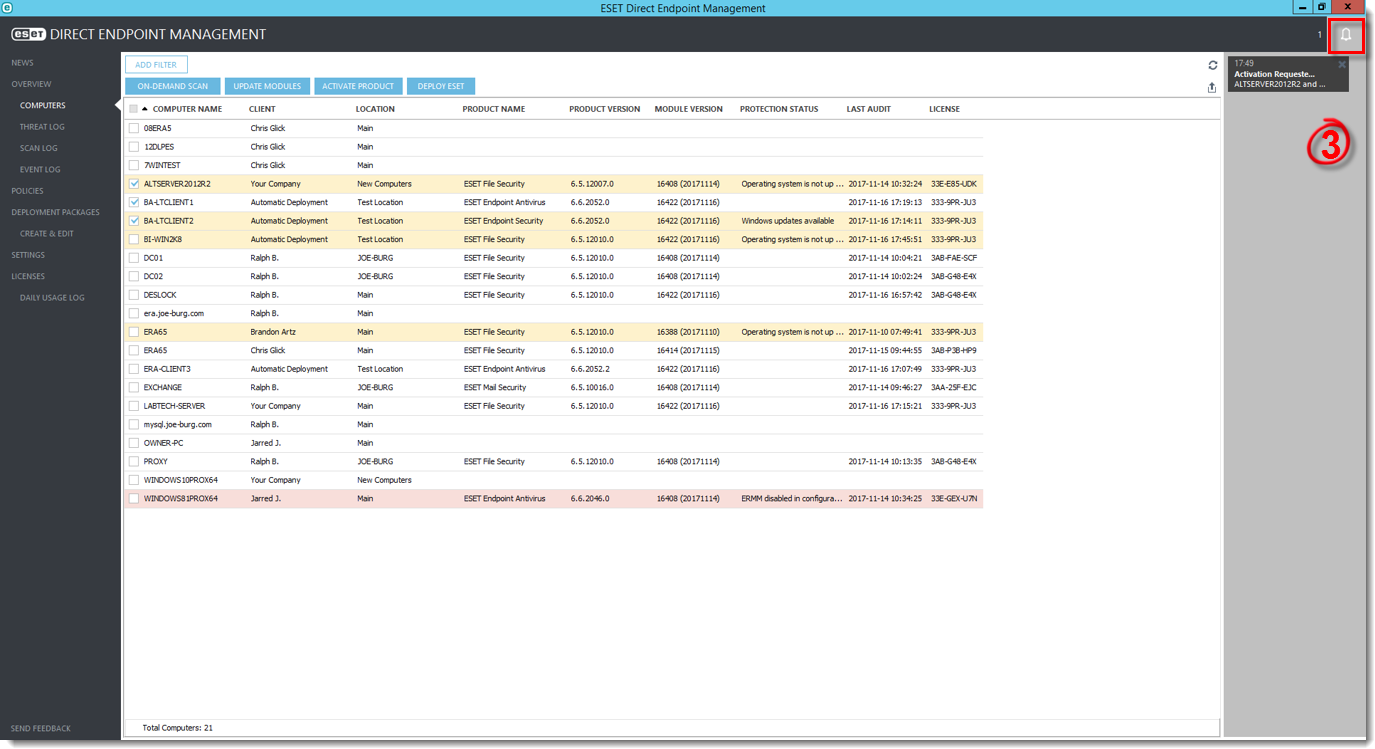
3.Click the bell icon to review tasks sent to client computers and any relevant task updates.
|
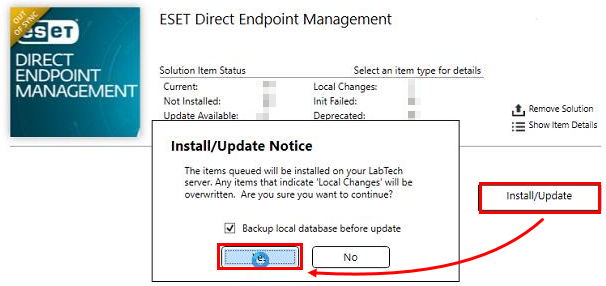
Activation troubleshooting If the plugin sends the activation tasks successfully, but the machine does not activate, you need to update your plugin version, or the plugin is de-synchronized. Use the Plugin Manager to check the DEM version and update it if possible.
|

Deactivate application
1.Click Overview > Computers, select the appropriate computer(s), right-click the appropriate computer, and then select Deactivate Product.
2.The application is now deactivated. Review the application deactivation status of the selected computer(s) in the Overview > Computers.