
Opening the ESET PROTECT Web Console
ESET PROTECT Web Console is the main interface used to communicate with ESET PROTECT Server. You can think of it as a control panel, a central place from which you can manage all ESET security modules. It is a web-based interface that can be accessed using a browser from any place and any device with internet access. You can install the ESET PROTECT Web Console on a different computer than the computer running the ESET PROTECT Server.
There are multiple ways to open the ESET PROTECT Web Console:
Login method |
Login link |
Comment |
|---|---|---|
Local server (the machine hosting your Web Console) |
Alternatively, click Start > All Programs > ESET > ESET PROTECT On-Prem > ESET PROTECT Web Console. A login screen will open in your default web browser. |
|
Any place with internet access to your web server |
Replace "yourservername" with the name or IP address of your web server. |
|
ESET PROTECT On-Prem Virtual Appliance |
https://[IP address]/ |
Replace "[IP address]" with the IP address of your ESET PROTECT On-Prem VM. |
When web server (that runs ESET PROTECT Web Console) is up, the following login screen is displayed.
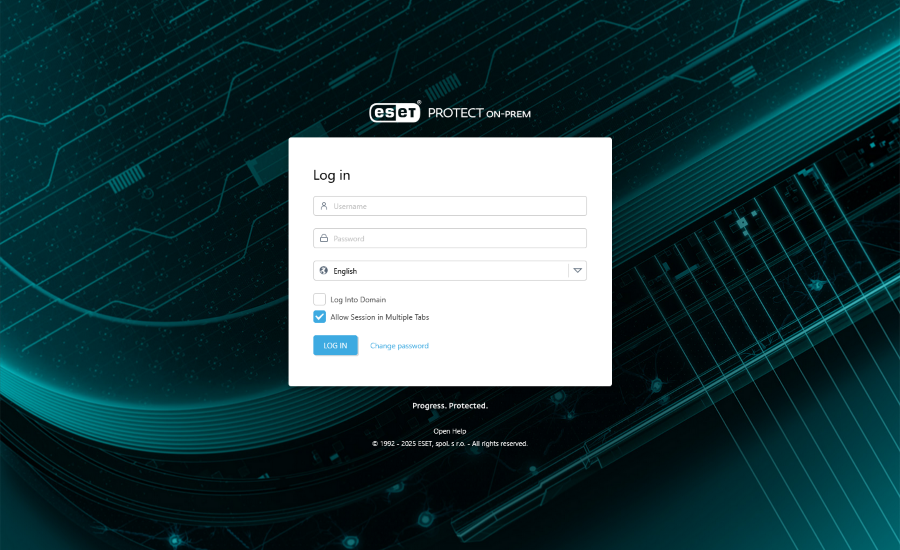
If this is your first login, please provide the credentials you typed during the Installation process (follow your installation scenario: All-in one installer on Windows, Virtual Appliance deployment, other installation scenarios).
The default Web Console user is Administrator. For more details about this screen, see Web Console login screen.
|
If you experience problems logging in or receive error messages while trying to log in, see Web Console Troubleshooting. |
