
Quarantine
The Quarantine section has two tabs:
Hash Quarantine
This section shows all files quarantined on client devices. Files should be quarantined if they cannot be cleaned, if it is not safe or advisable to delete them, or if they are being falsely detected by an ESET application.
|
Not all detections found on client devices are moved to quarantine. For example, detections that cannot be deleted are not quarantined. |

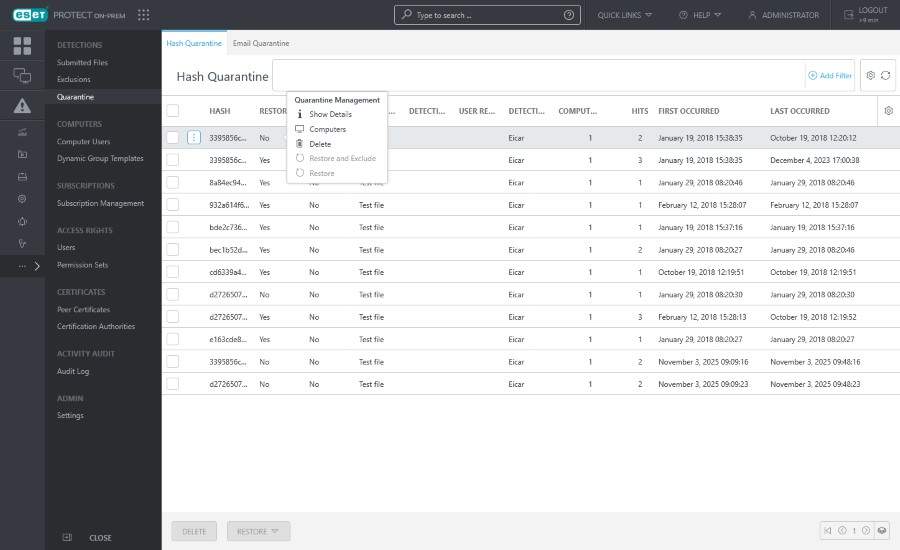
There are two ways to access the Quarantine:
•More > Quarantine.
•Computer details > Detections and quarantine > Quarantine tab.
If you click an item in the Quarantine section you will open the Quarantine Management menu:
• Show Details—Displays the source device, detection name and type, object name with full file path, hash, size, etc. The
  Upload function is available from the details menu and enables you to upload the quarantined file for deeper analysis and advanced investigation:
o Upload—Opens Upload Quarantined File task to upload the quarantined file to a shared directory.
o Upload File to Server—Creates a client task to securely upload the quarantined file to an ESET PROTECT server directory specified in Settings. In Object Password, type a password to encrypt the file for security reasons. When the upload finishes, two files are available on the server: a JSON file containing the detection hash and a password-protected archive with the quarantined file.
|
The Upload/Upload File to Server function is recommended only for experienced users. |

• Computers—Opens the Computers section with filtered devices connected with the quarantined file.
• Delete—Removes the file from quarantine and the affected device.
• Restore—Restores the file to its original location.
• Restore and Exclude—Restores the file to its original location and excludes it from scanning (prevents it from being reported by the ESET application again). Only certain types of quarantined files can be excluded:
oPotentially unwanted applications.
oPotentially unsafe applications.
Email Quarantine
You can manage all the quarantined emails from one place in the ESET PROTECT Web Console. The Email Quarantine tab displays the list of emails quarantined on the managed mail servers.
|
Prerequisites: •ESET Management Agent 12.0 and later •ESET Mail Security for Microsoft Exchange Server 11.1 and later |
Click a quarantined email and select an action from the context menu:
• Release—Create a client task to release the email from quarantine.
• Delete—Create a client task to delete the quarantined email; it may take several minutes for the deleted email to disappear.
Filters and layout customization
You can customize the current Web Console screen view:
•Manage the side panel and main table.
•Add filters and filter presets. You can use tags for filtering the displayed items.