
Set up and run a test campaign
1.Click Tests/Campaigns > Create Campaign.

Figure 1-1
2.In the Getting Started screen, set the following parameters:
a.In the Campaign Name field, enter an applicable name.
b.In the Group(s) drop-down menu, select the applicable test group (including yourself).
c.To only phish certain group members, click the slider bar next to Target Selection.
d.To enroll users that fail a phishing simulation into training, click the slider bar next to Courses.
e.Set the Track Activity duration. We recommend setting the Track Activity duration for a short time (for example, one day).
3.Click Save & Next.

Figure 1-2
4.In the Course Auto-Enroll screen, select the appropriate training courses for users that fail the phishing simulation. Users that fail the phishing simulation automatically receive a follow-up training enrollment email notification. You can enroll users in any phishing test fail course, review the list below for our recommendations:
•In the Email Click Actions drop-down menu, select the appropriate training course :
oTo test if a user clicks phishing email links, select Test Fail – Phishing.
oTo test if a user opens attachments from an unknown sender, select Test Fail – Email Attachments.
•To test if a user enters data or clicks a fake landing page link, in the Landing Page Actions drop-down menu, select Test Fail – Social Engineering.
•To test if a user replies to a phishing email, in the Reply Action drop-down menu, select Test Fail – Social Engineering.
5.Select the applicable Due Date.
6.To copy a manager on all enrollment emails, enter an Enrollment Manager Name and Enrollment Manager Email
7.Click Save & Next.
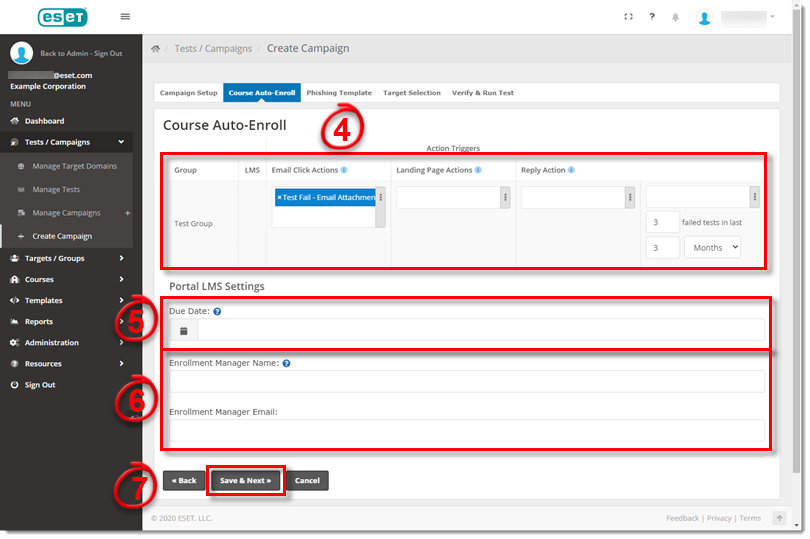
Figure 1-3
8. In the Phishing Template(s) screen, choose how the phishing emails look. You can choose one or more phishing templates to use in your campaigns:
a.All previously selected templates are listed on the My Phishing Templates screen. To preview or edit a template, click the triangle next to Add. To use a template, click Add, click Save & Next and skip to step 9.
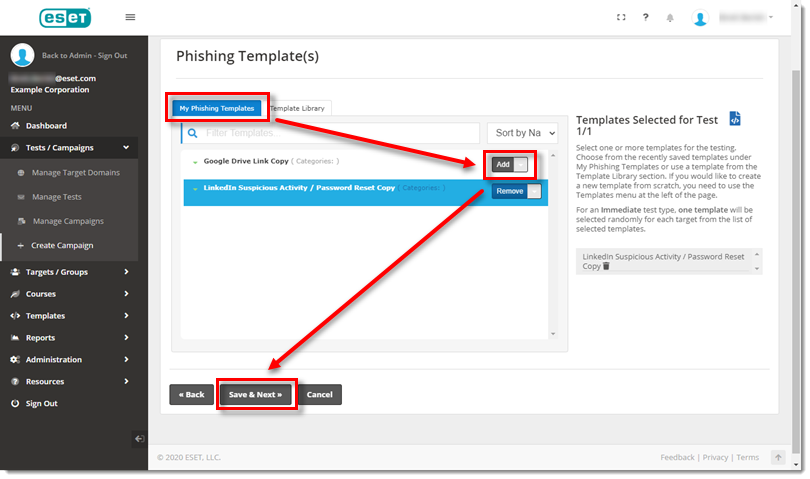
Figure 1-4
b.If you do not have any templates yet or want to see more options, click Template Library. We have 10 recommended templates. To filter for them, in the All Templates drop-down list, select Baseline. To preview an email, click the triangle next to Get. To use a template for your campaign, next to the applicable template, click Get.
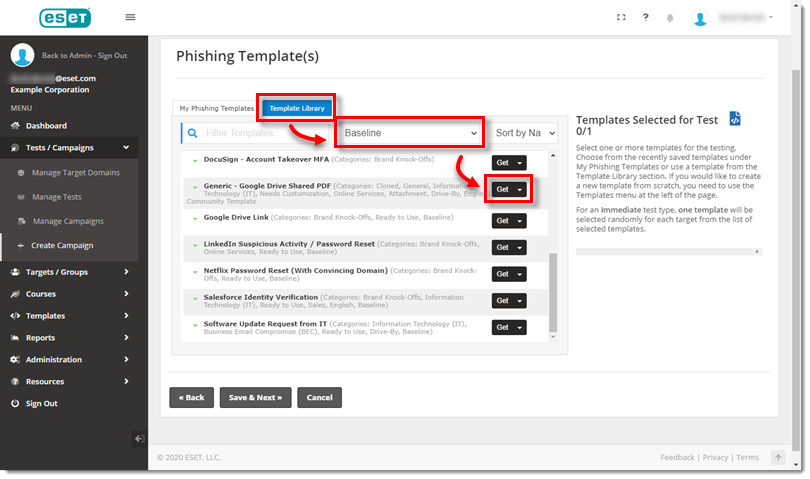
Figure 1-5
i.Customize the text and click Save.

Figure 1-6
ii.To preview the final email, click Preview & Test. Enter the applicable email and choose the appropriate group or target. Click Ok. You receive a notification that the email is accepted, and then the email is sent. If all looks good, in the admin portal, click Close.
IMPORTANT: The domain of the phishing email must be whitelisted on your mail server. Make note of it on the Preview & Test screen.
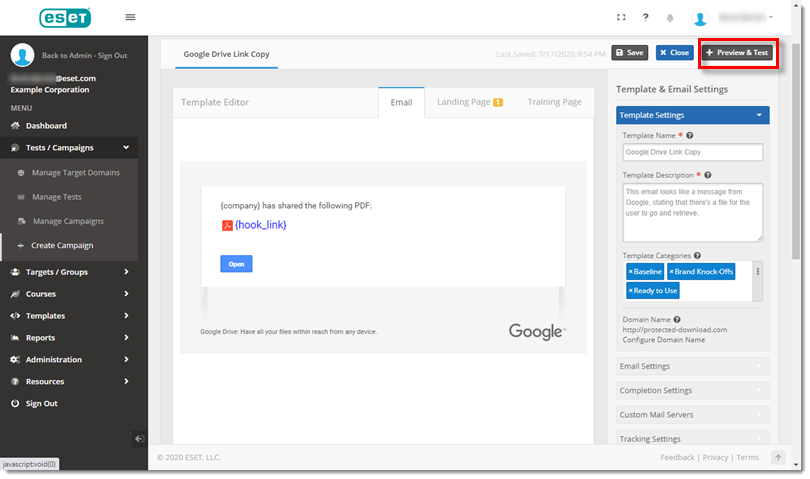
Figure 1-7
iii.To include more than one phishing test in your campaign, repeat step 8b.
9. Click Target Selection and select all applicable users (include yourself). If the group is large, click Filter Targets to search for specific people.
Note: If the Target Selection slider bar was not enabled in step 4c, you will not be able to select users in the Target Selection screen. All group users will be sent the phishing test email. To proceed, click Save & Next and continue to step 11. To enable Target Selection, click Campaign Setup.
10. Click Save & Next.

Figure 1-8
11. An Authorization email is sent to your organization's IT administrator to ensure they are aware and approve of the phishing campaign. All domains and public email services (for example, Gmail) require an authorization email and approval. If your domain has not already been pre-authorized, in the Verify & Run Test screen, enter the name and email address of your IT administrator and then click Finish.
Important: If required, authorization emails must be sent and approved before the campaign begins. To verify this information, click Group Targets and then click Finish.
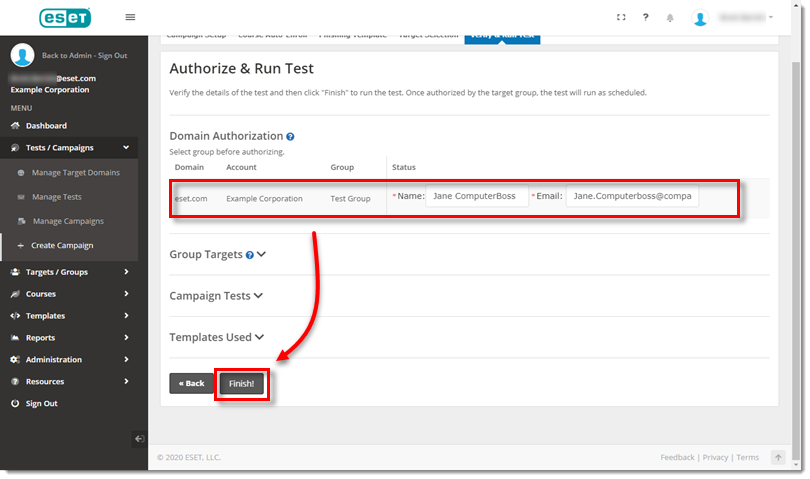
Figure 1-9
12. Click Tests/Campaigns > Manage Tests. New campaigns are listed here in Awaiting Auth or Testing In Progress status. Awaiting Auth status indicates that an authorization email(s) has been delivered.
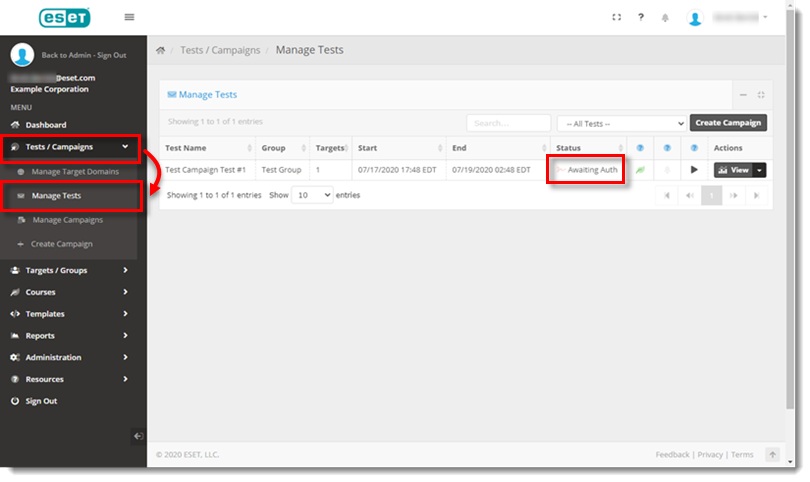
Figure 1-10
13. In the ESET Phishing Campaign Authorization email, click the link.
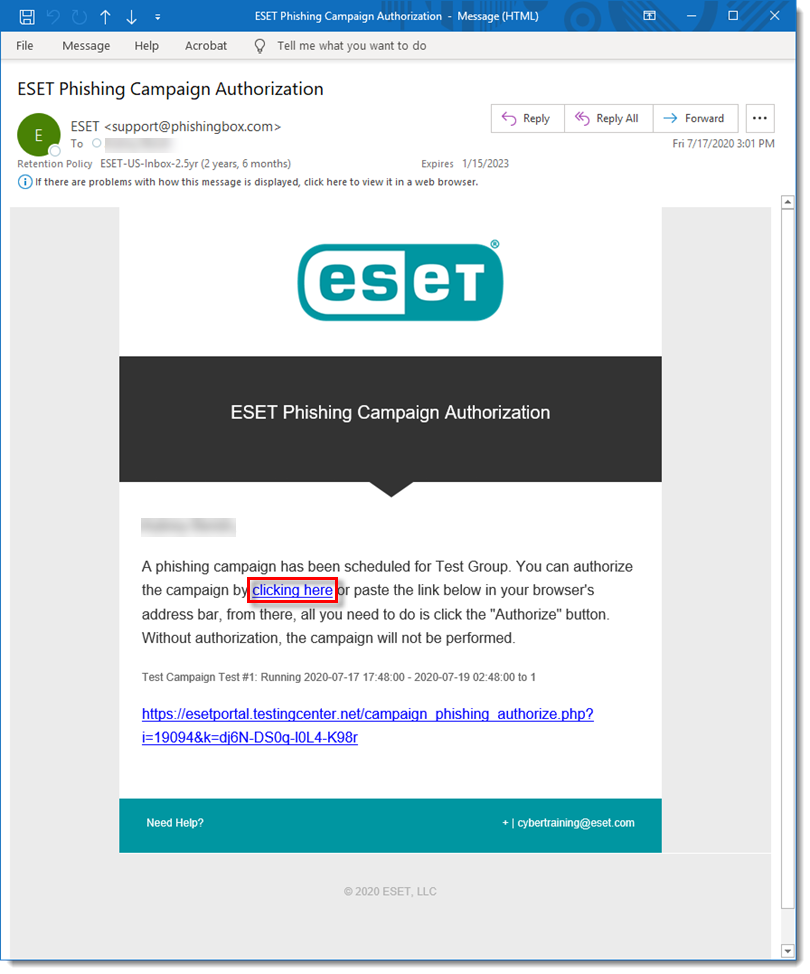
Figure 1-11
14. Click Authorize.

Figure 1-12