
Create enrollment
1.Log in to ESET Cybertraining Admin portal.
2.In the menu, click School > + Create Enrollment.
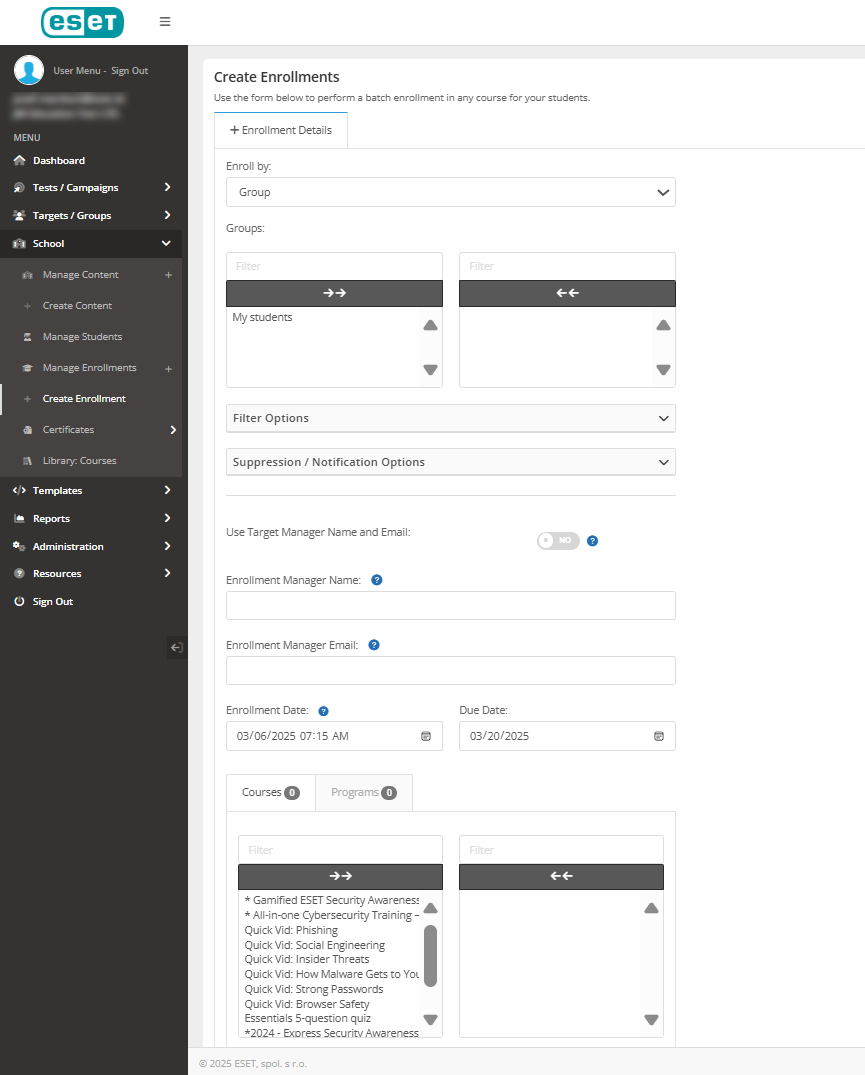
3.In the Enroll by drop-down menu, select Group.
4.In the Groups, select the applicable group name.
5.In the Suppression/Notification Options section, click the applicable toggle to communicate account creation (for first-time users) or send an enrollment notification.
6.In the Skip Duplicate Enrollments, select one of the three options:
•None—Students who have already been enrolled in a course will be enrolled again.
•All—This option will prevent enrollments for students from being duplicated.
•Date Range—If the student was enrolled in the course within the date range, they won't be enrolled again in that course.
7.Click the Use Target Manager Name/Email toggle and the target's manager will be used as the enrollment manager. If disabled, you can set a custom manager name/email for the enrollment(s) that will be created.
8.Select an Enrollment Date.
9.Select a training Due Date.
10.In the Courses/ Programs section, choose the applicable item to enroll.
11.To copy a manager on enrollment emails, enter an Enrollment Manager Name and Enrollment Manager Email, and then click Enroll.
|
You can also set up automatic course enrollments through Account Events. For example, you can set a trigger to enroll a target into a course automatically when added to a group. |
