
Open the ESET PROTECT Web Console and log in
Open the ESET PROTECT Web Console
There are multiple ways to open the ESET PROTECT Web Console:
Login method |
Login link |
Comment |
|---|---|---|
Local server (the machine hosting your Web Console) |
Alternatively, click Start > All Programs > ESET > ESET PROTECT On-Prem > ESET PROTECT Web Console. A login screen will open in your default web browser. |
|
Any place with internet access to your web server |
Replace "yourservername" with the name or IP address of your web server. |
|
ESET PROTECT On-Prem Virtual Appliance |
https://[IP address]/ |
Replace "[IP address]" with the IP address of your ESET PROTECT On-Prem VM. |
When web server (that runs ESET PROTECT Web Console) is up, the following login screen is displayed.
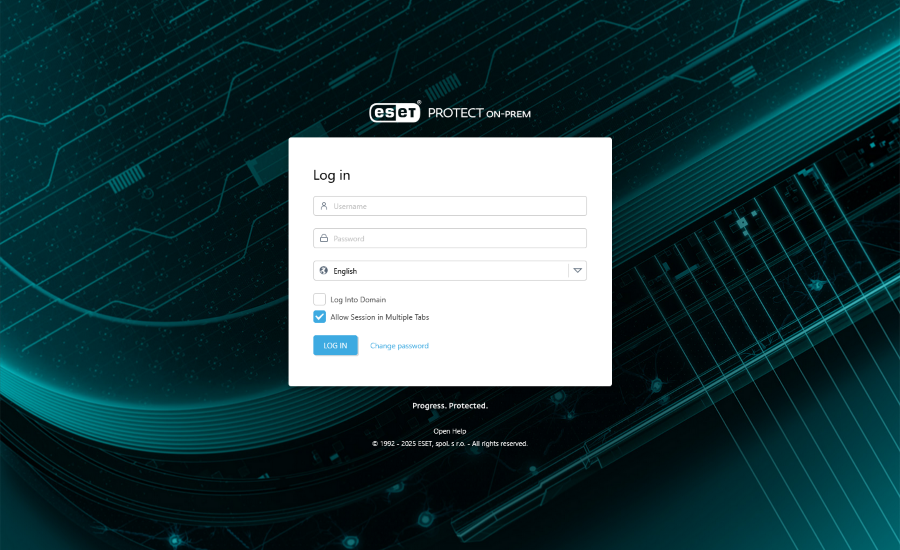
Log in to the ESET PROTECT Web Console
A user needs login credentials (username and password) to log into the Web Console. The default username is Administrator.
If this is your first login, please provide the credentials you typed during the Installation process (follow your installation scenario: All-in one installer on Windows, Virtual Appliance deployment, other installation scenarios).
To log in as a domain user (a member of the mapped domain security group), select the check box next to Log Into Domain. The login format depends on your domain type:
•Windows Active Directory: DOMAIN\username
•Linux and ESET PROTECT Virtual Appliance LDAP: username@FULL.DOMAIN.NAME
|
If you experience problems logging in or receive error messages while trying to log in, see Web Console Troubleshooting for suggestions to resolve your issue. |

You can select your language by clicking the drop-down arrow next to currently selected language, for details see our Knowledgebase article.
|
Not all elements of the Web Console will change after the language change. Some of the elements (default dashboards, policies, tasks, etc.) are created during the ESET PROTECT On-Prem installation and their language cannot be changed. |
Allow Session in Multiple Tabs—Web Console can be open in multiple tabs of a single browser.
•If the check box is selected, each tab with an open Web Console session in one browser will be connected to the same session. If a new tab is opened, all other tabs connected with the same setting will connect to this new session. If the session is logged out in one of tabs, all other tabs will be logged out too.
•If the check box is not selected, each new tab opens a new independent ESET PROTECT Web Console session.
Change password / Use different account—allows you to change password or switch back to the login screen.
|
The password must contain at least 14 characters in three categories: lowercase letters, uppercase letters, digits or special characters. We recommend using a password with no less than 17 characters. |

Session management and security measures
Login IP address lockout
After 10 unsuccessful login attempts from the same IP address (for example, using incorrect login credentials), further login attempts from this IP address are temporarily blocked. This is indicated by the error message: Login failed: User was blocked. Please try again later. After 10 minutes, log in using the correct credentials. The IP address ban on login attempts does not affect existing sessions.
Wrong session ID address lockout
After using an invalid session ID 15 times from the same IP address, all further connections from this IP address are blocked for approximately 15 minutes. Expired session IDs are not counted. If there is an expired session ID in the browser, it is not considered an attack. The 15-minute IP address ban is for all actions (including valid requests) and it can be released by restarting the Web Console (tomcat service).