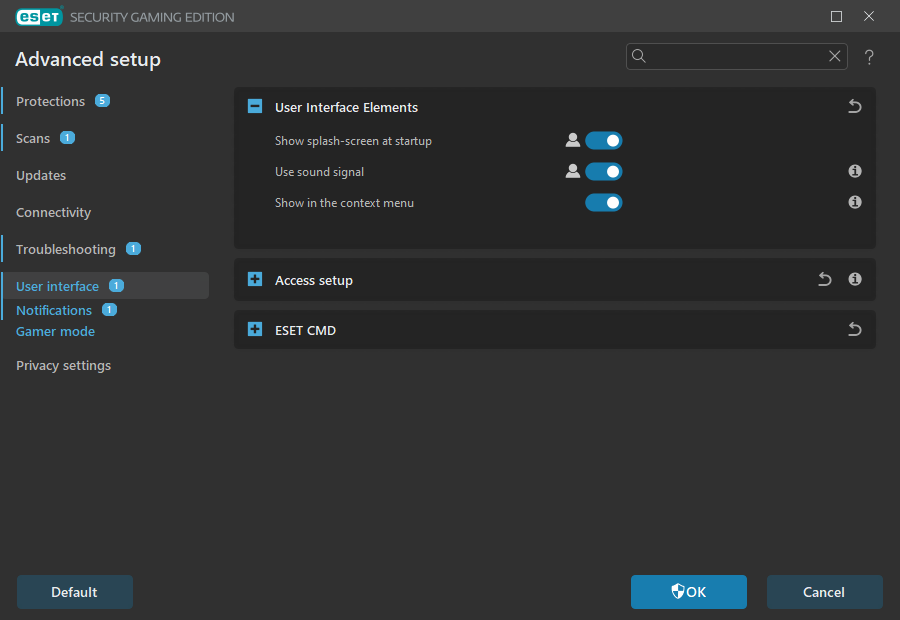
User interface elements
You can adjust the ESET Security Gaming Edition working environment (GUI) to fit your needs in Advanced setup > User interface > User interface elements.
Color mode—Select the color scheme of the ESET Security Gaming Edition GUI from the drop-down menu:
•Same as the system color—Sets the color scheme of ESET Security Gaming Edition based on your operating system settings.
•Dark—ESET Security Gaming Edition will have a dark color scheme (dark mode).
•Light—ESET Security Gaming Edition will have a standard, light color scheme.
|
You can also select the color scheme of ESET Security Gaming Edition GUI in the top right corner of the main program window. |

Show splash-screen at startup—Displays the ESET Security Gaming Edition splash-screen during startup.
Use sound signal—Plays a sound when important events occur during a scan, for example, when a threat is discovered or when the scan has finished.
Transparent background—Enables a transparent background effect for the main program window. Transparent background is available only for the latest Windows versions (RS4 and later).
Show in the context menu—Integrates the ESET Security Gaming Edition control elements into the context menu.