
Installation
There are three ways to install ESET Mobile Security:
1.Google Play Store—Open the Google Play Store application on your Android device and search for ESET Mobile Security (or just ESET):

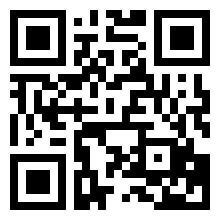
2.QR code—Scan the QR code below using your mobile device and a QR scanning application:
3.From the ESET HOME account—In your ESET HOME, download the ESET Mobile Security installer to your device or send the installer to another device.
|
Note For the visual instructions, visit our step-by-step installation guide (this article is available in English and several other languages). |

When ESET Mobile Security is installed, tap Open to launch the start-up wizard.
To protect your personal information and your Android device’s resources, ESET Mobile Security will need to have access to your device's functions and in some cases have control over them. For detailed explanations of each permission type and how it is used, see the table in our Knowledgebase article (this article is available in English and several other languages).
|
Installing ESET Mobile Security in Samsung secure folder It is not recommended to install the ESET Mobile Security app in Samsung Secure Folder. This folder is completely isolated from the rest of the device, and therefore only the contents of the secure folder will be protected, resulting in very limited functionality of ESET Mobile Security. If you do add ESET Mobile Security to the Samsung Secure Folder, it will require a separate activation, consuming one seat from the subscription. |
