
Enroll Users in ESET Cybersecurity Awareness Training
1.Click Administration > Settings > School Settings.
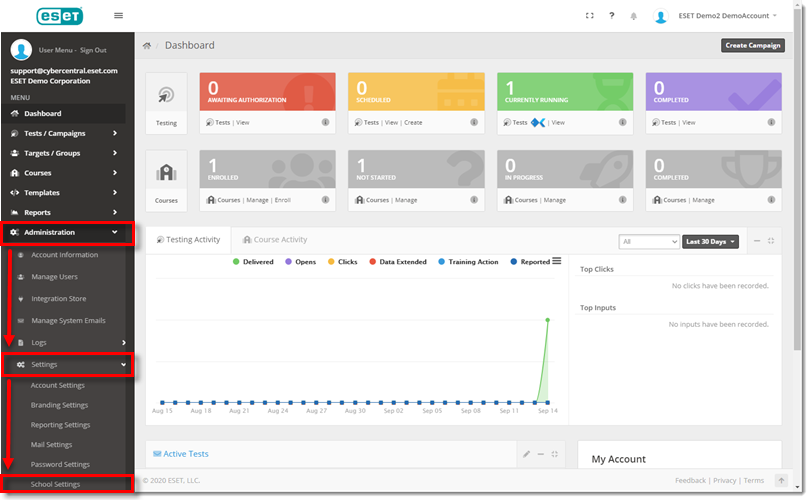
Figure 1-1
2.Select the applicable School Portal Login Type and then click Save.
•Username/Password: Users receive an email to create a username and password for the training course.
•Token: Users receive an email that includes a direct link to the training course and a unique access token.
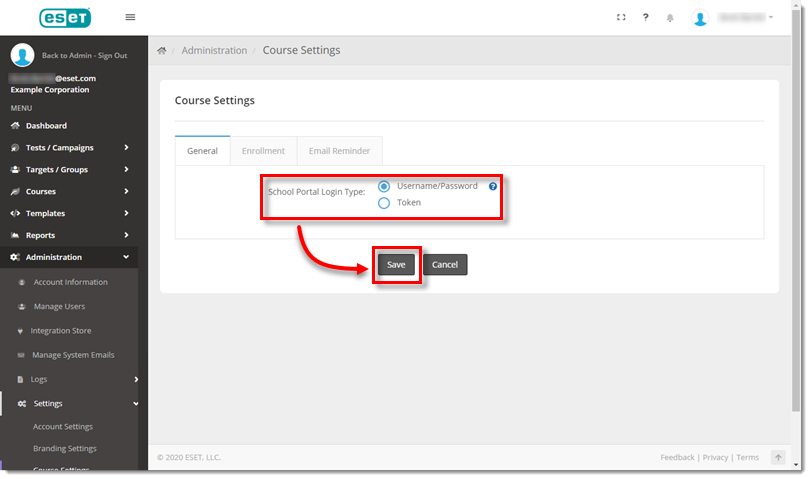
Figure 1-2
3.Click Enrollment.
4.If applicable, enter a Default Due Date.
5.To copy a manager on all enrollment emails, enter a Default Enrollment Manager Name and Default Enrollment Manager Email.
6.For now, ignore the Duplicate Enroll Suppression fields and click Save.
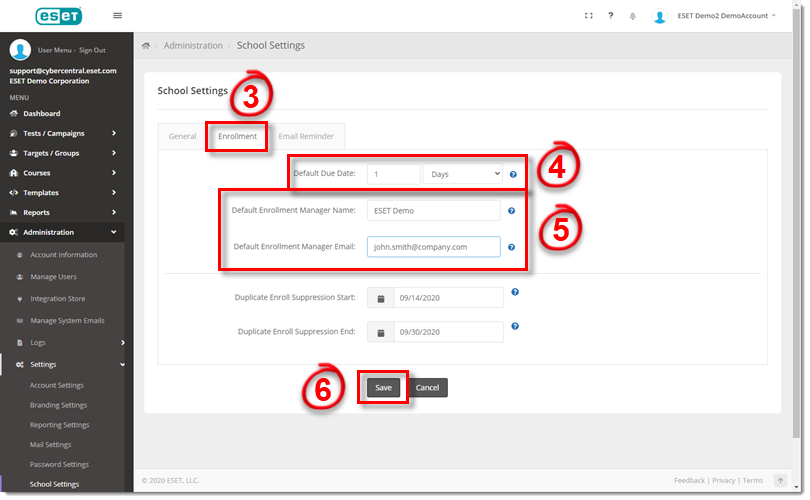
Figure 1-3
7.To send course reminder emails, click Email Reminder.
8. Click the Send Course Reminder Emails slider bar and click Save.
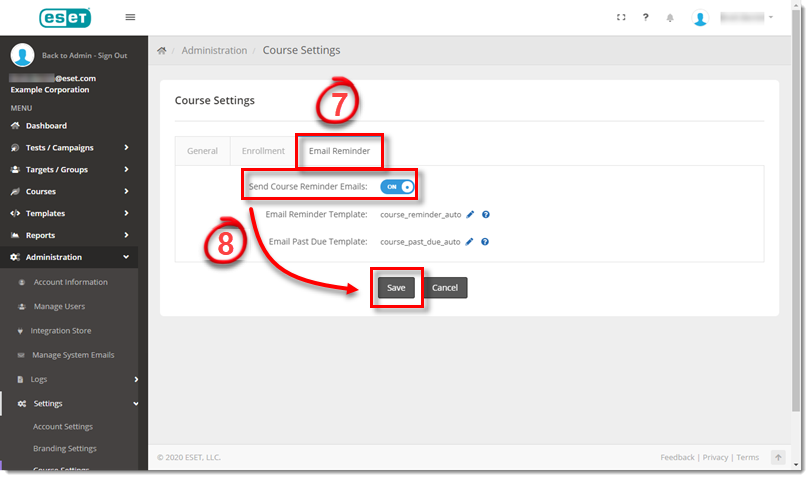
Figure 1-4
9. Click Courses. Next to Manage Enrollments, click Create Enrollment (+).
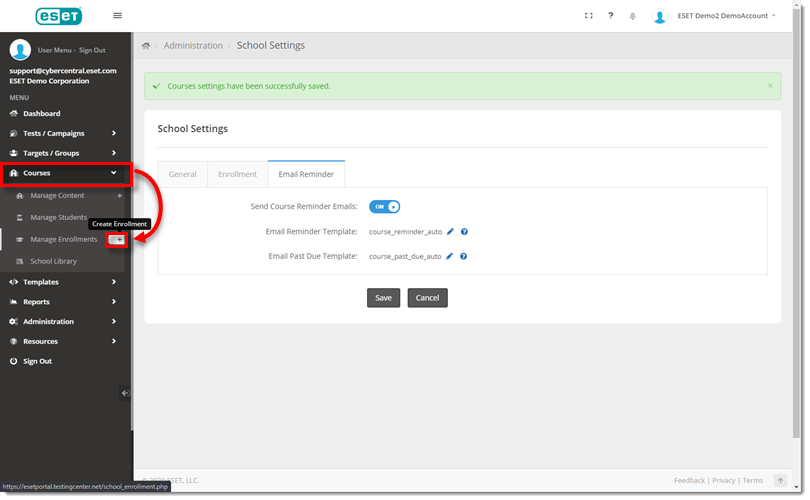
Figure 1-5
10. In the Enroll by drop-down menu, select Group.
11. In the Groups drop-down menu, select the applicable group name.
12. To communicate account creation (for first-time users) or send an enrollment notification, turn the applicable slider bar On.
13. In the Skip Duplicate Enrollments section, select None.
14. Move ESET Cybersecurity Awareness Training from the Available Courses section to the To Enroll section.
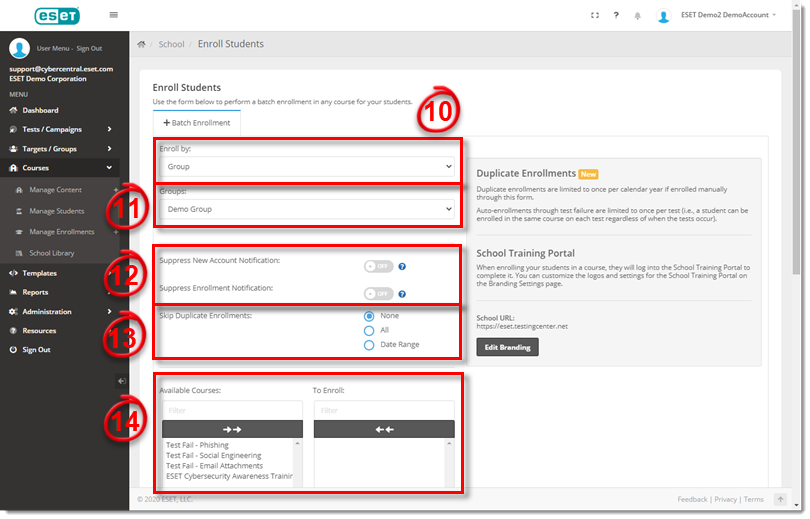
Figure 1-6
15. Select a training Due Date.
16.To copy a manager on enrollment emails, enter an Enrollment Manager Name and Enrollment Manager Email, and then click Enroll.

Figure 1-7